
Overviews of Campaigns
After you’ve created a campaign in ThruText, it’s helpful to know where to locate it and understand its current status. Whether your campaign is active, in draft, paused, or archived, the campaign index pages let you monitor progress, manage settings, and keep your texting workspace organized. This guide explains how to access each ThruText campaign index and what you can expect to find on each page.
TABLE OF CONTENTS
- Accessing Indexes
- Active Campaign Index Page
- Draft Campaign Index Page
- Paused Campaign Index Page
- Archive Campaign Index Page
- Auto Archive Flags
Accessing Indexes
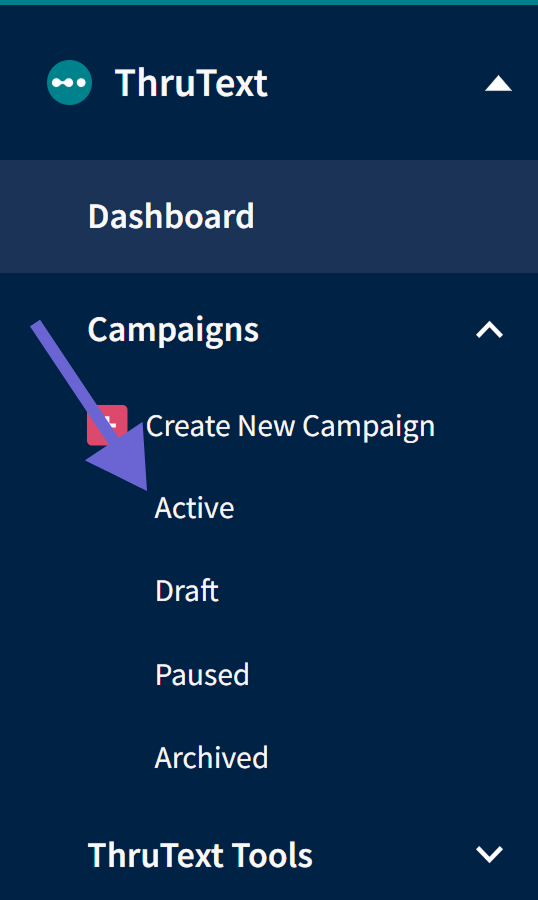
After launching a campaign, you can access your campaigns using the ThruText drop-down on the page's left sidebar. You can navigate to the Active, Draft, Paused or Archived campaign overviews within the Campaigns drop-down. Review our guide, GetThru Admin Navigation, for more information on the sidebar.
Active Campaign Index Page
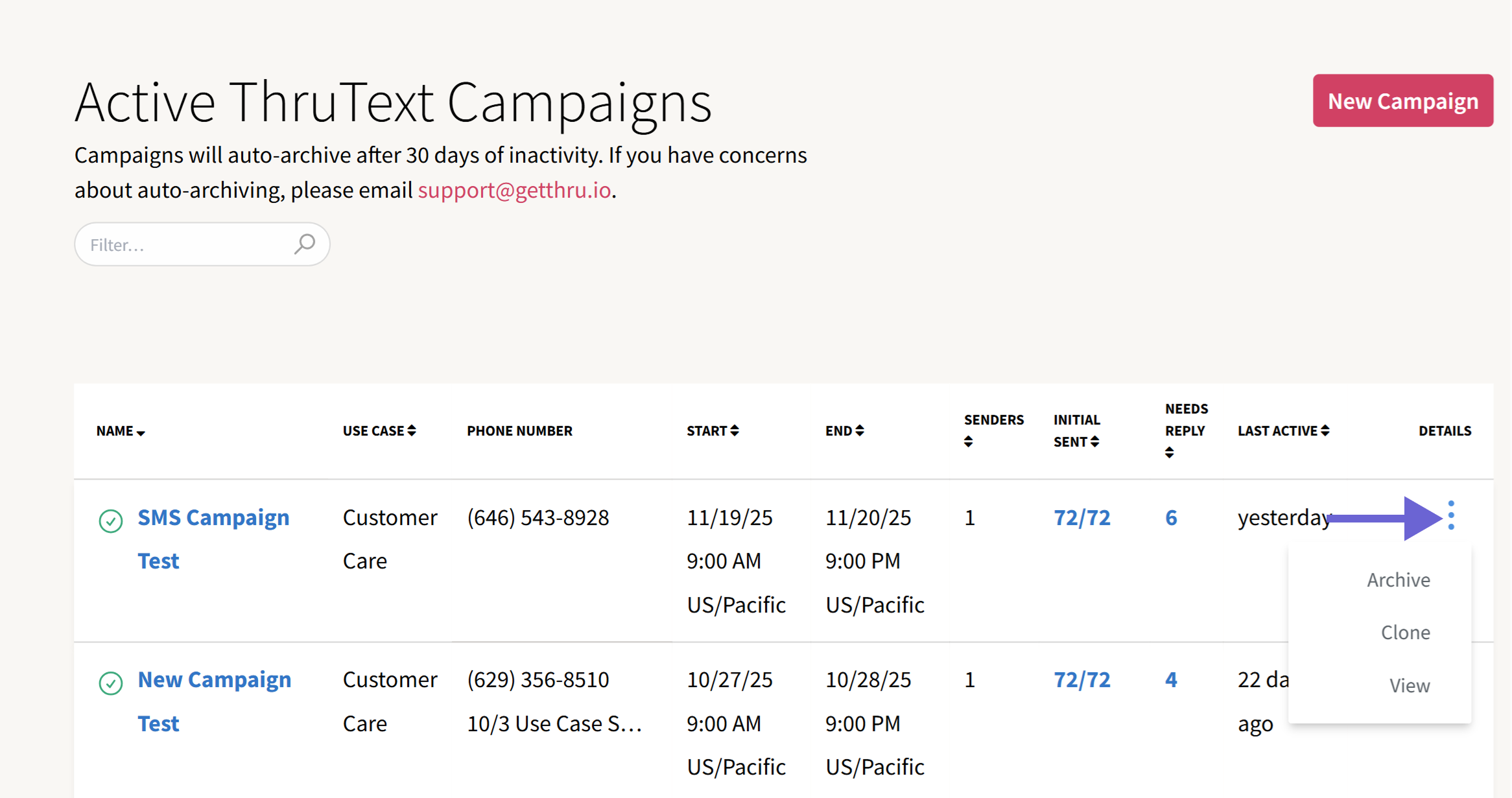
On the Active Campaign Index page, you can view a list of all the active ThruTalk campaigns in the account.
- The Name column includes the campaign name and a link to the Campaign Summary.
- The Use Case column includes the use case attached to the campaign.
- The Phone Number column indicates the phone number assigned to the campaign at launch.
- A dedicated phone number campaign will display the selected account connected phone number at launch. For more details, check out our US Dedicated Phone Number guide and UK Dedicated Phone Number guide.
- A single use phone number campaign will display a phone number assigned to the campaign based on a selected area code at launch.
- The Start column shows when the campaign is open for messaging. The End dates represent the campaign's completion date and time. You can update an active campaign’s start and end dates, but after launch the start date cannot be edited to a time prior to the current date and time.
- The Senders column is the total number of senders assigned in the campaign.
- The Initial Sent column is the initial progress made compared against the total initial messages in the campaign.
- Needs Reply is the number of conversations in the campaign that have conversations where the contact sent the last reply.
- Last Active is the last time there was activity within the campaign. This can include outgoing and incoming messages or using the Hide conversation option.
- Click the three vertical dots under Details to Archive, Clone, or View a campaign.
Active Campaign Icons
To the left of campaign names, there are icons that indicate the status of your active campaigns.
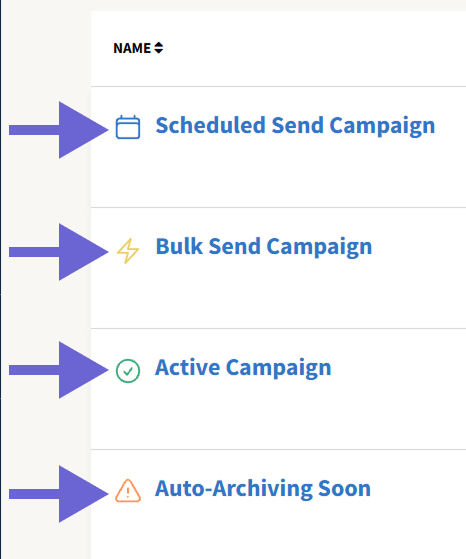
Clicking an icon will reveal a message with the following descriptions:
- Calendar: Campaign is currently scheduled.
- Lightning Bolt: Campaign is currently bulk sending.
- Checkmark Circle: Campaign is currently active.
- Exclamation Triangle: Campaign will be auto-archived in X days.
Draft Campaign Index Page
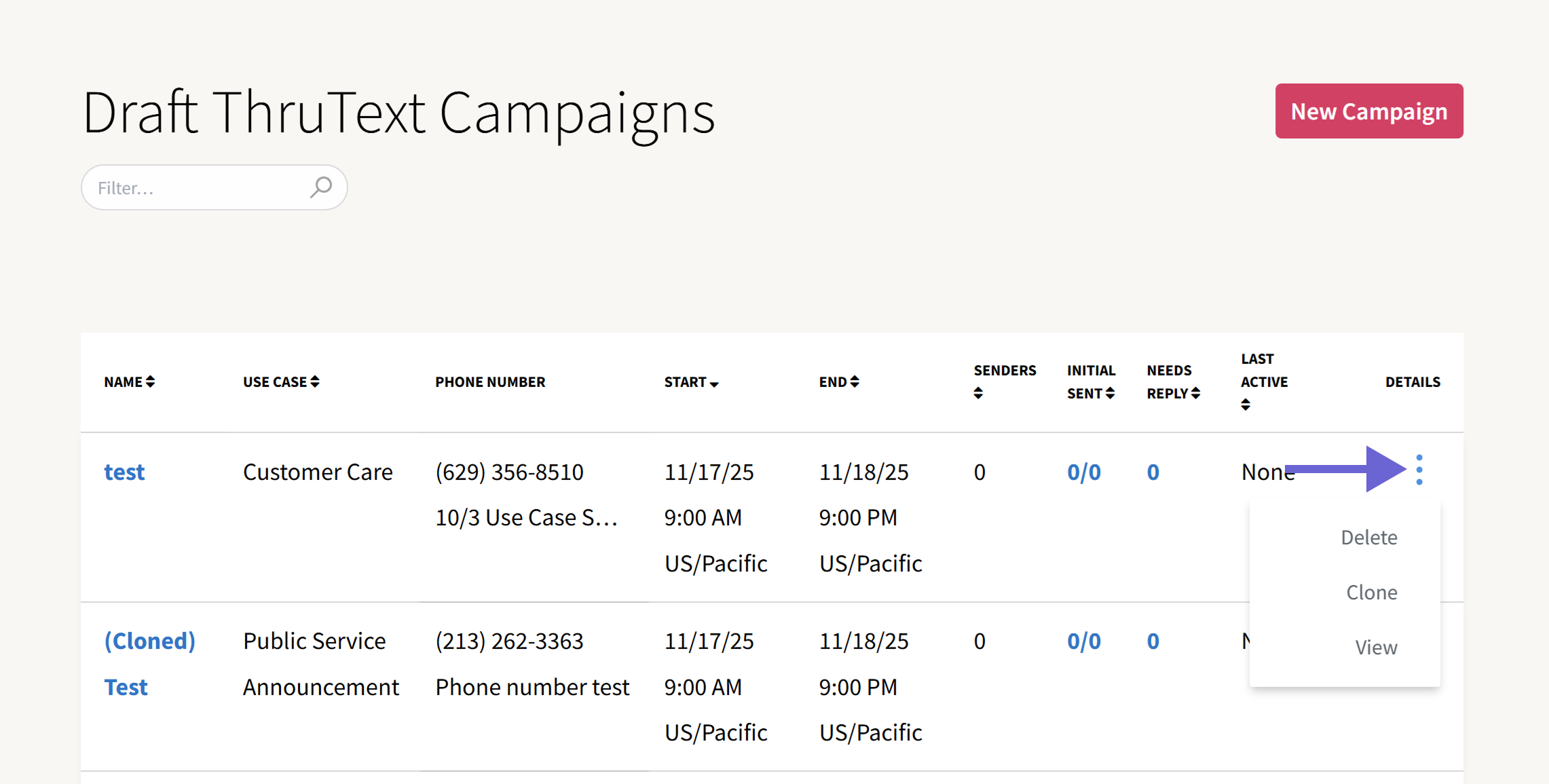
On the Draft Campaign Index page, admins can see all campaigns in the Draft state.
- When a campaign is initially created, the campaign will be in the Draft state.
- While in the Draft state, admins can configure the settings for the campaign, including start and end dates, open and close times, targeting, phone number selection, initial message creation recommended replies, and more.
- Once you’ve selected all settings, launching the campaign will assign phone number(s).
- Click the three vertical dots under Actions to Delete, View, or Clone a campaign. Drafts can be deleted, whereas Active campaigns can only be archived to preserve important data.
Paused Campaign Index Page
Campaigns in the Inactive state are previously Active campaigns that have been paused by an admin.
- Only an 'Active' campaign can be paused and moved into the 'Inactive' state.
- Pausing an active campaign will remove the campaign from a user's Assignments page and will pause all messaging on any open conversations.
- Pausing a campaign is also required to edit the initial message on an active campaign. For more information, review our guide Editing the Message Script in an Active Campaign.
- Once a paused campaign is unpaused, and after the message sender refreshes their page, the campaign will appear in their Assignments, and messaging can be resumed. The campaign will move from the Paused Campaign Overview page to the Active Campaign Overview page.
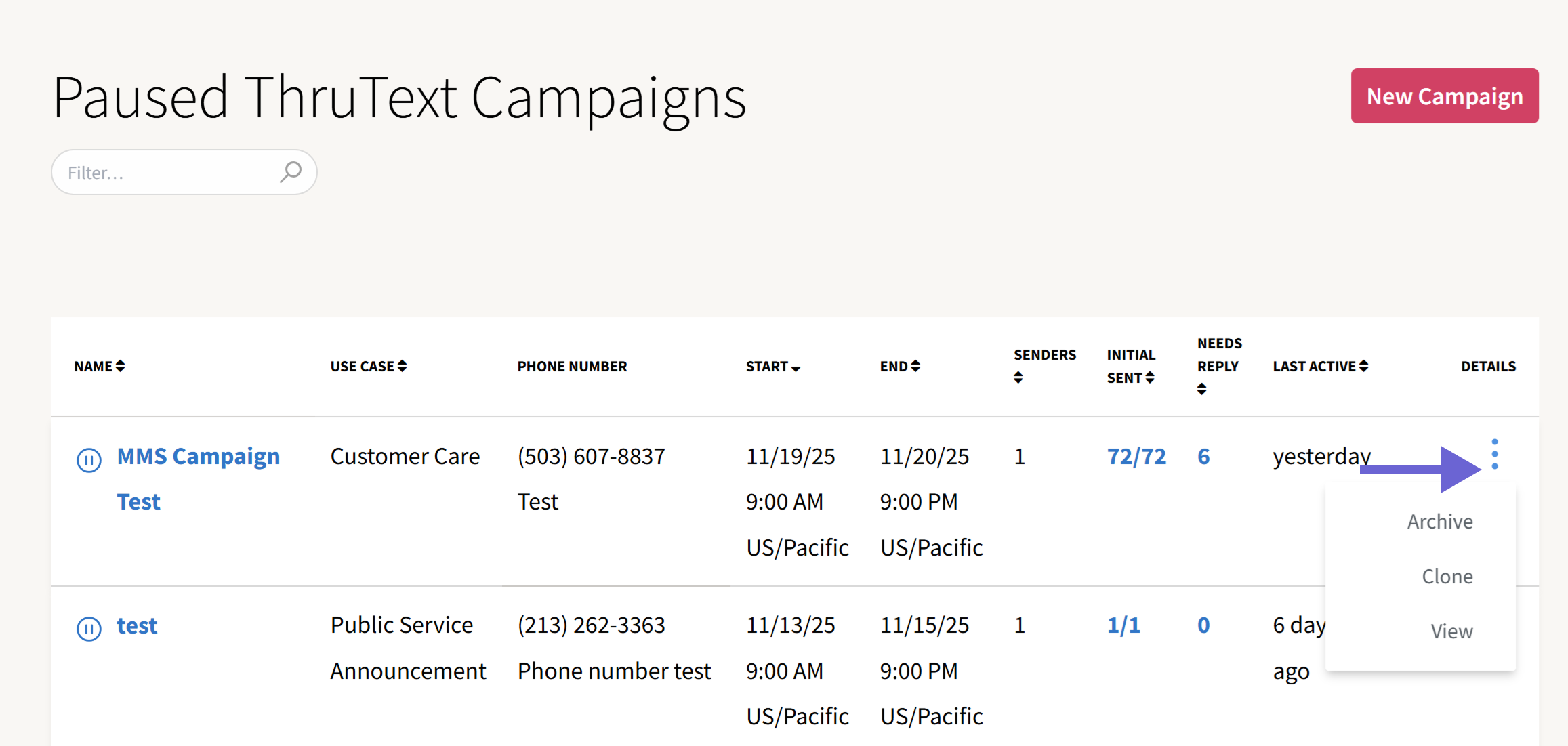
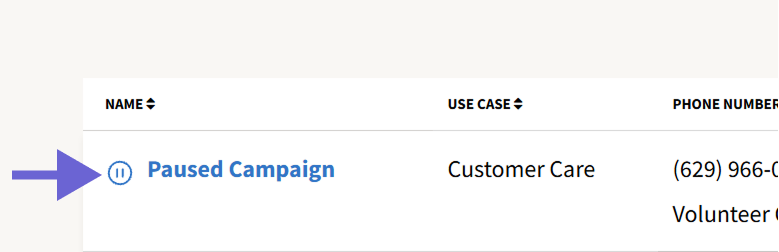
Paused Icon
Paused campaigns will show icons to indicate that they are paused.
Archive Campaign Index Page
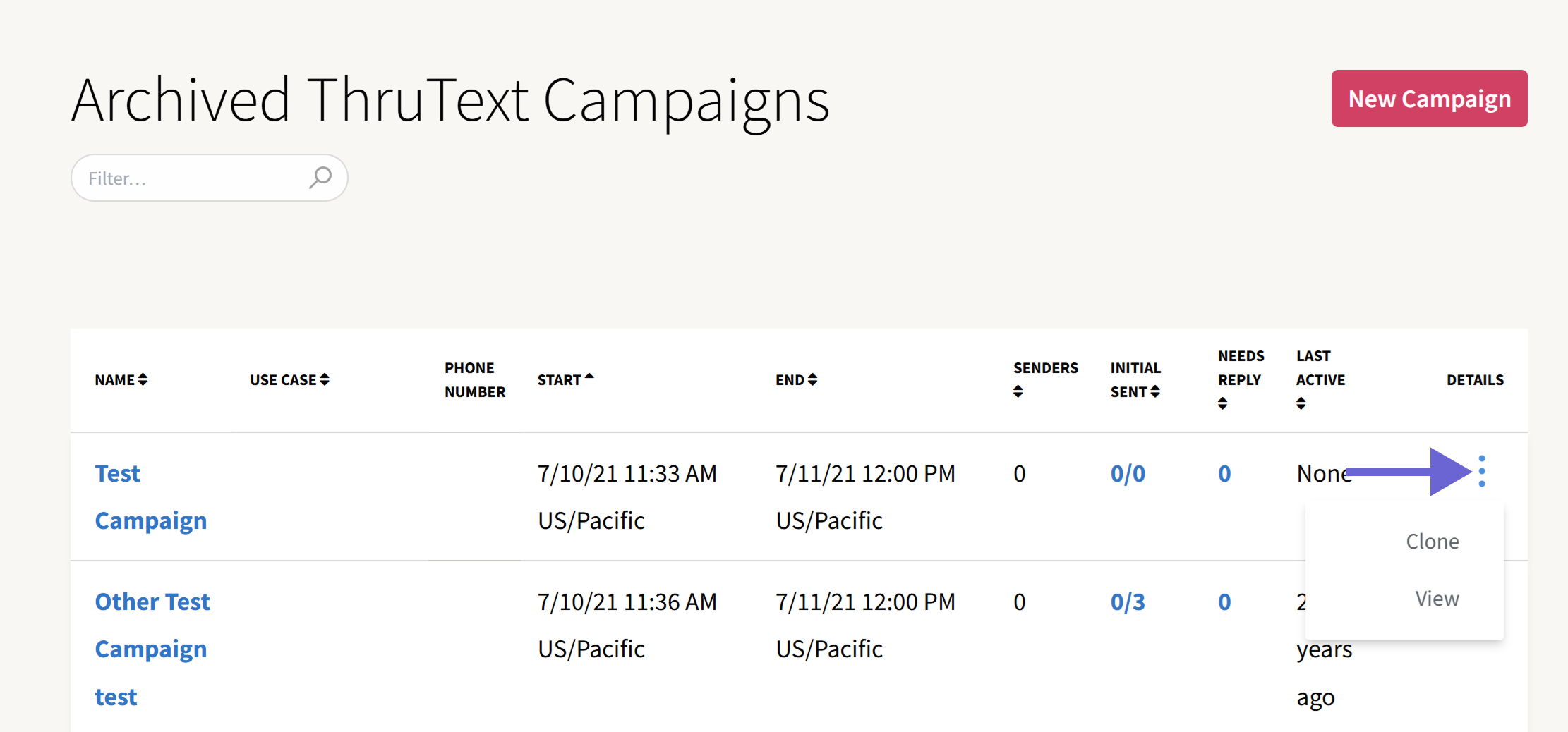
Archived campaigns are no longer active and cannot be used for texting, but their data is still available.
- Archiving a campaign is the final step in a campaign.
- Archiving permanently disables dialing on the campaign.
- Archived campaigns cannot be unarchived as the sending phone number is disassociated from the campaign and cannot be reassociated.
- No data is lost when you archive a campaign, as you can still run exports from them.
- Archiving active campaigns routinely is a good best practice. It keeps your Active Campaigns page and your senders' Assignments page much more organized.
Auto Archive Flags
Campaigns are automatically archived after 30 days of no activity. If a campaign will be auto-archived in 7 days or less, the auto archive flag is shown underneath the names of campaigns.

For more details check out our guide Campaign Archiving Overview.