
Understanding Account-Level Exports
Account-level exports let you download all your ThruText or ThruTalk data in one place, including shared user data and campaign activity. This is helpful if you need to review user details, analyze outreach over time, or track contact statuses. In this guide, we’ll walk you through how to find and use these exports, so you can work with your data more easily.
TABLE OF CONTENTS
UTC Time Conversion
The start and end dates you choose on the Exports page are interpreted in UTC, which may be several hours ahead of your local time. If you are unsure how your local time translates to UTC, you can use an online UTC time converter to double-check before you run the export. Here is one external resource you could use for conversion: UTC Time Zone Conversion
Conversion Example:
| Standard Time (no daylight saving) | ||
|---|---|---|
| Time Zone | UTC Offset | Local Time |
| UTC | UTC ±0 | 12:00 PM on 12/14 |
| ET | UTC −5 | 7:00 AM on 12/13 |
| CT | UTC −6 | 6:00 AM on 12/13 |
| MT | UTC −7 | 5:00 AM on 12/13 |
| PT | UTC −8 | 4:00 AM on 12/13 |
| Daylight Saving Time (DST in effect) | ||
| EST | UTC −4 | 8:00 AM on 12/13 |
| CST | UTC −5 | 7:00 AM on 12/13 |
| MST | UTC −6 | 6:00 AM on 12/13 |
| PST | UTC −7 | 5:00 AM on 12/13 |
How To Access Account-Level Universal Exports
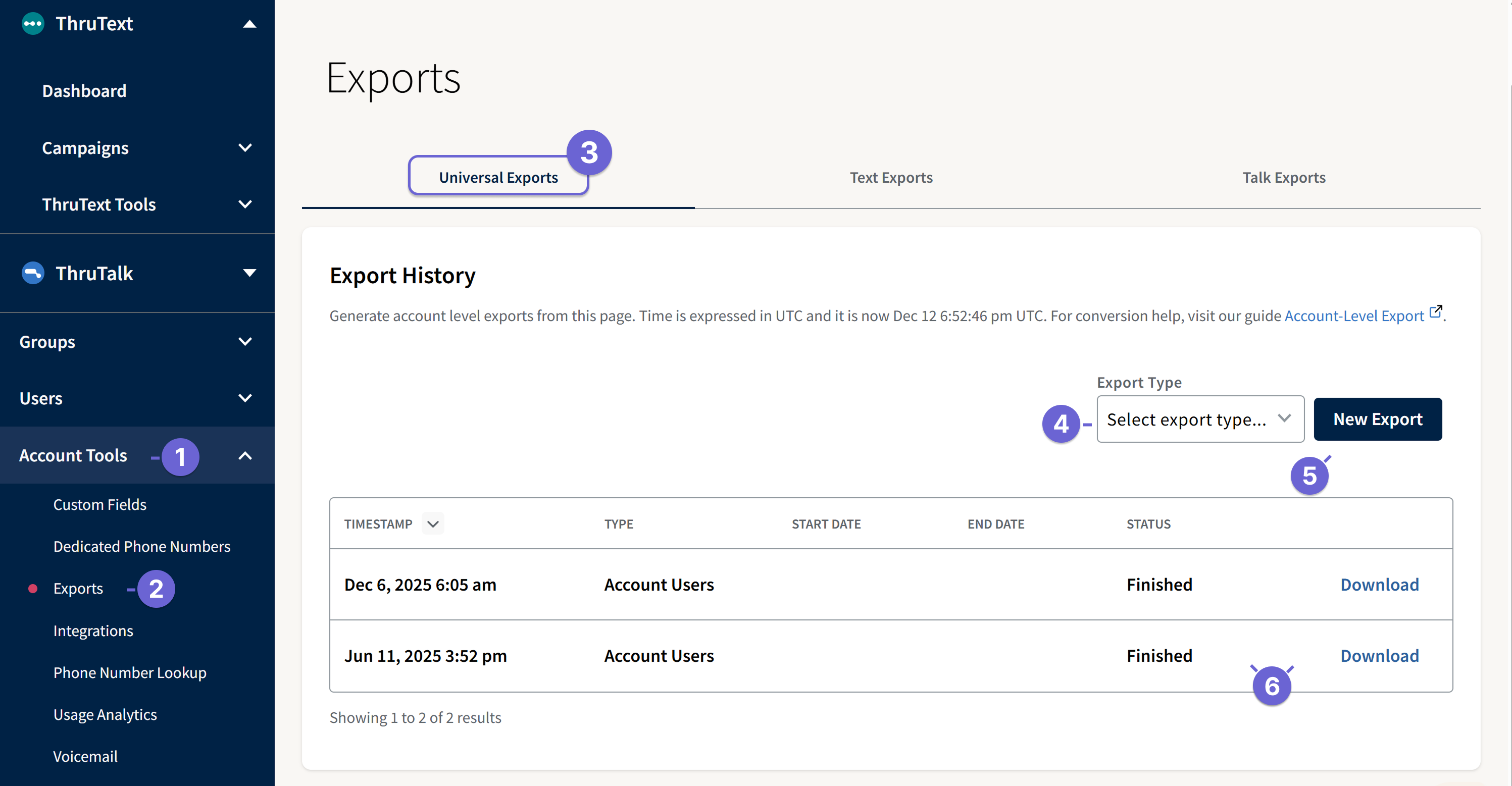
- In your admin view, open the Account Tools menu.
- Click Exports. This opens the Account-Level Exports page on the Universal Export tab.
- From the Universal tab you can access the Users export that encompasses both ThruText and ThruTalk.
- Click Export Type drop-down menu to select the Users export to generate a copy.
- Click New Export to start generating the file.
- When the export status changes to Finished, click Download to save the CSV file to your computer.
User Exports
User exports produce a CSV of every user in your organization at the time you run the export. User exports do not require a date range; they always reflect the current set of users in your account. Use this export to audit account access, check permission levels, or reconcile users with external systems.
The export includes:
- One row per user in your organization at the time the export is generated
- User profile details, including name, phone number, and email address
- Role information for each user (message sender, moderator, or admin)
- Timestamps for when each user joined your organization and when their profile was last updated
Export Fields
User exports include user roles, contact info, and timestamps for when a profile was created or last updated. This is helpful for team management or auditing account access. This report includes the following data:
- first_name — User's first name associated with their GetThru profile.
- last_name — User's last name associated with their GetThru profile.
- phone — User's phone number associated with their GetThru profile.
- email — User's email associated with their ThruText profile.
- role — Indicates the role assigned to the user on your organization's account – message sender, moderator, or admin.
- created_at — The date the user joined your organization.
- last_updated — A timestamp of the last time the user updated their ThruText profile.
Voicemail Exports
Voicemail exports produce a CSV of every voicemail left for your organization by contacts at the time you run the export. For this export, you can request a CSV of all records or input a specific date range, if preferred.
The export includes:
- One row per voicemail left to your organization at the time the export is generated
- Inserted at timestamps for when each voicemail was left
- The ID for the campaign the voicemail was left within
- The contact details for who left the voicemail
Export Fields
Voicemail exports include timestamps, associated campaign, and contact info. This is helpful for reviewing voicemail outreach, and you can listen to recordings from the Voicemail Page. This report includes the following data:
- inserted_at — Time that the voicemail was recorded.
- campaign_id — The ThruText or ThruTalk campaign ID the contact was contacted in.
- campaign_name — The ThruText or ThruTalk campaign name the contact was contacted in.
- contact_first_name — The contacts first name.
- contact_last_name — The contacts last name.
- contact_phone — The contact phone number.
How To Access Account-Level ThruText Exports
ThruText account-level exports can be accessed by taking one of the following actions:
- From the Account Tools Exports page, click on the Text tab.
- From the ThruText Tools left sidebar menu. click on the Exports button.
Both of the above options will take you to the Text tab export page where you can generate your exports. Please check out our Account-Level ThruText Exports guide for details on available text exports.
How To Access Account-Level ThruTalk Exports
ThruTalk account-level exports can be accessed by taking one of the following actions:
- From the Account Tools Exports page, click on the Talk tab
- From the ThruTalk Tools left sidebar menu. click on the Exports button.
Both of the above options will take you to the Talk tab export page where you can generate your exports. Please check out our Account-Level ThruTalk Exports guide for details on available text exports.
Nightly S3 Export Delivery
If your team works with exports extensively, for example, loading campaign data into a data warehouse or generating regular dashboards, you may want automated nightly exports to an Amazon S3 bucket. This removes the need to manually generate and download files each time. To learn more and set this up, see the Nightly S3 Export Delivery guide or contact support.
Additional Notes And Resources
- File Size - Depending on the volume sent within the requested time period, export files can be large. Please be patient as they download, and refrain from starting new versions of an export while the original one is still downloading. This will increase the speed of your exports, reduce the load on our servers, and produce smaller CSVs (Excel can't handle CSVs with more than 1 million rows).
- Snapshot CSVs And Download Links - Exports are generated as snapshot CSVs, which include all activity recorded at the moment the export is created. Download links expire after a short time to protect your data. If a link expires, refresh the Exports page and click Download again. For more details, see the Export Download Error - Link Expired guide.