
Reviewing Your Group Index
The Groups Index lets you view and manage the groups in your account. You can track upload progress, review valid contact counts, find existing groups, and return to drafts you've started but haven't finished.
This guide explains how to navigate your Active and Draft Groups pages and understand the information displayed on each.
TABLE OF CONTENTS
Accessing the Groups Index
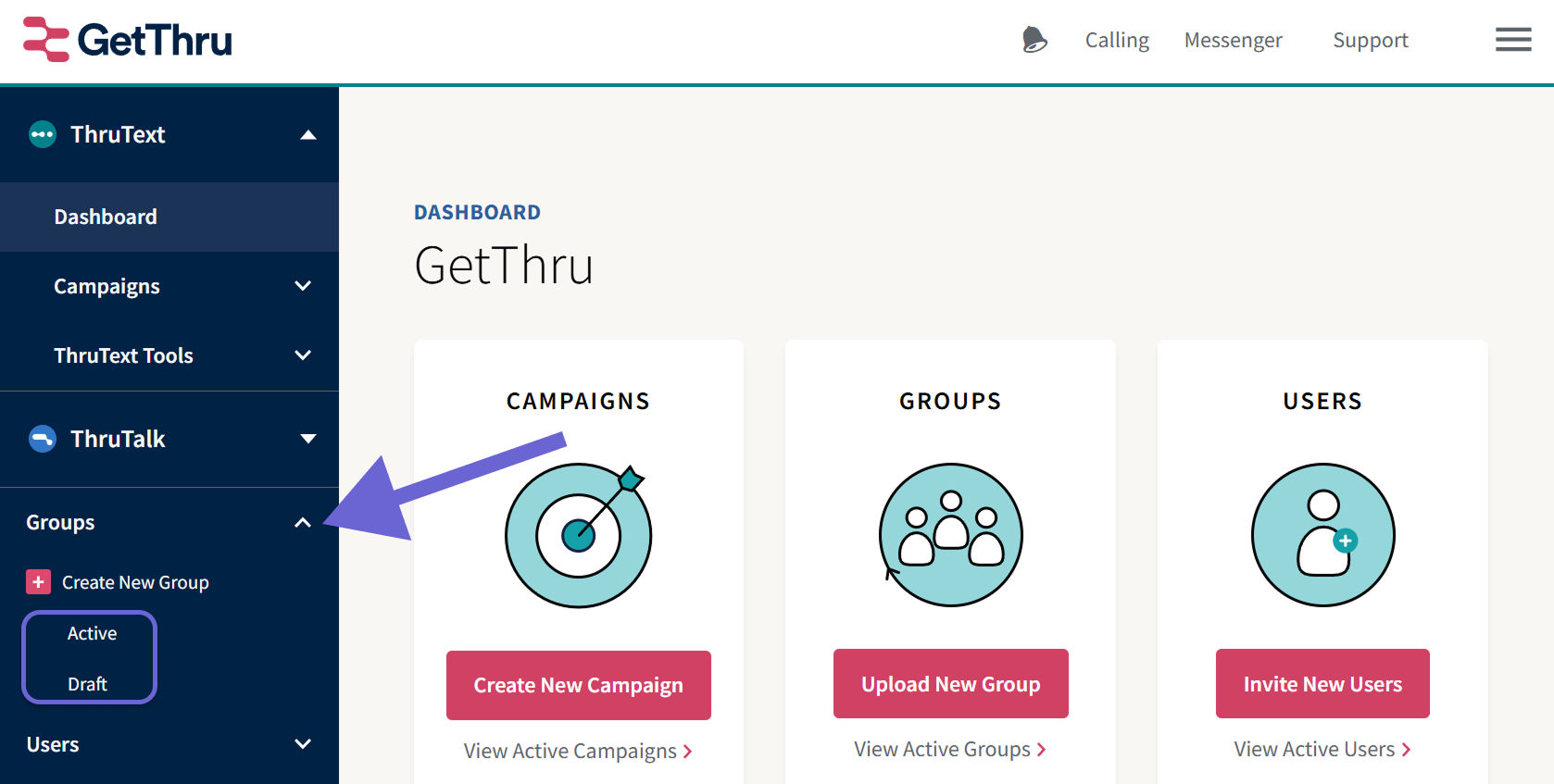
From the left sidebar navigation menu, expand Groups and click Active or Draft.
Active Groups
The Active Groups page displays groups that have started or completed the upload process. You can use this page to monitor upload progress, review valid contact counts, and find groups you've previously created.
At the top of the page you'll see how many groups your account can upload at once. This limit keeps the system running fast for everyone. If you need a higher limit, email support@getthru.io.
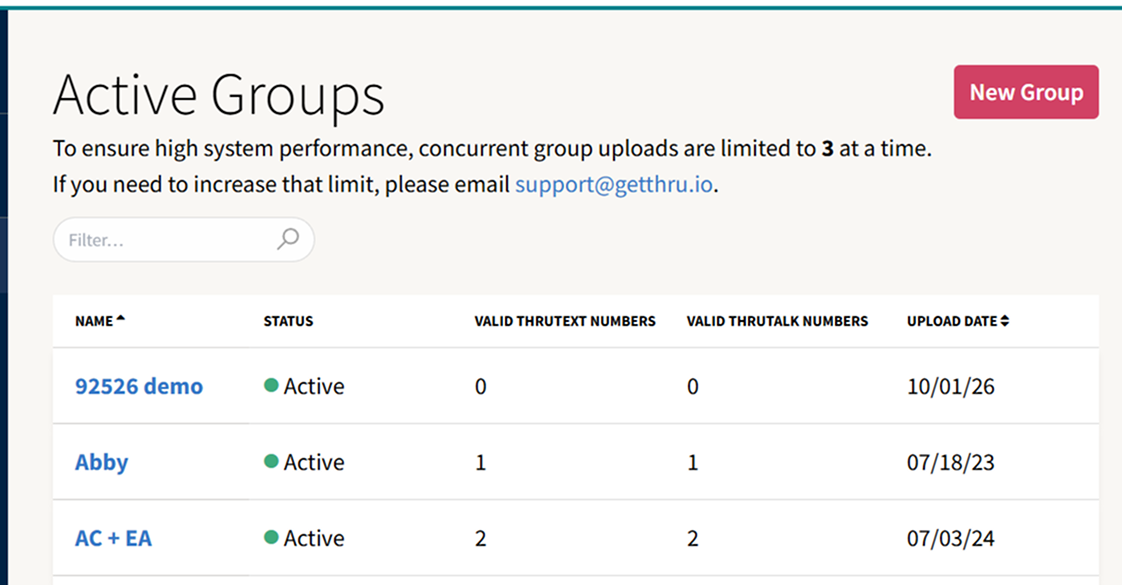
- Name: The name you gave the group during upload. Click it to open the group's details.
- Status: The group’s upload status. See Group Statuses below for an explanation of each status.
- Valid ThruText Numbers: How many contacts in the group can receive texts.
- Valid ThruTalk Numbers: How many contacts in the group can receive calls.
- Upload Date: The date the group was created.
Group Statuses
- Active: The group has finished processing and is ready to use in campaigns.
- Uploading: The contacts are still being imported and validated. Contact counts may change until processing finishes.
- Refreshing: The group's phone numbers are being revalidated using updated carrier information. The status returns to Active when the process finishes. This is triggered by clicking Refresh Lookups on the Group Details page.
Finding a Group
- Filter: Type part of a group name in the Filter… box. The list updates as you type, and it ignores upper and lower case.
- Sort: Click the Name or Upload Date header. Click it again to reverse the order. The list sorts by name, A to Z, by default.
- More pages: The page shows 50 groups at a time. Use the page controls under the table.
Draft Groups
The Draft Groups page displays groups you've started creating but haven't finished uploading. The Group Upload Wizard automatically saves your progress, allowing you to leave the wizard and return later.
To continue working on a draft, click its name. Draft groups cannot be used in campaigns until you've completed the upload process.
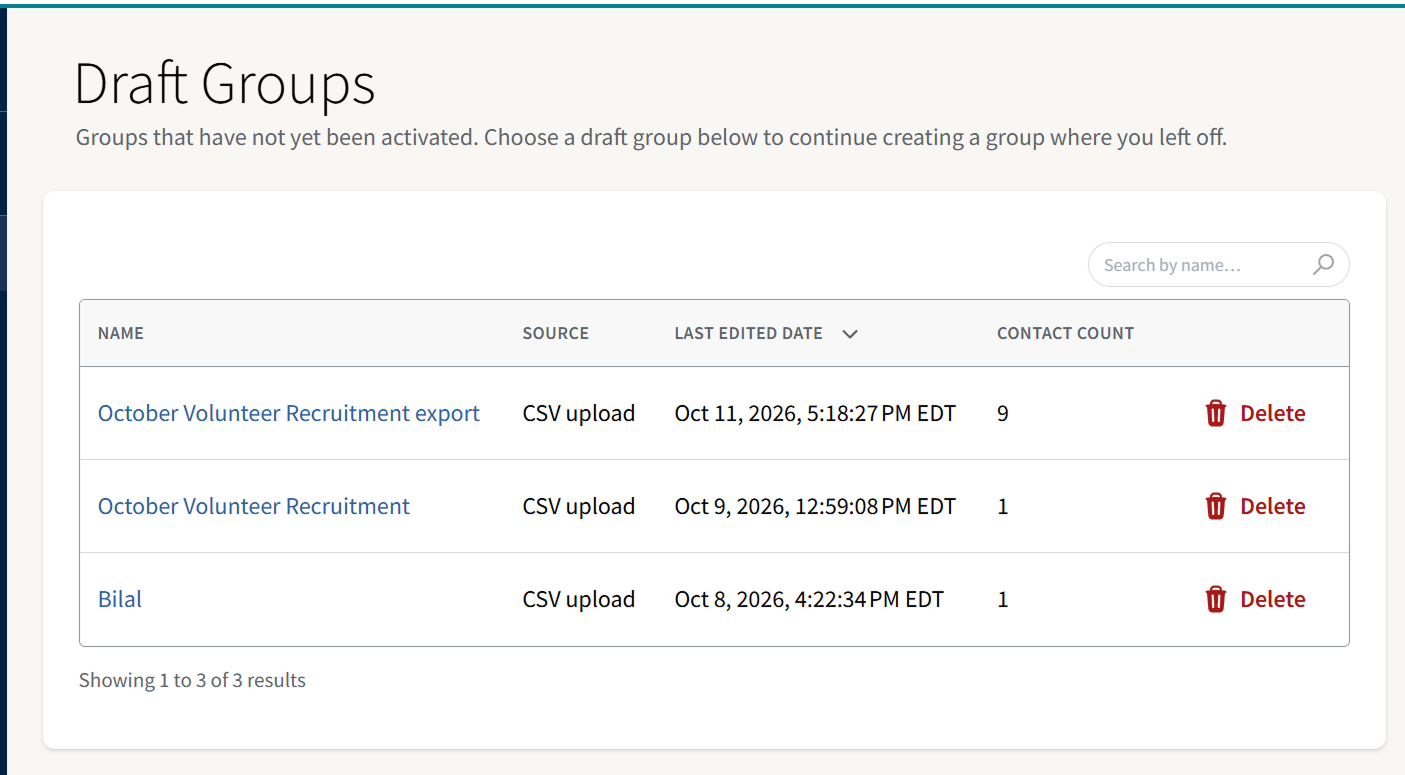
- Name: The draft's name. Click it to continue where you left off.
- Source: CSV upload or VAN import.
- Last Edited Date: When you last changed the draft.
- Contact Count: The number of contacts in the file. Before the import, this is an estimate from the file's row count. A dash (-) means the count isn't known yet.
- Delete: Click to delete the draft. A deleted draft can't be recovered.
Frequently Asked Questions
I can't find a group I created
Check both lists:
- Draft: You saved the group but didn't finish the import.
- Active: The import started or finished.
Groups that are archived, or whose upload failed, don't appear in either list. Contact support if you need help with one.Why are the valid contact counts blank or lower than expected?
If your group is still Uploading, the counts may be incomplete. Wait until its status changes to Active.
If the group is already Active, some contacts may have been excluded due to invalid phone numbers, opt-outs, Do Not Call records, or upload errors. Open the Group Details page to review the results.- What makes a number "valid"?
Read more in our guide: Group Details. - My upload has said "Uploading" for a long time.
Most groups finish processing within a few minutes, although larger files may take longer. If your group remains in the Uploading status for more than 30 minutes, email support@getthru.io with the group name. Where is External Contact Lists?
The External Contact Lists page was removed when the Group Wizard was updated. You can now create VAN groups without leaving the wizard. Read more in our guide: Creating a Group from a VAN Imported List.