
User Management
Managing users in your account helps ensure everyone has the right access level for their role, whether they're texting, calling, or managing campaigns. This guide walks you through how to view, update, and remove users in your account.
TABLE OF CONTENTS
Before Managing Users
Before you can begin managing account users, you'll need to invite your members by sending them an email or link invitation. Please review our How to Invite Users guide for details on that process.
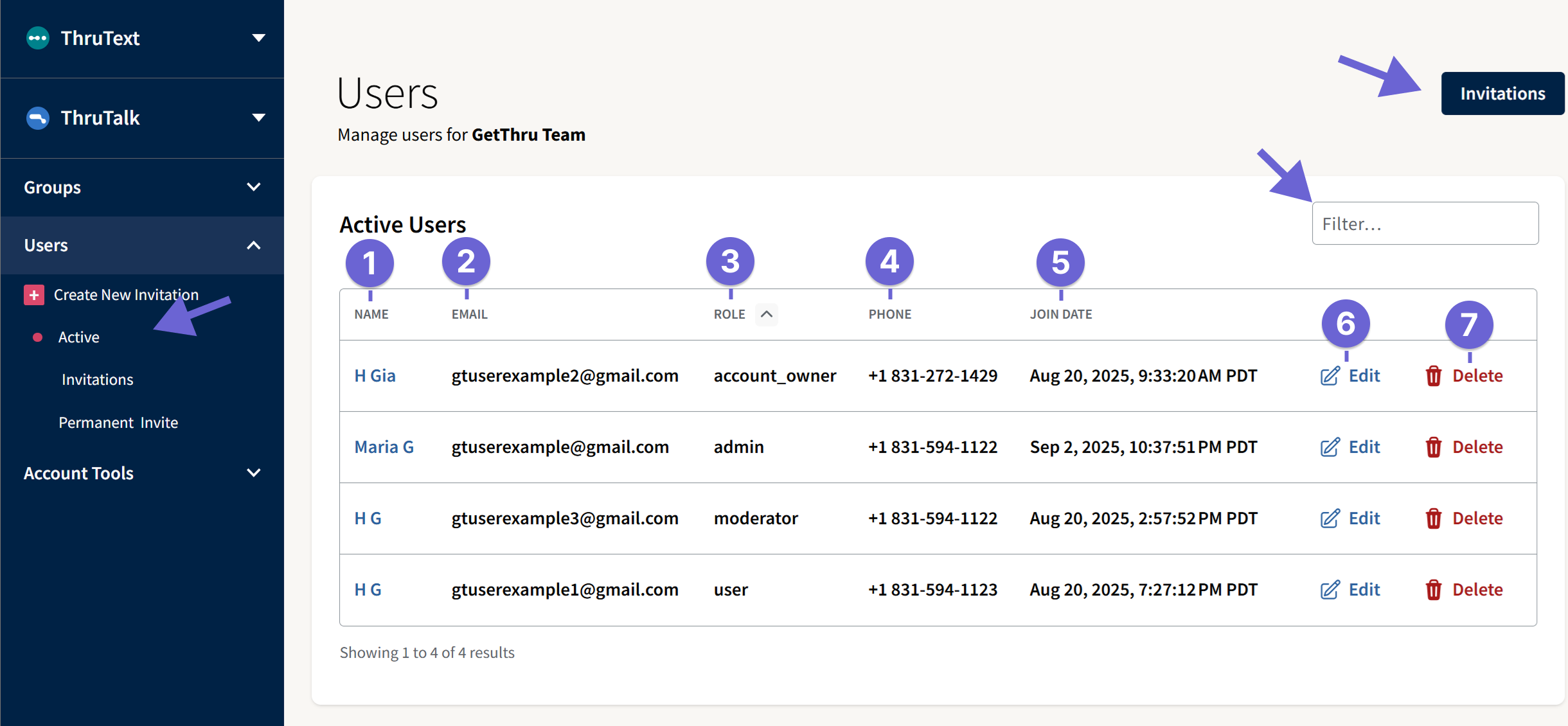
Invitations: To access the invitations page, you can click on Invitations within the Users tab from the left sidebar menu or click on the Invitations button from the Users page.
Users Page: To access the User page, click on Active within the Users tab from the left sidebar menu.
Users Overview
The overview provides a listing of every active user in your account. You can sort by each column or search for a specific user based on their name or email.
- Name: The user's name. Clicking the link provided will take you to their individual user's page. The name is only editable by the user via their system wide user profile.
- Email:The user's email. This is only editable by the user via their system wide user profile.
- Role: The user's permission level within the account.
- User: This is the lowest level permission and only grants access to the texting and calling interface. Users access assignments via the Messenger and Calling pages.
- Moderator: This permission level provides restricted administrator access. This can be useful for campaign cleanup and sweeping duties.
- Admin: This permission level has access to every component of the account outside of certain restricted 10DLC brand registration duties.
- Account Owner: This is the highest permission level and has full access to every component in the account.
- Phone: The user's phone number. This is only editable by the user via their system wide user profile.
- Join Date: The date that the user joined the account for your organization.
- Edit: The button to access the module for editing the user's permission status.
- Delete: The button for deleting a user from your organization account. This removes the user from your organization’s account but does not delete their profile from the GetThru system. Reach out to support@getthru.io for system wide deletion.
Individual User
Edit User Permissions
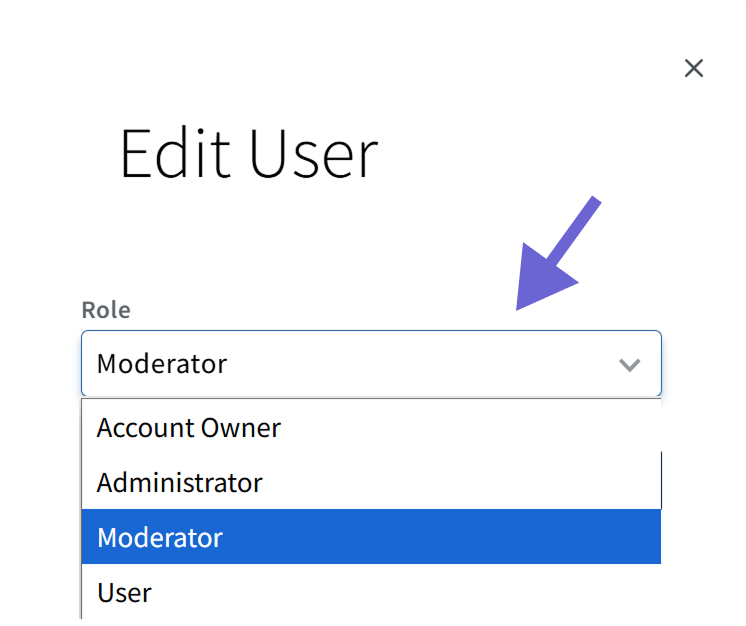
Clicking the Edit button for a user from the overview page will take you to the following module. Using the drop-down, you can update the role for the user to change their permission level.
Permission Level
A user of the top three permission levels has authority to edit permissions for those with their same status or a lower status level, while the lowest level, user, cannot edit any user permissions.
| Role | Can edit Users | Can Edit Moderators | Can Edit Admins | Can Edit Account Owners |
|---|---|---|---|---|
| User | No | No | No | No |
| Moderator | Yes | Yes | No | No |
| Admin | Yes | Yes | Yes | No |
| Account Owner | Yes | Yes | Yes | Yes |
For more details on permission levels, please check out our guide Permission Levels.
User View
Details
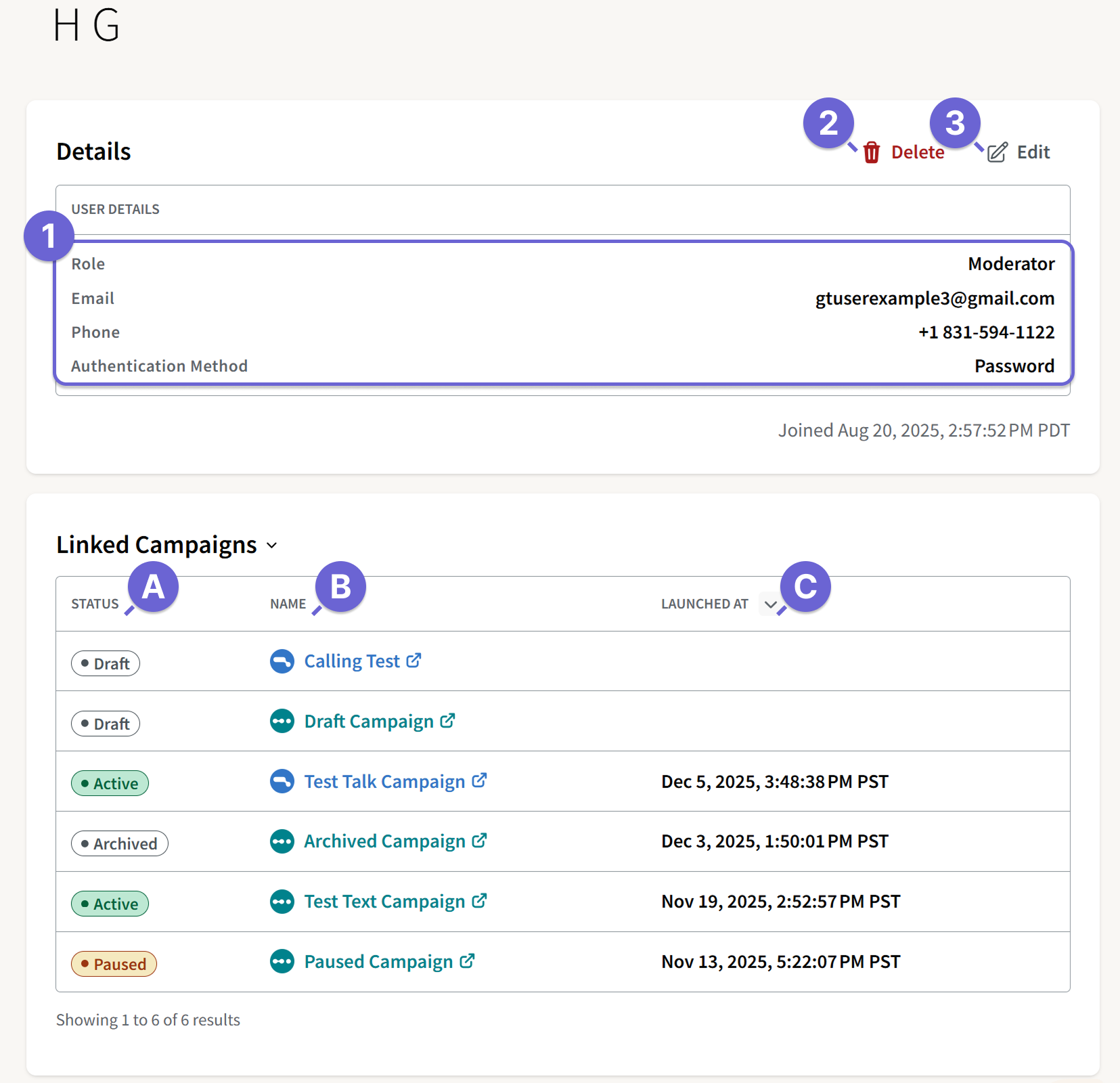
The Details section includes a list of the user's information connected to their user profile.
- User Details: A listing of their role, profile email and phone number, and authentication method (default is password).
- Delete: Button to delete user from the organization.
- Edit: Button to open the Edit module where you can edit the user's permission level for the organization.
Linked Campaigns
The linked campaign section includes a link to every campaign within the account that they are attached to.
- Status: The status of the campaign they are attached to.
- ThruText: Campaigns may be in an active, paused, archived, or draft state.
- ThruTalk: Campaigns may be in an active, archived, or draft state.
- Name: The campaign name that links to the campaign page.
- Launched At: The time that the campaign was launched.
User Export
You can export a copy of your active user data via the Account Tools export page's Universal tab. Please review our guide Account-Level Exports for more details.