
Conversations Management and Reassignment
The Conversations page helps admins review conversation activity and manage assignments in a ThruText campaign. Use this page to check campaign progress, identify conversations that need attention, review sender workloads, and redistribute conversations.
This guide first explains what you can view on the Conversations page, then how to assign and reassign conversations.
TABLE OF CONTENTS
- Conversations Management and Reassignment
Accessing the Conversations Page
To access the Conversations page:
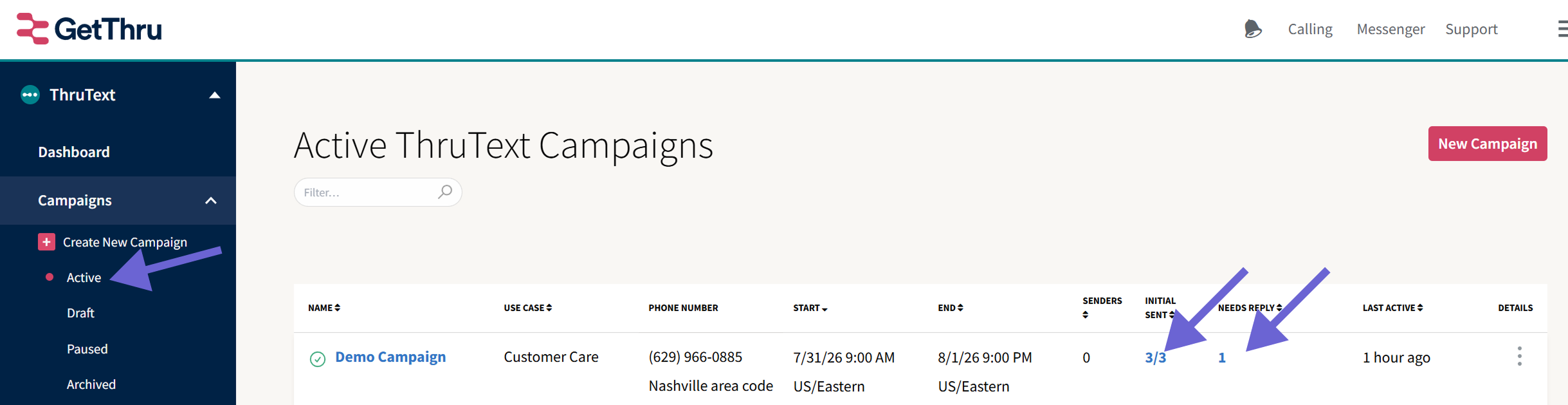
- From the left side navigation menu, expand ThruText
- Expand Campaigns
- Click Active
- Click the linked number in either the Initial Sent or Needs Reply columns.
You can also get to this page from the Campaign Summary Page. Click the Name of the campaign, like in the image above, then select Conversations.
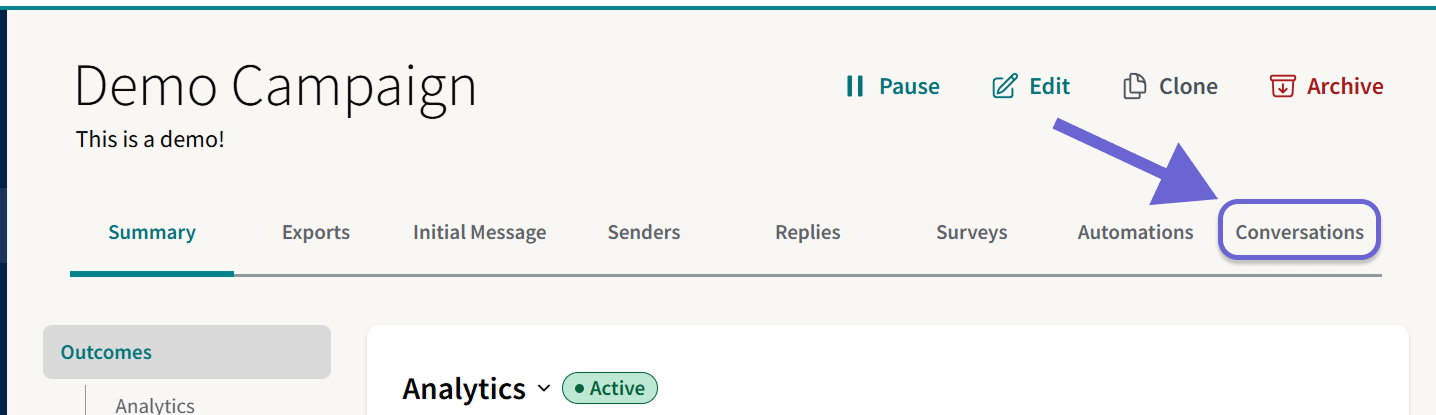
For more information on the Campaign Summary Page, see our guide on the ThruText Campaign Summary Page.
Understanding the Conversations Page
The Conversations page brings together campaign activity and assignment management in one place. It contains three areas for reviewing and managing campaign conversations:
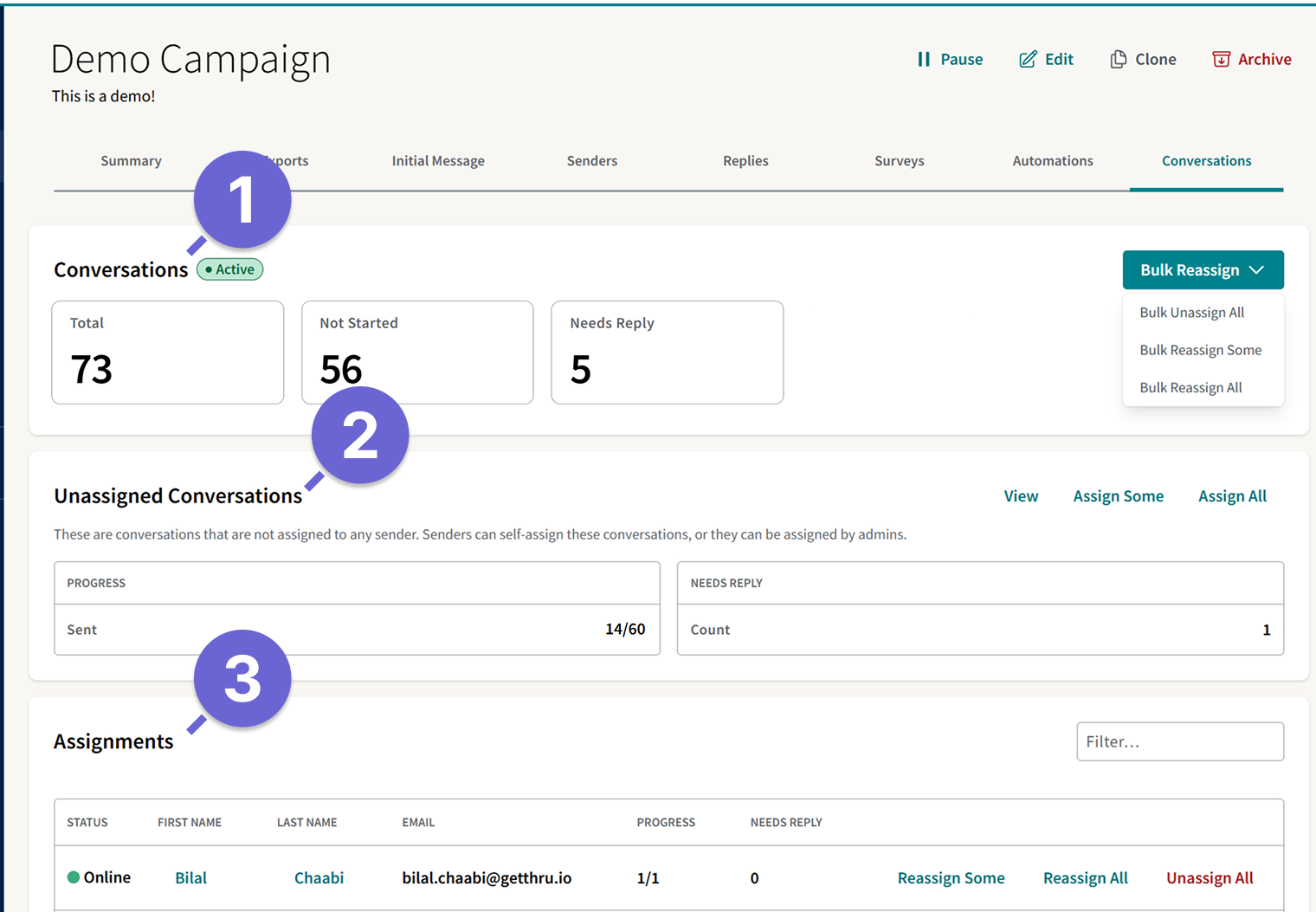
- Conversations summarizes activity across the campaign.
- Unassigned Conversations shows conversations that are not currently assigned to a sender.
- Assignments shows the workload and progress for each sender.
The first part of this guide explains the information you can review in these areas. The sections that follow explain the actions you can take to change conversation assignments.
What You Can View on the Conversations Page
Use the Conversations page to review overall campaign activity, unassigned work, and individual sender assignments.
Conversations
The Conversations section summarizes conversation activity across the campaign.
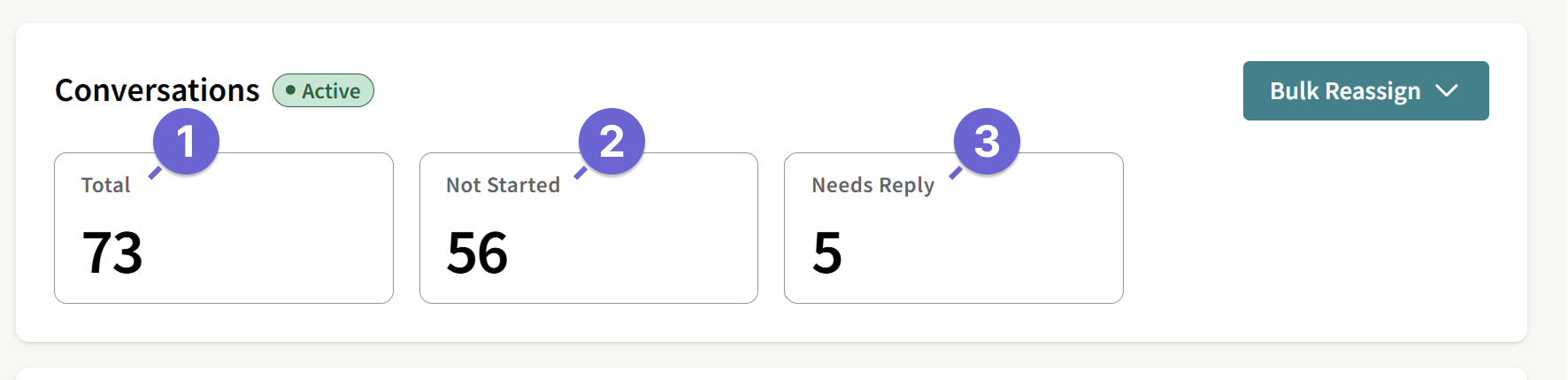
- Total: The total number of conversations in the campaign. Each contact on the campaign has one conversation.
- Not Started: The number of conversations where the initial message has not been sent.
- Needs Reply: The number of conversations where the contact sent the most recent message and is waiting for a sender response.
Unassigned Conversations
The Unassigned Conversations section summarizes conversations that are not currently assigned to a specific sender. The unassigned group has its own Progress and Needs Reply values, similar to a sender’s assignment.
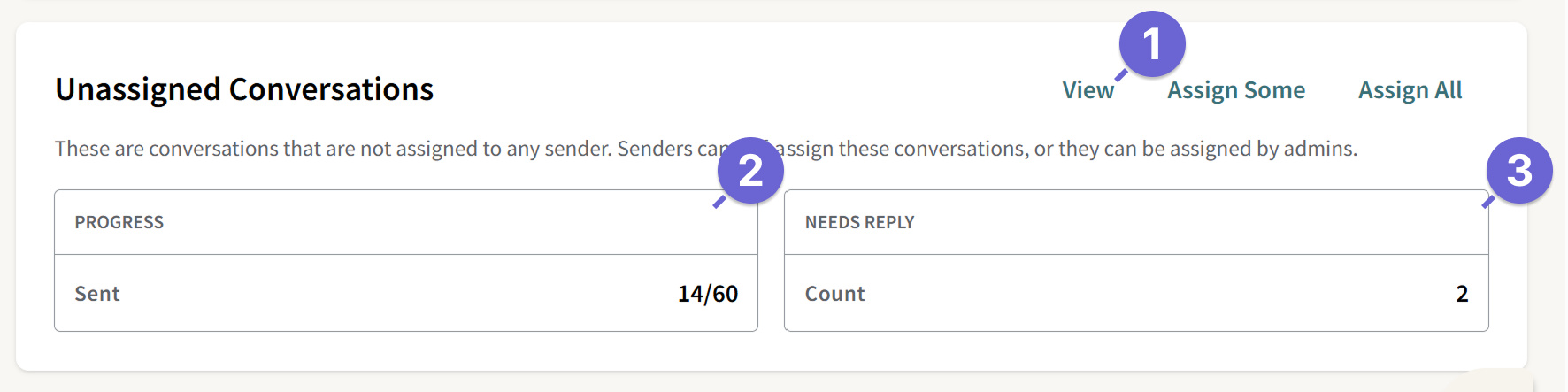
- View: Opens the unassigned conversations in the Admin Messenger.
- Progress: Shows how many unassigned conversations have received an initial message.
- Needs Reply: Shows how many unassigned conversations are waiting for a response.
Assignments
The Assignments table shows each sender's activity and workload.
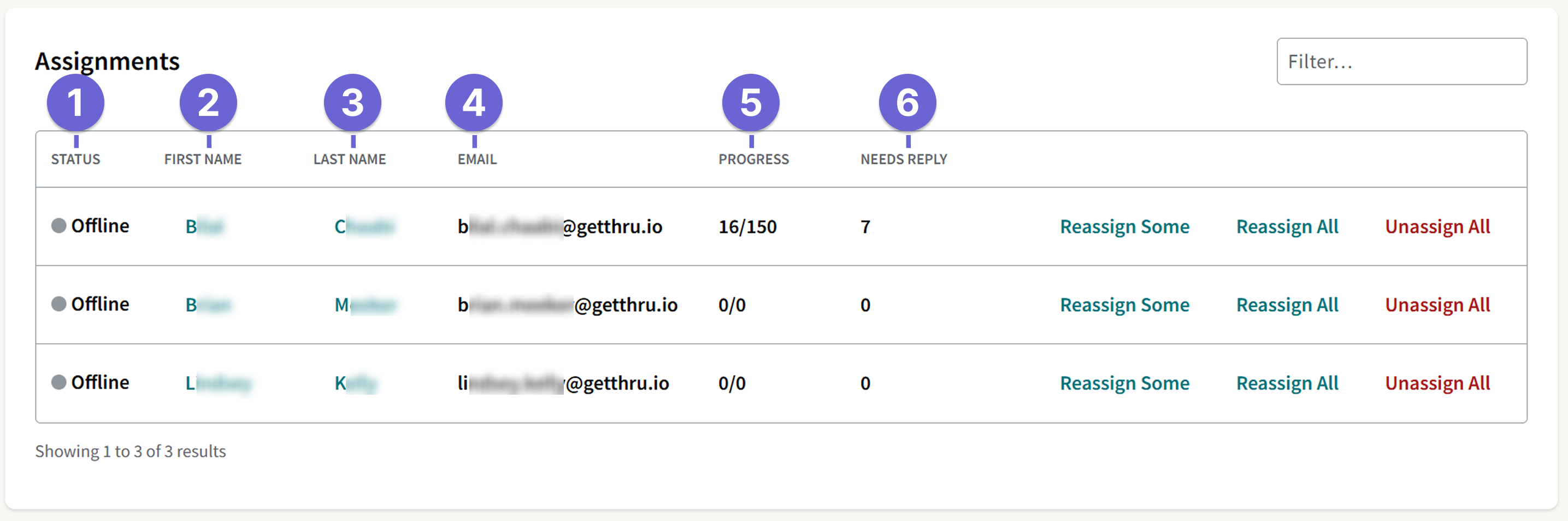
- Status: Shows whether the sender is online or offline.
- First Name: The sender's first name. Click this to open the sender's assignment in the Admin Messenger.
- Last Name: The sender's last name. Click this to open the sender's assignment in the Admin Messenger.
- Email: The sender's email address.
- Progress: the number of conversations initial message has been sent compared with the sender’s total assigned conversations.
- Needs Reply: Shows the number of conversations waiting for a response from the sender.
Before You Reassign
Conversations can only be assigned to users who have already been added to the campaign as senders. If the campaign has no senders, the Assignments table will be empty and reassigning will be unavailable.
To add or remove senders, go to the Senders tab in your campaign.
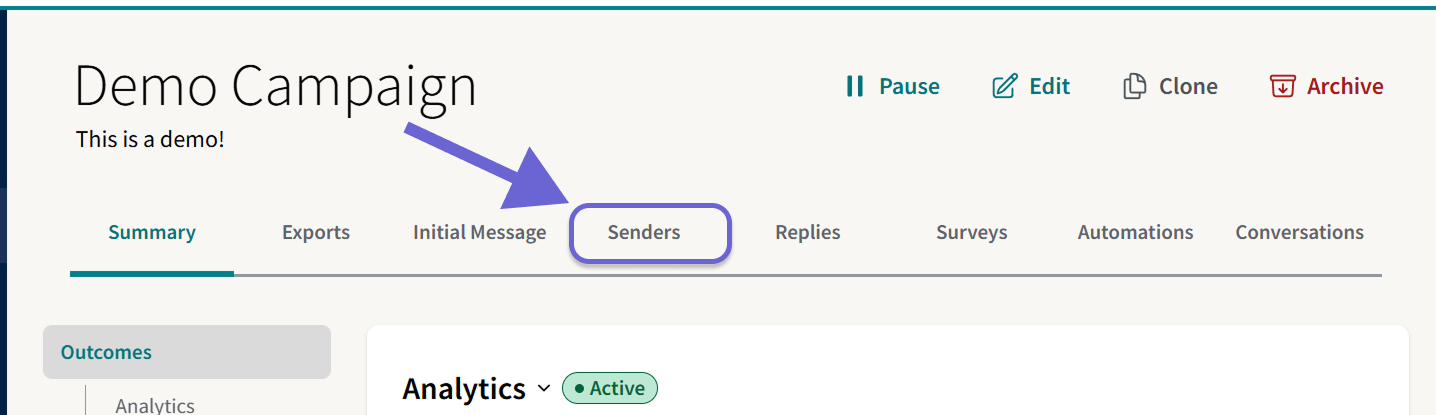
For detailed instructions, see our guide ThruText Campaign Summary Page - Senders Tab. For a video walkthrough on the reassignment process, check out our tutorial on How to Reassign Conversations.
What You Can Do on the Conversations Page
The Conversations page provides three ways to change conversation assignments. The option you choose determines which conversations are available to move.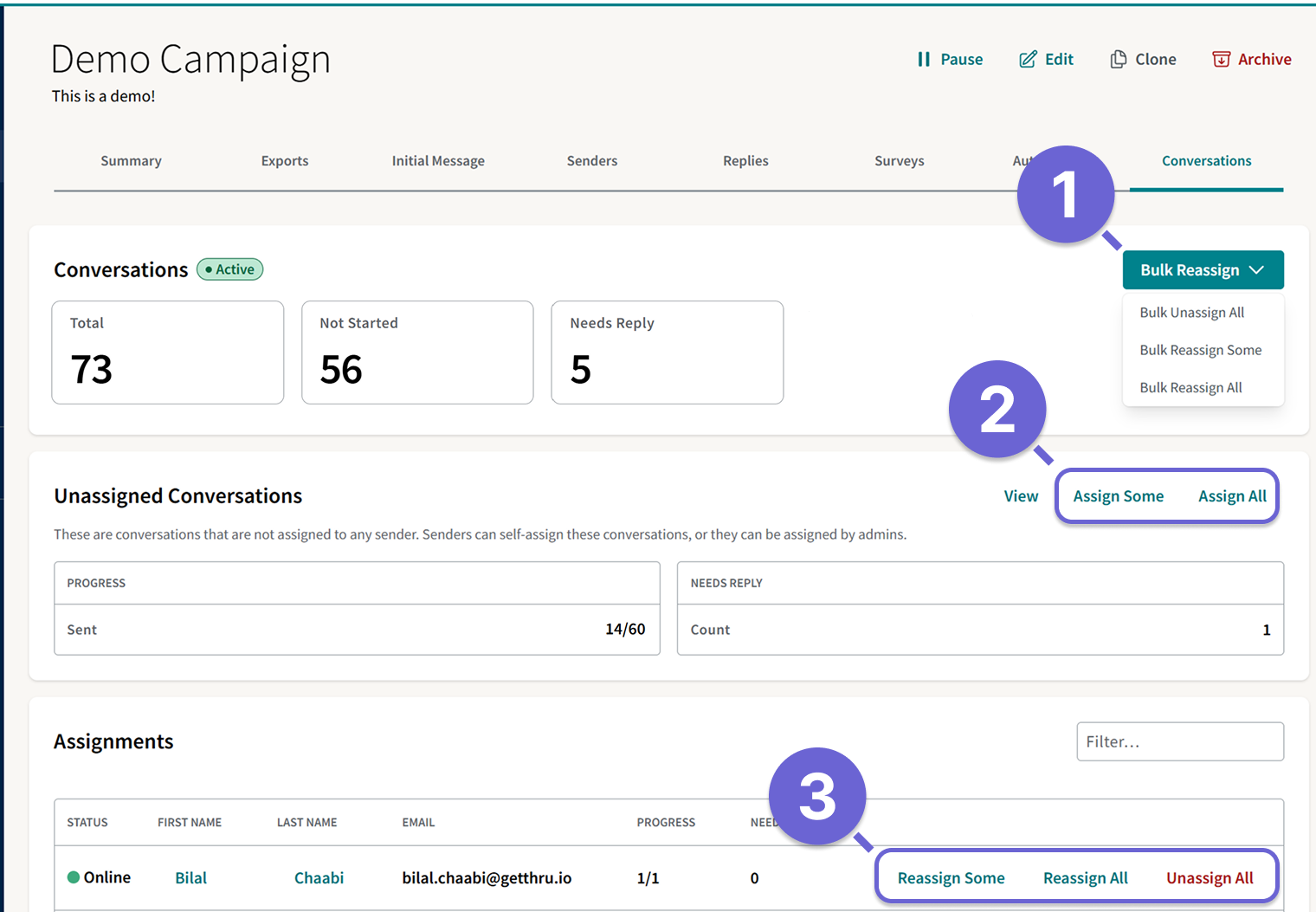
- Bulk Reassign draws from conversations across the campaign and lets you select one or more senders.
- Assign Some and Assign All draw from the Unassigned Conversations group.
- Actions in the Assignments table draw from one selected sender’s assignment.
Choose Conversations and Recipients
Each reassignment action opens a window where you choose which conversations to move and who should receive them.
The available fields depend on the action you selected.
Number of Conversations
Actions labeled Some - Bulk Reassign Some, Assign Some, Reassign Some - let you choose how many conversations to move.
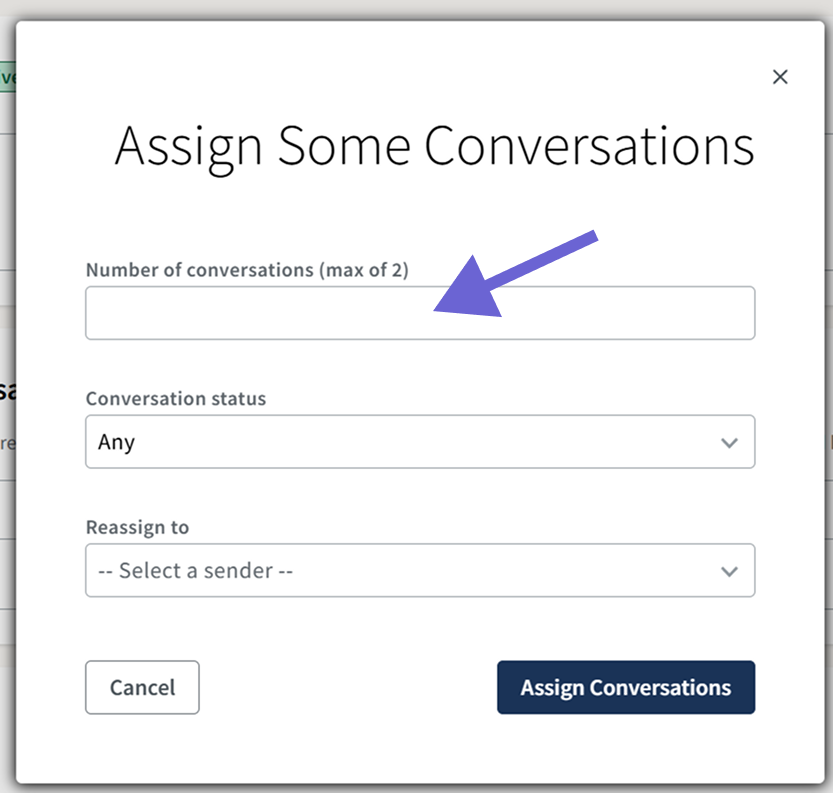
Actions labeled All - Bulk Reassign All, Assign All, Reassign All - move every conversation, and do not include a quantity field.
Conversation Status
When reassigning conversations, you can limit the reassignment to a specific status. This lets you redistribute only the conversations that need attention.
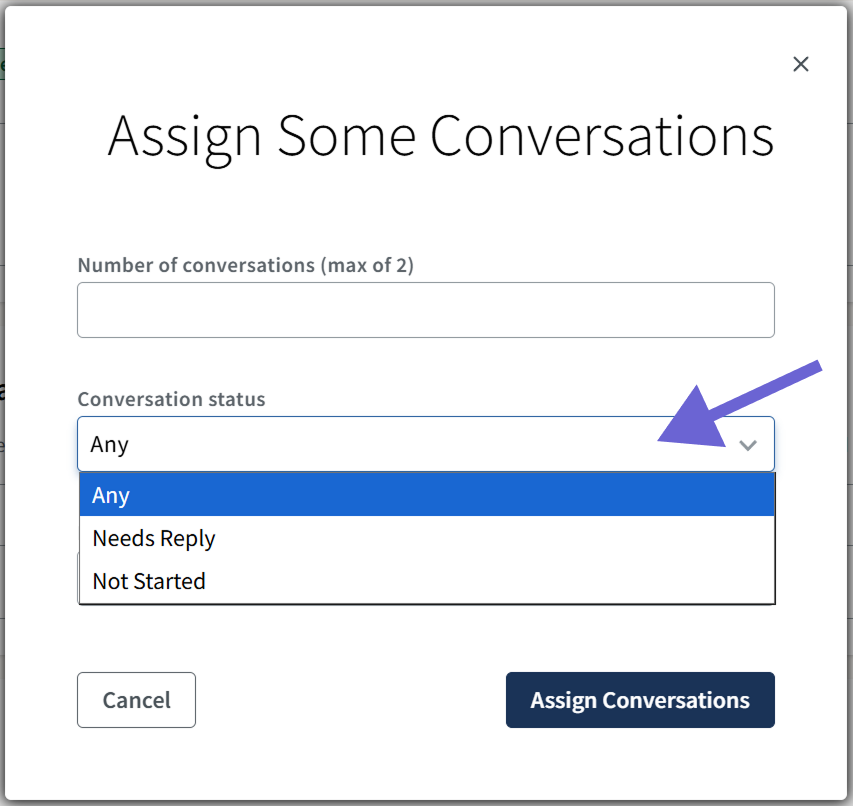
- Any: Includes conversations of any status.
- Needs Reply: Includes conversations where the contact sent the most recent message and is waiting for a sender response.
- Not Started: Includes conversations where the initial message has not been sent.
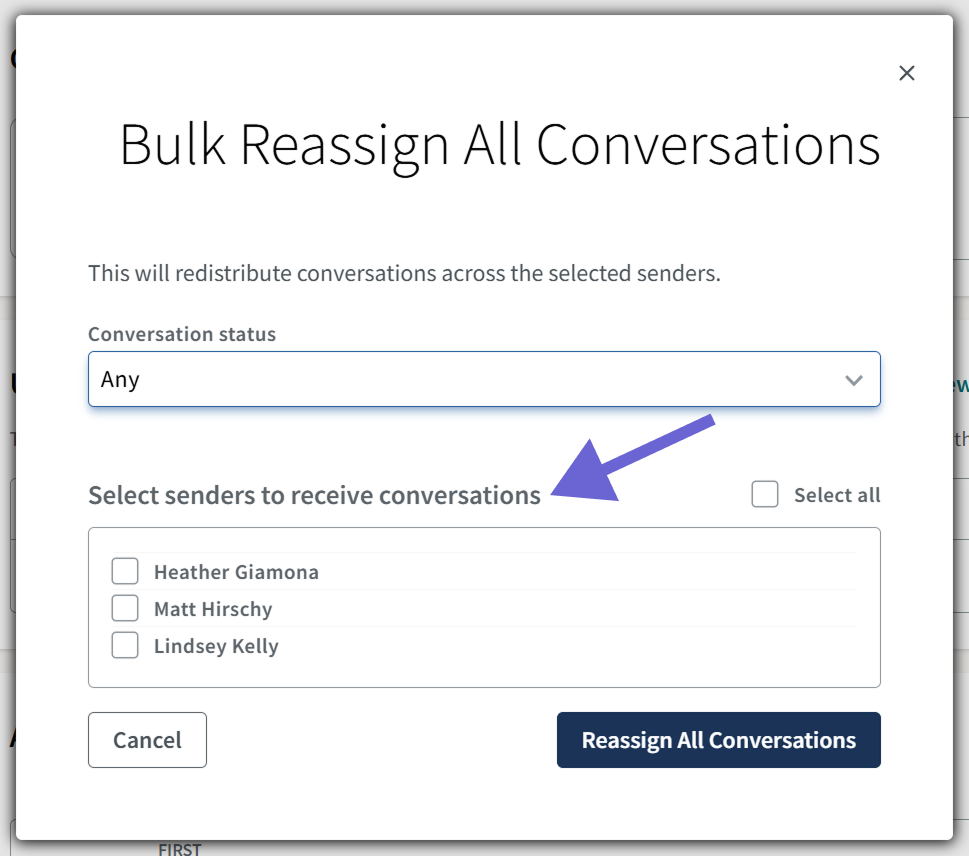
Recipients
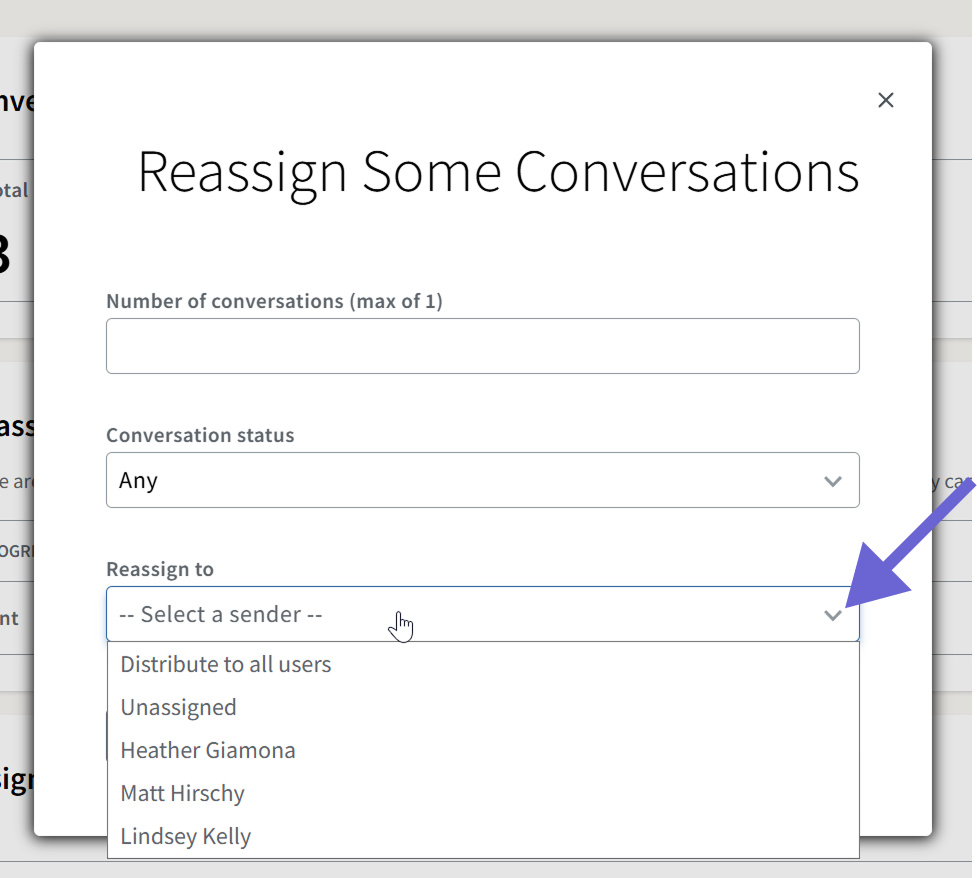
The last field in the window determines where the selected conversations move. The available options depend on where you start the action:
- Bulk Reassign Some and Bulk Reassign All let you select one or more senders.
- Actions from Unassigned Conversations or from Assignments let you Distribute to all users or select one sender.
Bulk Reassign
You can reassign conversations across your entire campaign at once with Bulk Reassign. Click the Bulk Reassign drop-down to choose one of the following actions:
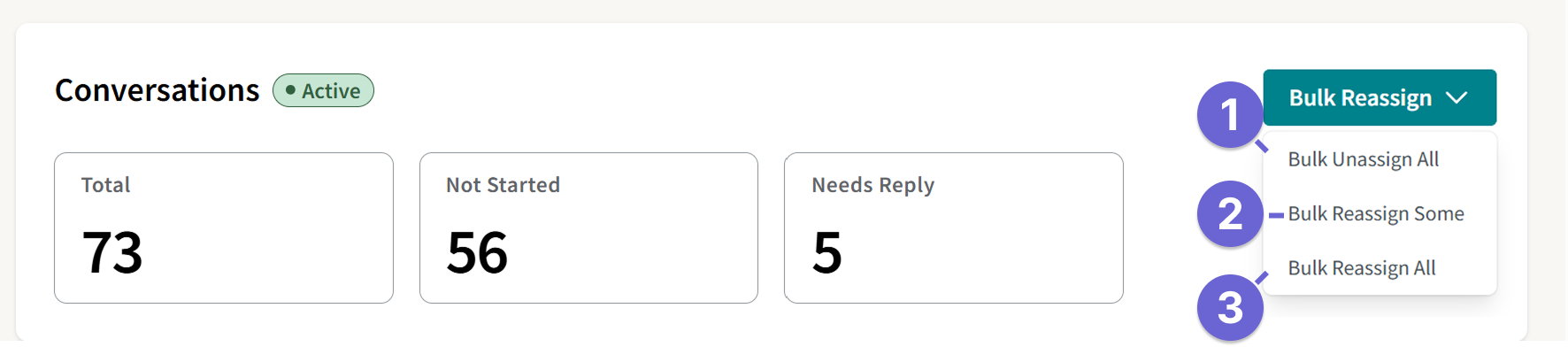
- Bulk Unassign All: This moves all conversations to Unassigned, regardless of conversation status or current sender. Use this to allow senders to claim conversations using Self Assign. Senders can only self assign unassigned conversations).
- Bulk Reassign Some: Moves a specified number of conversations that match the selected status. Select one or more senders to receive the conversations.
- Bulk Reassign All: Moves every conversation in the campaign that matches the selected status. Select one or more senders to receive the conversations.
Assign Unassigned Conversations
Use the actions in the Unassigned Conversations section to move conversations from the unassigned group to campaign senders.
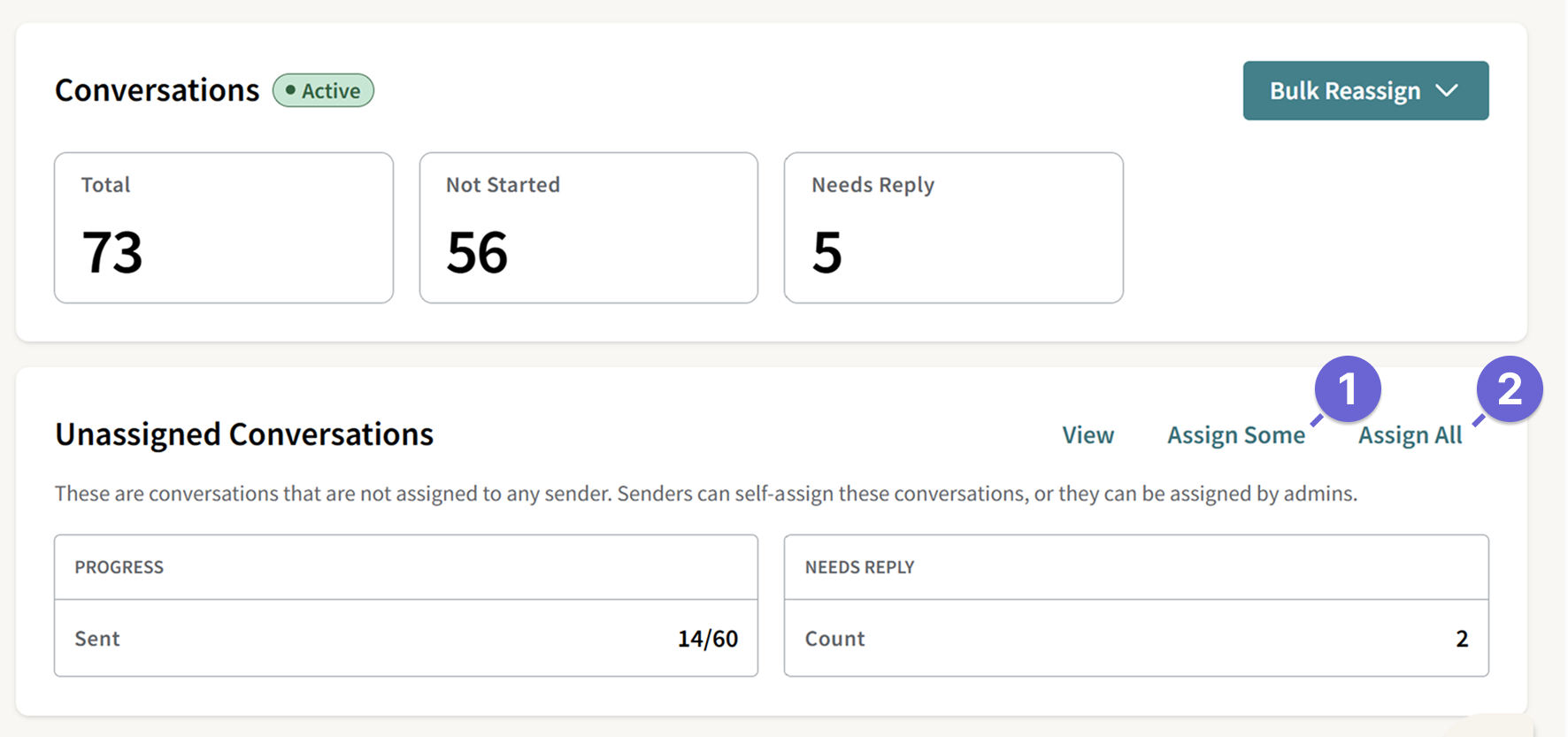
- Assign Some: Assigns a specified number of unassigned conversations that match the selected status. Choose one sender or select Distribute to all users.
- Assign All: Assigns every unassigned conversation that matches the selected status. Choose one sender or select Distribute to all users.
Reassign Conversations From One Sender
You can reassign conversations from a specific sender’s assignment using the Reassign buttons in the Assignments table.
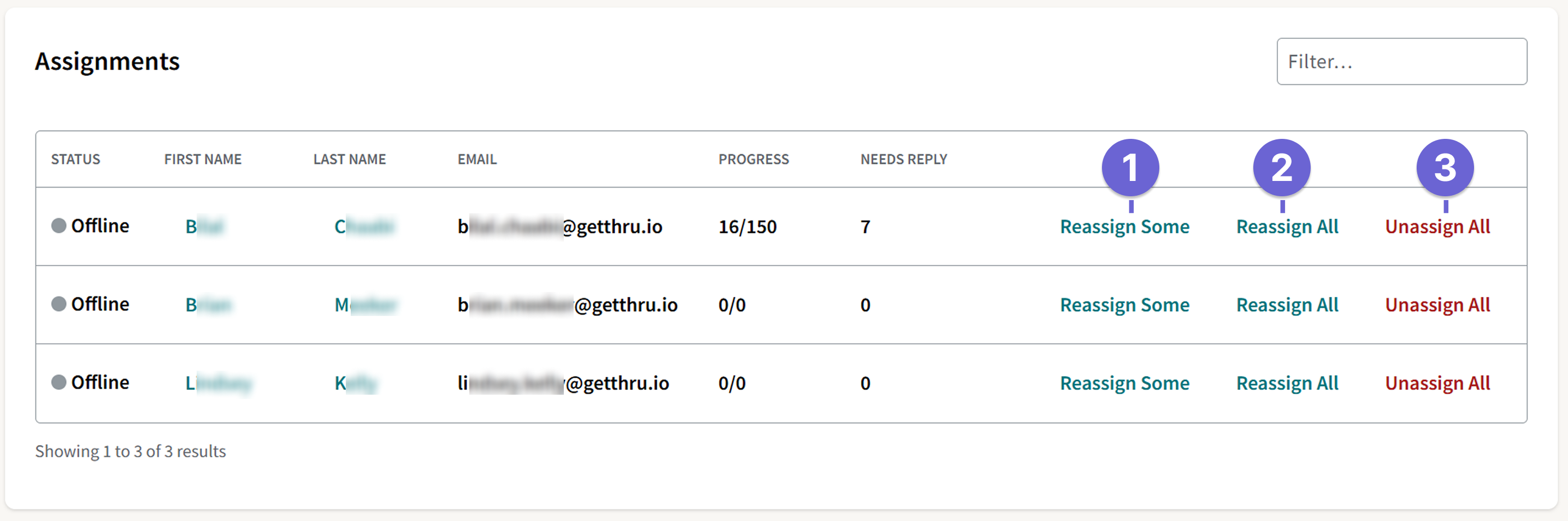
- Reassign Some: Moves a specified number of conversations from the selected sender. Select a conversation status, then choose one sender, Distribute to all users, or Unassigned.
- Reassign All: Moves every conversation from the selected sender that matches the chosen status. Select one sender, Distribute to all users, or Unassigned.
- Unassign All: Moves every conversation from the selected sender to the unassigned group.
Campaign Status
Campaign status messages may appear at the top of the Conversations page. While these messages don't change how reassignment works, they explain why certain campaign behaviors, such as message sending, may be unavailable.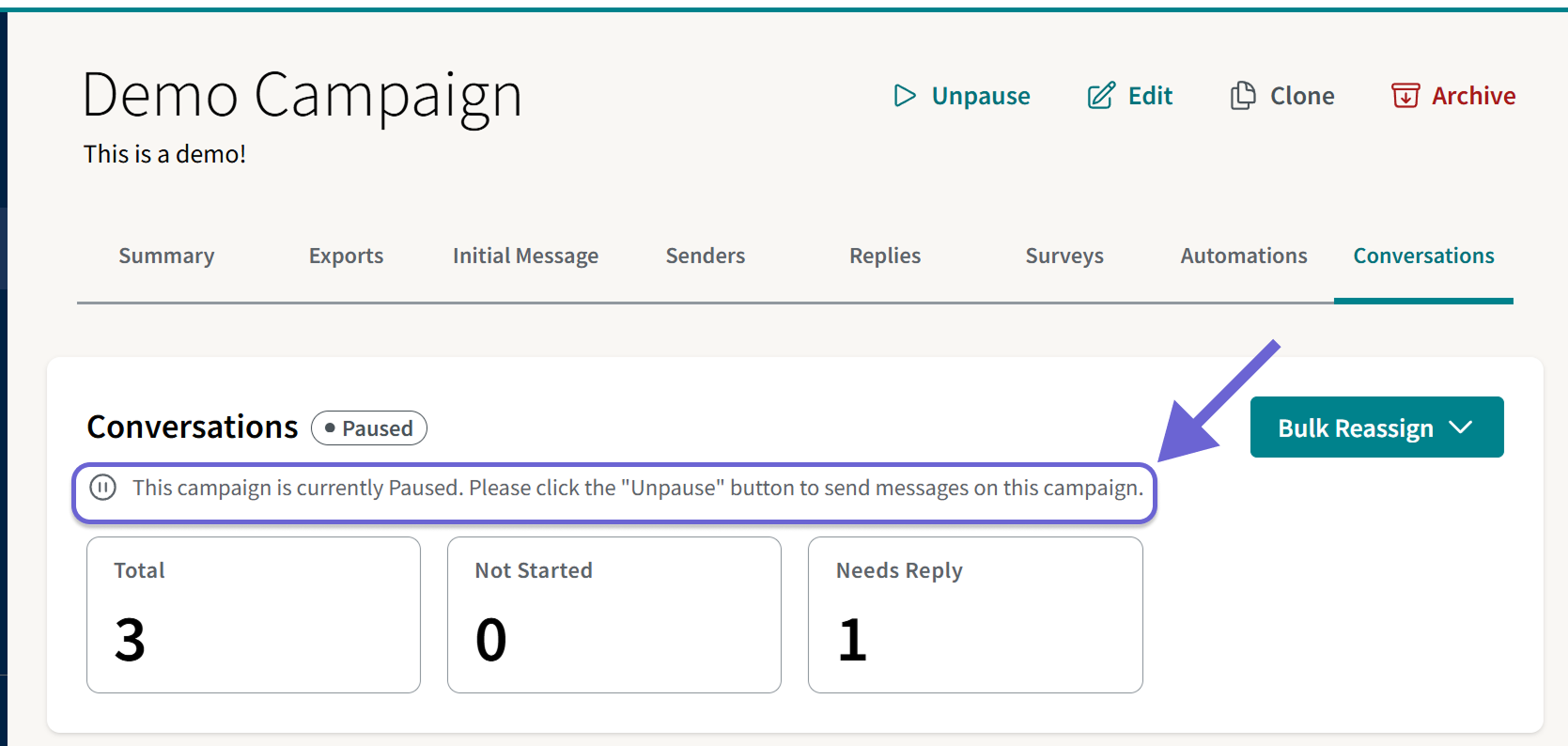
- This campaign is currently Paused: A paused campaign cannot send outgoing messages, but it can still receive incoming messages. Assignments can still be viewed from the Admin Messenger. Assignments do not appear in a sender’s assignment list while the campaign is paused. Click Unpause at the top to resume.
- This campaign is currently outside the daily open hours: Outside the campaign’s daily open hours, outgoing messages cannot be delivered immediately. Admins can create and send messages, but the system queues them until the campaign reopens. Users can access the assignment but cannot view or respond to messages. Click Edit to change the daily open hours.
- Initial message sending window has passed: Outside the initial message sending window (IMSW), initial messages cannot be sent. The campaign can still send replies and followups and receive incoming messages. Click Edit at the top to change the IMSW.
Monitor Campaign Progress
Check the Conversations page while monitoring your campaign to review conversation activity and keep assignments organized. Use the Conversations page to identify and reassign inactive or Not Started conversations.
After redistributing assignments, use the Admin Messenger to review individual conversations and complete follow-up work. You can use the Admin Messenger to:
- Reassign a specific conversation from a sender.
- Reply to incomplete conversations.
- Ensure all opt out requests are fulfilled.
- Ensure survey questions are completed.
See our guide, Admin Messenger Management and Reassignment, and our video tutorial How to View Conversations and Cleanup Campaigns for additional sweeping tips.
Please reach out to support@getthru.io if you have any questions.