
What is Campaign Verify?
Campaign Verify is a non‑partisan service that verifies the identity of U.S. political organizations that file as 527s (campaigns, parties, and PACs). Completing Campaign Verify Registration gives you a unique token used in your ThruText 10DLC registration to verify your Brand Registration. This guide walks you through getting and adding the token to your account.
TABLE OF CONTENTS
Who Must Register
Campaign Verify registration is required for U.S. political entities that file as 527 organizations.
- Must register: Federal, state, and local candidate committees; party committees; PACs; ballot initiatives organized as 527s.
- Do not register: 501(c) organizations.
If your organization is unsure of its filing type, check your federal, state, or local registration records.
Fees
Campaign Verify charges a registration fee, paid directly to Campaign Verify. Check their current pricing on the Campaign Verify FAQ.
Before You Start
Make sure you have:
- Your FEC ID (for federal entities) or a public URL to your state or local filing.
- Admin access in GetThru to complete 10DLC Brand Registration and the Political use case later.
Step 1: Request Verification at Campaign Verify
- Go to campaignverify.org/get-started and create an account.
- Start a new Verification Request.
- Provide your FEC ID or a URL to your state/local filing.
- (Optional) Watch Campaign Verify’s short walkthroughs:
- Submit the request for review.
Step 2: Generate Your Token
- After submission, Campaign Verify will issue a six‑digit PIN.
- Log back in to Campaign Verify and enter the PIN to generate your token.
- Your valid token is a long string (97 alphanumeric characters).
Note: The six‑digit PIN is not your token. The PIN is used once to generate the token. Tokens are generated immediately after you enter the PIN.
Step 3: Add the Token in GetThru
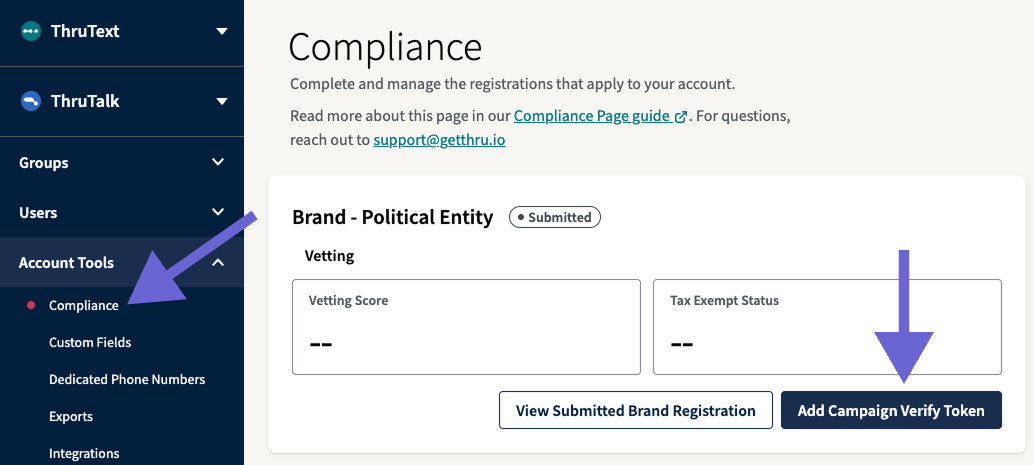
- From the left sidebar navigation menu, expand Account Tools.
- Click Compliance.
- Click Add Campaign Verify Token.
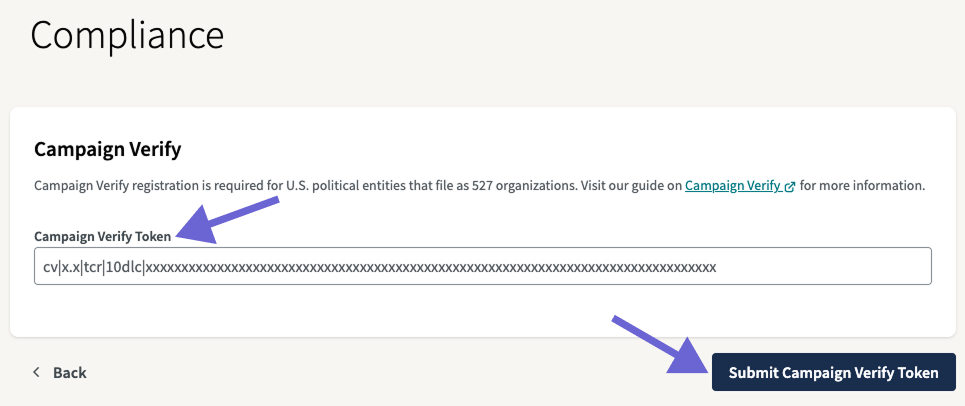
- Paste your Campaign Verify token in the Campaign Verify Token field.
- Click Submit Campaign Verify Token.
Expiration and Renewal
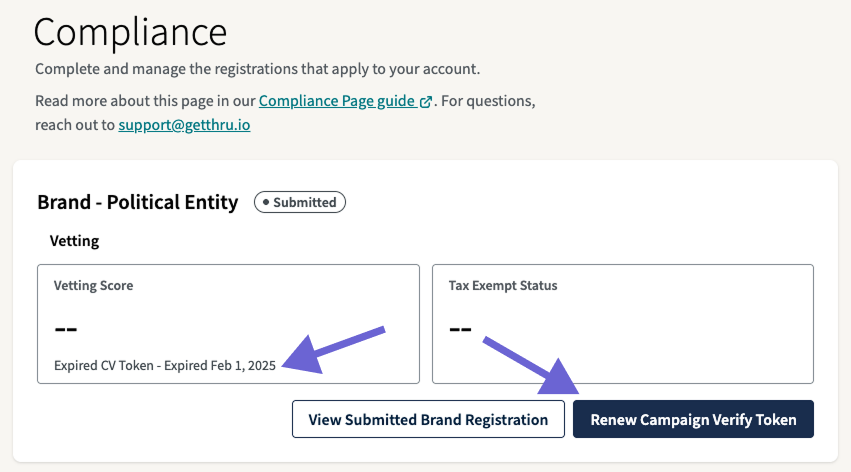
Campaign Verify tokens expire. Tokens are active for 2-year election cycles. You can renew your token from the Campaign Verify portal. The CV token's expiration date is displayed on the Compliance page, and can be renewed by clicking Renew Campaign Verify Token.
Sending Limits
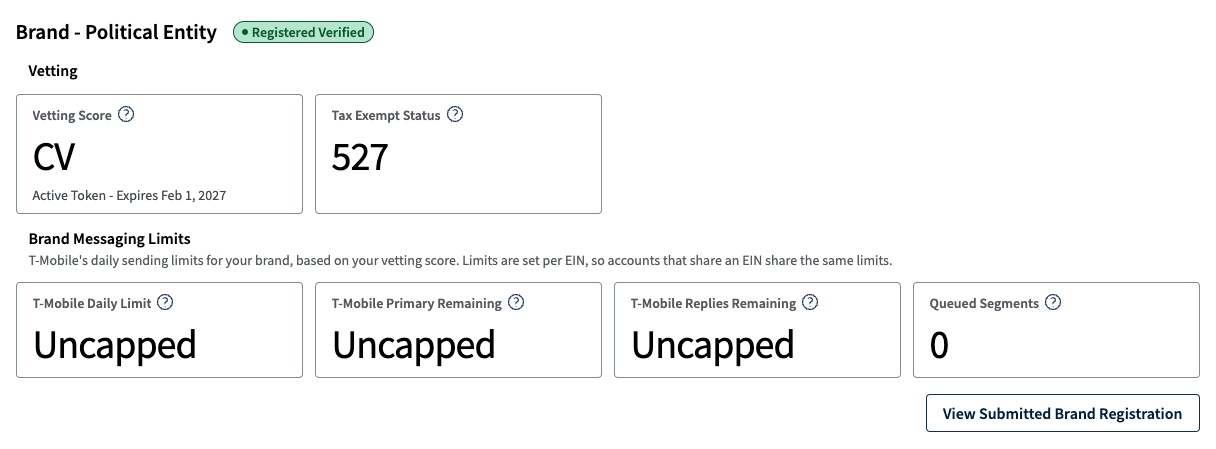
When the account has an active CV token and use case, the Brand Section will show the CV token expiration date, tax exempt status as 527, and uncapped for T-Mobile sending limits.
Troubleshooting
My token won’t validate in GetThru.
Confirm you generated the token from your six‑digit PIN and that it’s a 97‑character alphanumeric string. Review that the EIN in Campaign Verify and GetThru Brand Registration match. Additionally, tokens are tool‑specific and cannot be shared with other texting platforms.
I don’t have an FEC ID.
Provide a public URL to your recognized state or local filing when submitting at Campaign Verify.