Editing the Message Script in an Active Campaign
When you’re running a ThruText campaign, you may need to update your initial message after the campaign has already launched. Whether you’re correcting a typo or adjusting your script based on early responses, you can make updates safely by pausing the campaign, editing your message, and then unpausing the campaign.
This guide walks you through each step so you can make changes confidently.
TABLE OF CONTENTS
Steps for Editing the Initial Message
Follow these steps to update your initial message while a campaign is in progress.
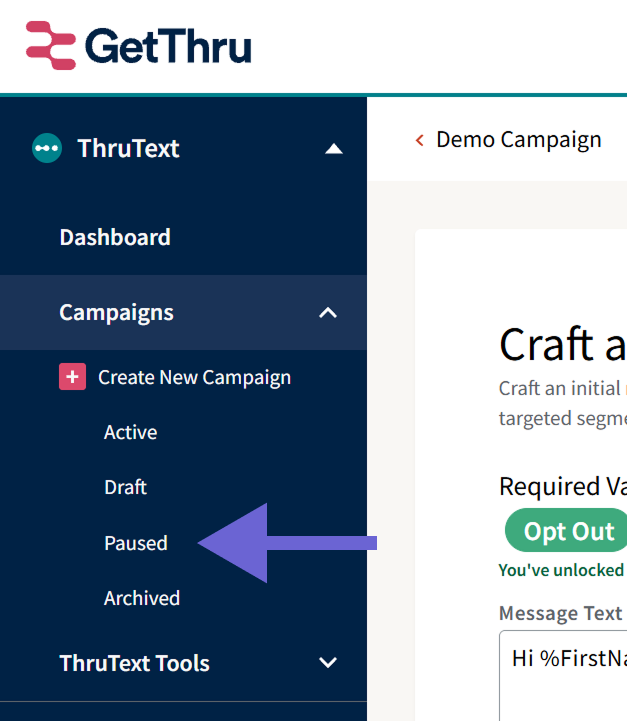
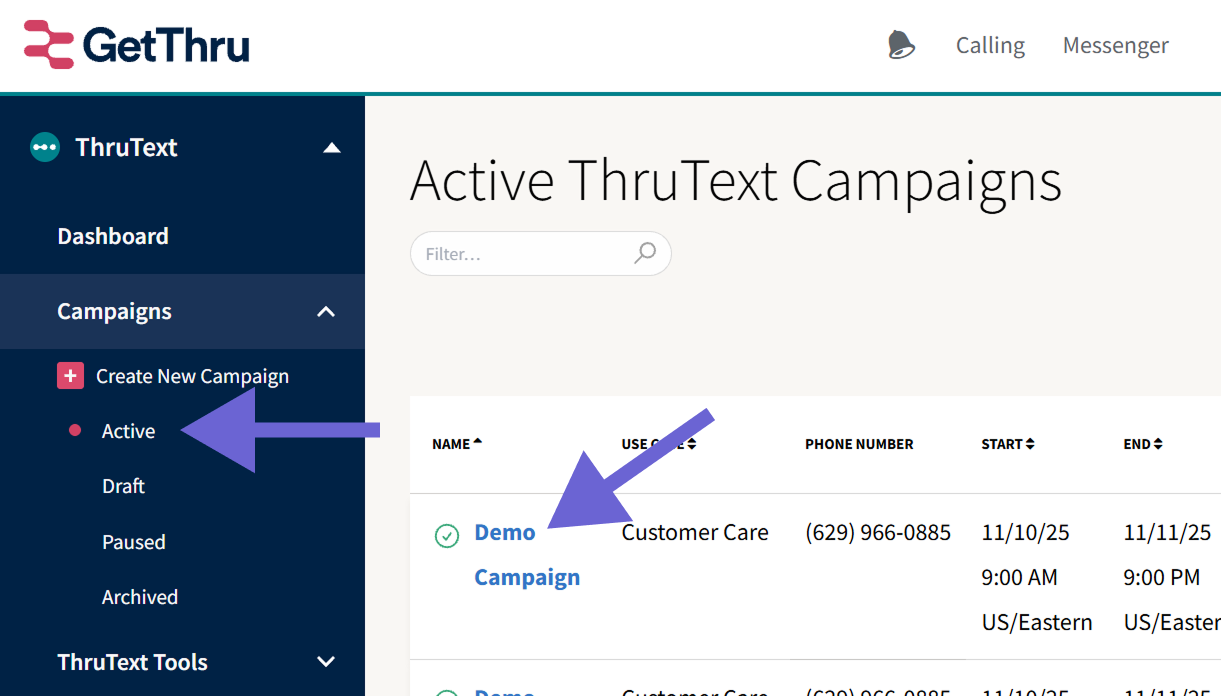
- Open the Campaign Summary page: Start by finding your campaign. In the left sidebar navigation menu, expand Campaigns, click Active, and click the campaign you want to update.
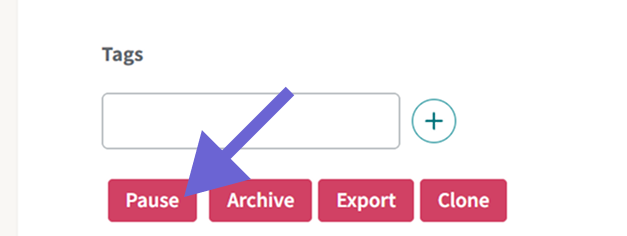
- Pause the Campaign: Scroll down the Campaign Summary page and click Pause.
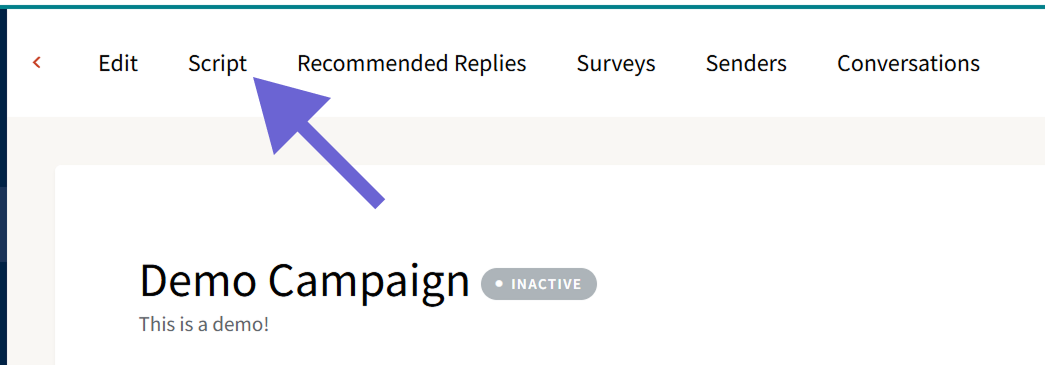
- Open the Script page: Clicking Pause will make the Script tab appear. Click to open.
- Edit the Message: Make any desired edits in the message editor, then click Update Script at the bottom to save your change. Click the back arrow at the top left to return to the Campaign Summary page.
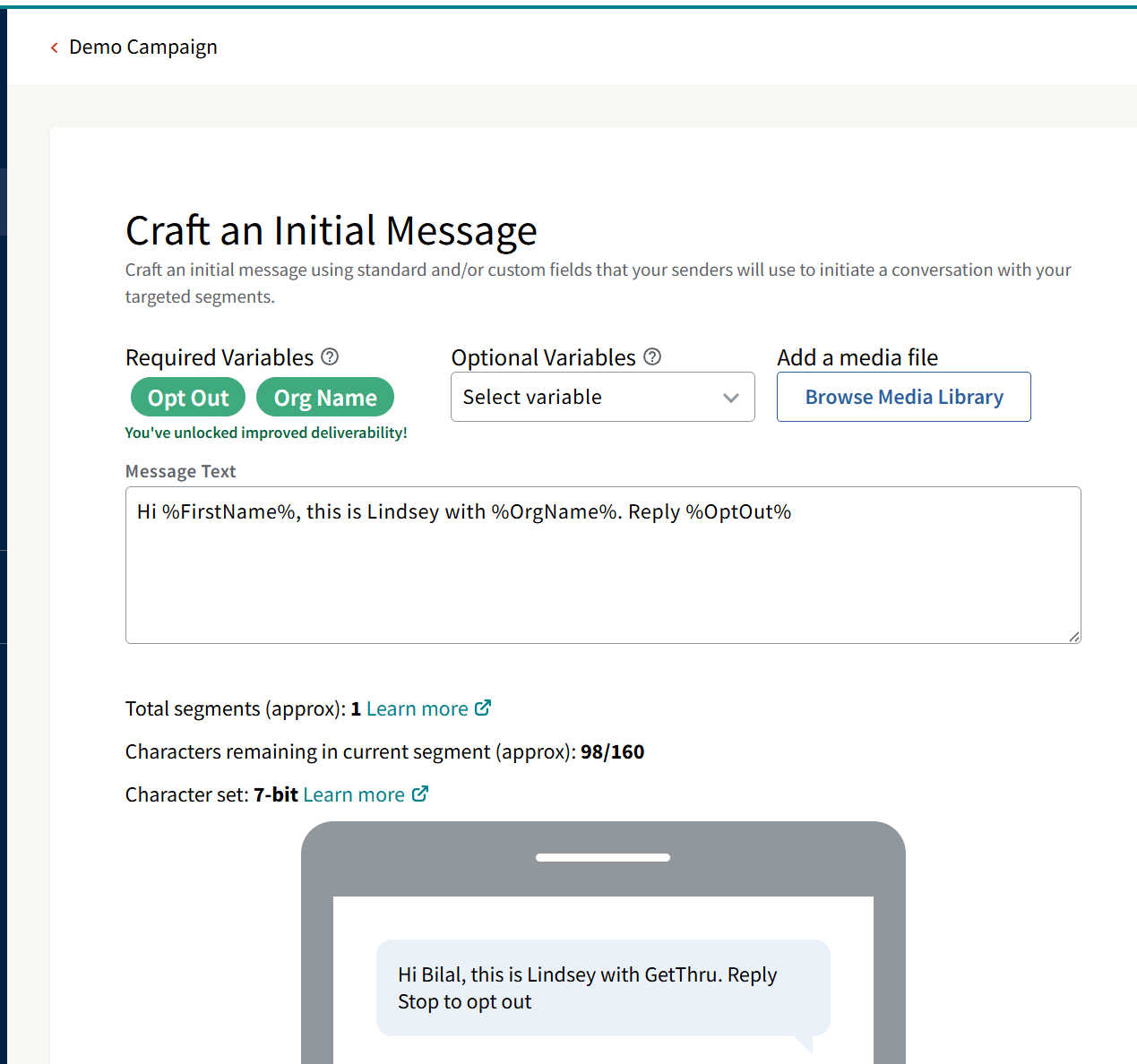
- Unpause the Campaign: Scroll down and click Unpause
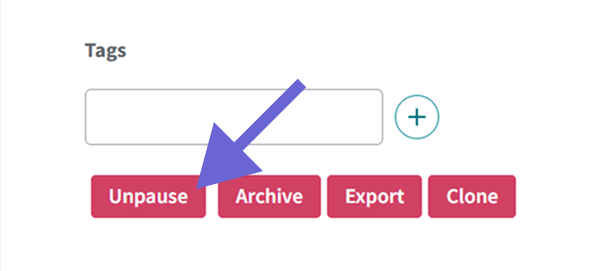
After you unpause, your campaign will be active again and you can proceed with sending text messages with the new script.
Best Practices and Additional Information
- Message senders cannot access their assignments or send messages while a campaign is paused.
- You can add or remove media from your initial message to switch between SMS and MMS, as long as you are using an MMS approved use case. Read more about MMS approved use cases here: MMS Approval - Adding Sample Media to a Use Case.
- When your campaign is paused, your campaign will move from the Active index to Paused.