
Text Message Segments and Encoding
When you send an SMS message, it gets broken into parts called segments. A segment is a small piece of the message with a specific character limit, typically 160 characters. However, certain characters in your text can change the encoding, which can significantly change the length of your message. Understanding how segments work helps you manage the length, deliverability, and cost of your messages in ThruText.
This guide explains where to see segment information in ThruText, how segments are calculated, how encoding affects them, and how to keep your message length within your desired limits.
TABLE OF CONTENTS
- Text Message Segments and Encoding
Understanding Text Message Segments
Text messages are sent in segments, and each segment has a maximum number of characters depending on the encoding used. For SMS messages there are 2 character sets, or "encoding":
- 7-bit (GSM-7): 160 characters in the first segment, 153 in following segments
- Unicode (UCS-2): 70 characters in the first segment, 67 in following segments
Your message starts in 7-bit. If you add certain characters - such as emojis, curly quotes, long dashes, or certain punctuation - the message switches to Unicode, which drastically reduces how many characters each segment can hold.
On the other hand, MMS messages can contain up to 1,600 characters, and are counted as 1 segment no matter the length or the characters. Adding special characters to an MMS message won't change the segment length, making it a useful strategy for optimizing costs and delivery.
Why Do Segments Matter?
The segment count for your text message matters for several reasons:
- Max Segment Count: Messages can't exceed 9 segments.
- Costs: If you are on a per-segment pricing plan, you are charged per individual segment sent.
- Throughput (US only): Carriers enforce limits on how many segments you can send to recipients of a particular carrier per minute or per day. Keeping segment count low supports better deliverability and texting speed. Read more here: 10DLC Sending Limits - Throughput and Queuing.
Where You'll See This in the Tool
You can view segment information while composing an initial message, recommended reply, or followup message in ThruText.
For example, when you create a new campaign, you'll compose your Initial Message in the Message Text form editor:
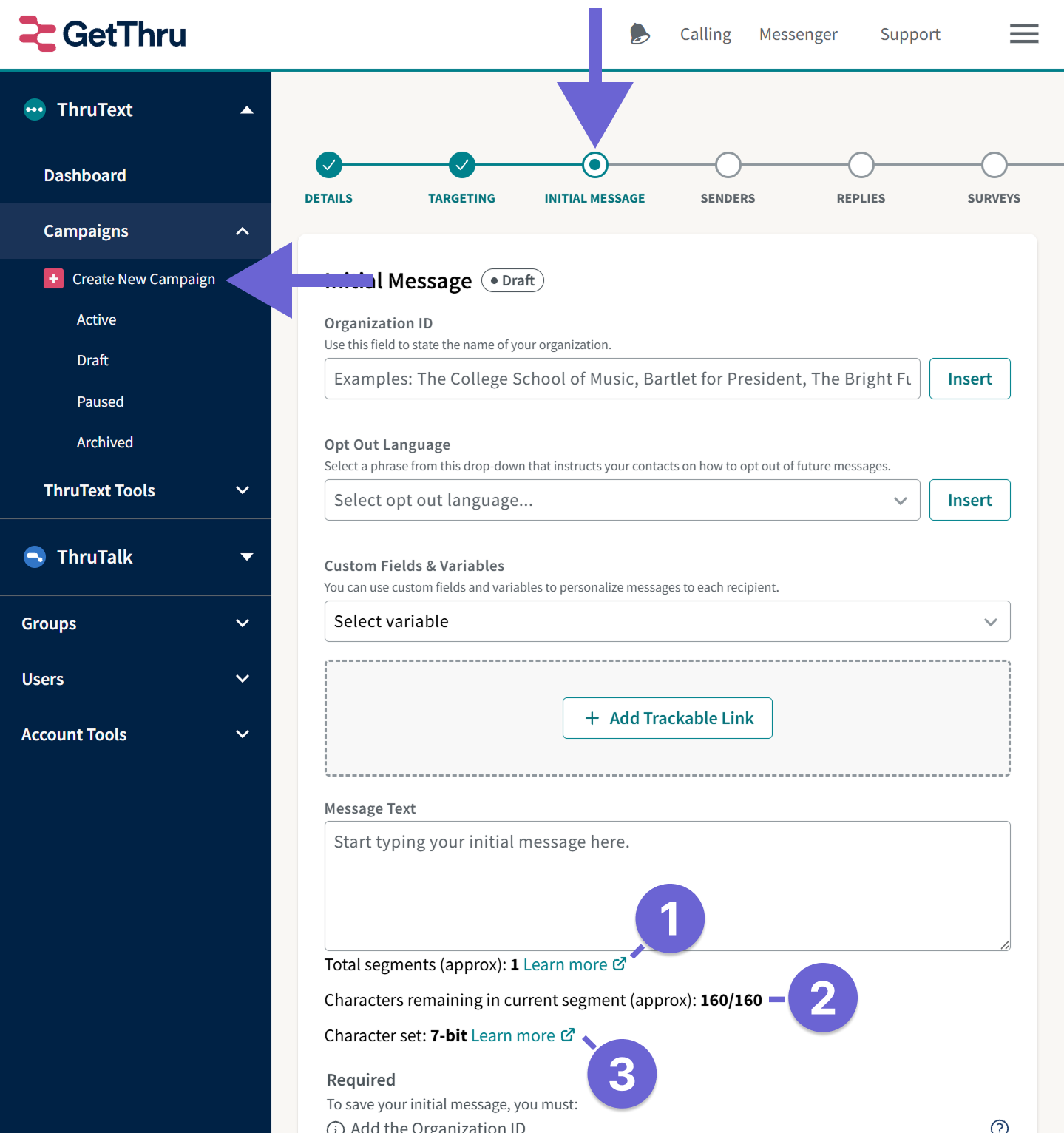
- Total segments (approx): The approximate number of segments in your message.
- Characters remaining in current segment (approx): How many characters you have before the message moves to the next segment, along with the total capacity for that segment.
- Character set: The encoding currently used (7-bit or Unicode), which determines how many characters fit in a segment.
Segment and Character Counter Approximates
The segment counter provides an estimate because ThruText supports message variables. Variables can vary in length depending on the contact, so the system calculates character counts based on what it can know in advance.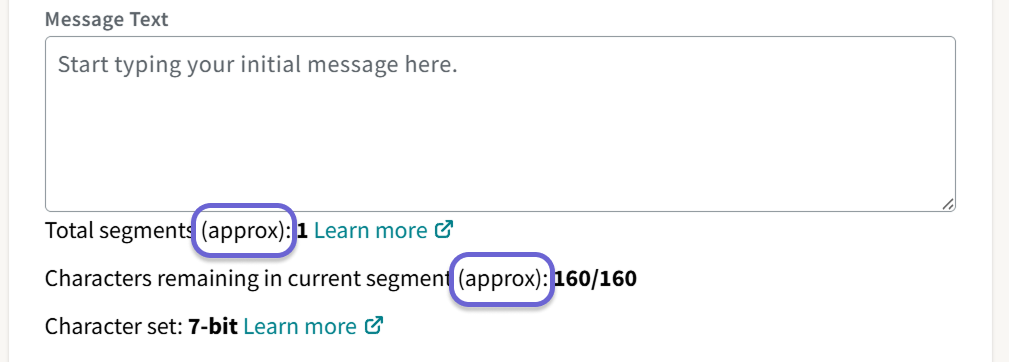
- Variable-Length Fields: Some variables are unique for each message - such as sender names, contact names, and custom fields. For variable-length fields, the system counts the characters in the placeholder.
- Constant-Length Fields: Other variables have a constant length for each message in your campaign - such as Organization ID, Opt Out Language, and Trackable Link. ThruText counts exact characters for constant-length variables.
For example, %SenderFirstName% will be counted as 17 characters, whereas %OrgName% is counted using the actual number of characters in the Organization ID you enter.
What is Encoding and How Does it Affect Segment Count?
Encoding is the way text messages are translated into data so they can be sent through mobile networks. Most messages use a format called 7-bit, but if your message includes special characters, it switches to a different format called Unicode.
- 7-bit (GSM-7): Includes most standard letters, numbers, and punctuation. Extended GSM characters, like ^, {, or |, still use GSM encoding, but count as two characters.
- Unicode (UCS-2): Includes far more characters than the basic SMS alphabet, such as emojis, curly quotes, long dashes, etc. However, Unicode requires more data per character, so fewer characters fit into each segment.
As you type in the Message Text Editor, you'll see the segments, characters, and encoding update in real time.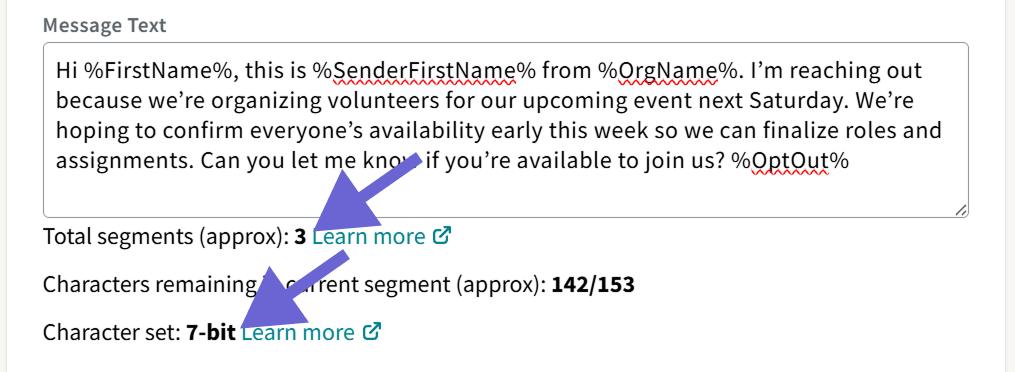
Because Unicode segments are shorter, a message that used 3 segments in GSM-7 could increase to 6 segments with a single emoji.
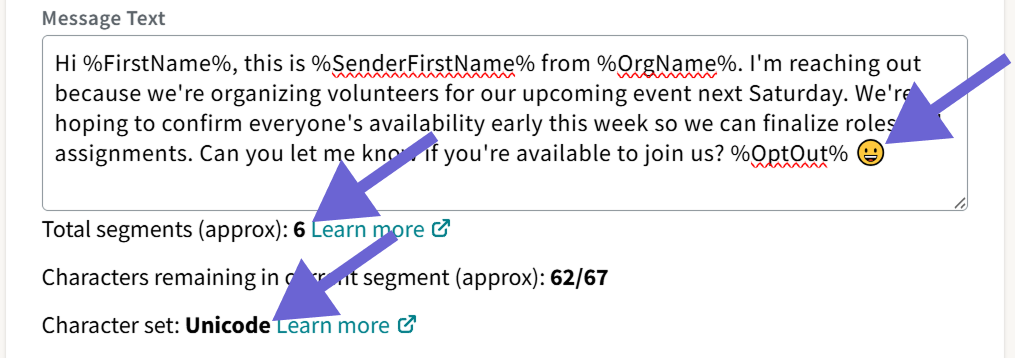
How ThruText Helps You Keep Segment Count Low
ThruText automatically replaces special Unicode characters in your message when a visually similar GSM-7 character is available. These include characters like
- Curly quotes {
- Long dashes —
- Decorative punctuation «»“”… •
- Special spacing characters
When one of these appears in your script, ThruText swaps it with a standard GSM-7 character so your message stays within the higher 160-character limit for a single segment.
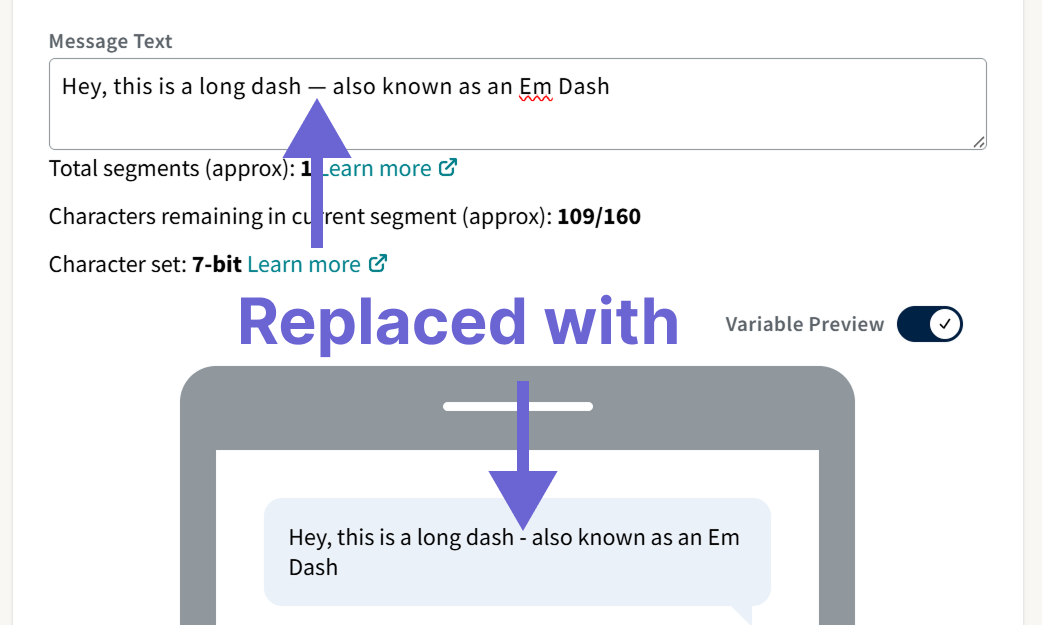
Our application uses a predefined list of Unicode characters and their GSM-7 equivalents to make these replacements. This list is based on the Smart Encoding Map created by Twilio and is publicly available here: Smart Encoding Map.
What to Do If Your Character Set is Unicode
If the encoding switches to Unicode, review your message for special characters. To identify Unicode characters, copy and paste your message into this Messaging Segment Calculator. This calculator will identify the encoding used, number of segments, and highlight Unicode characters .
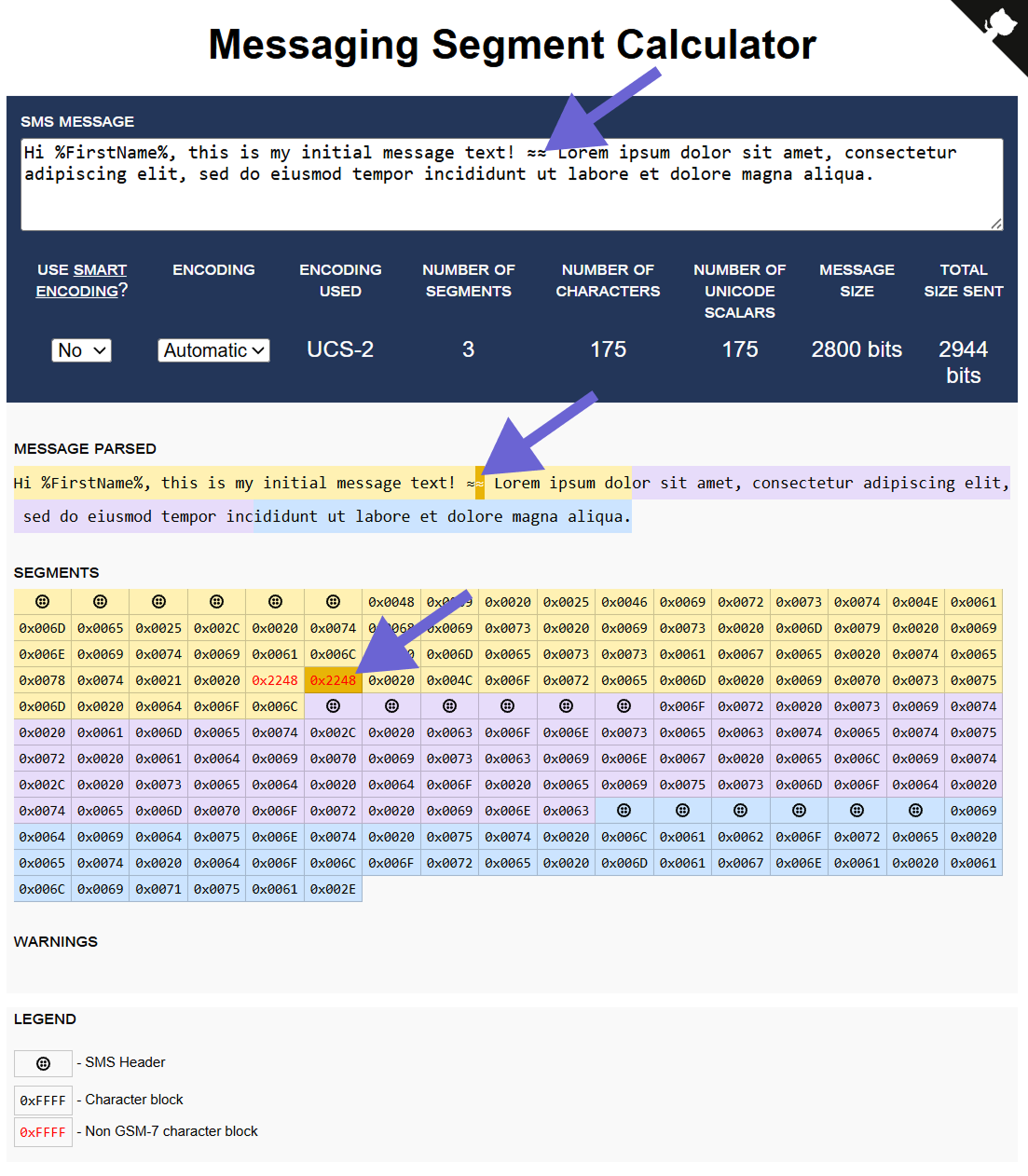
In the image above, red font under "Segments" indicates a Unicode character. Hovering your cursor on this character shows that it is the approximate equal sign.
Segment Counts in the Tool
See how many segments you've sent in the following places:
Analytics
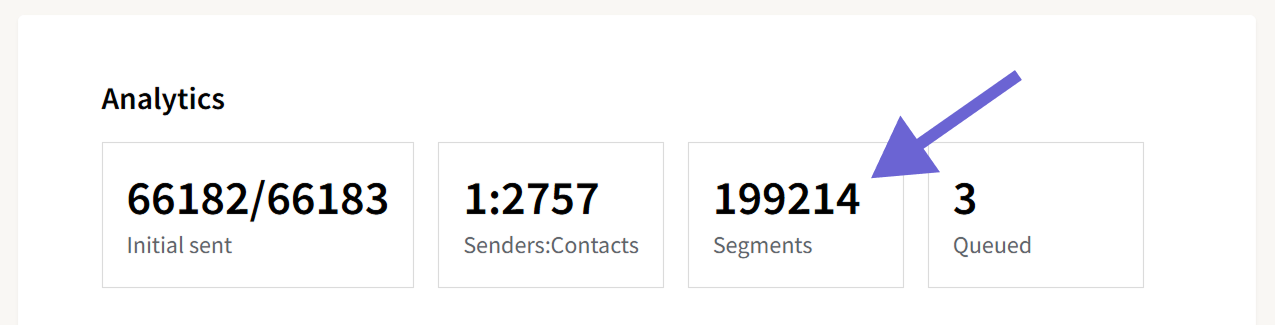
- Campaign Analytics: From the Campaign Summary Page, scroll down to see campaign analytics. This figure only represents outgoing SMS segments, not MMS or incoming segments.
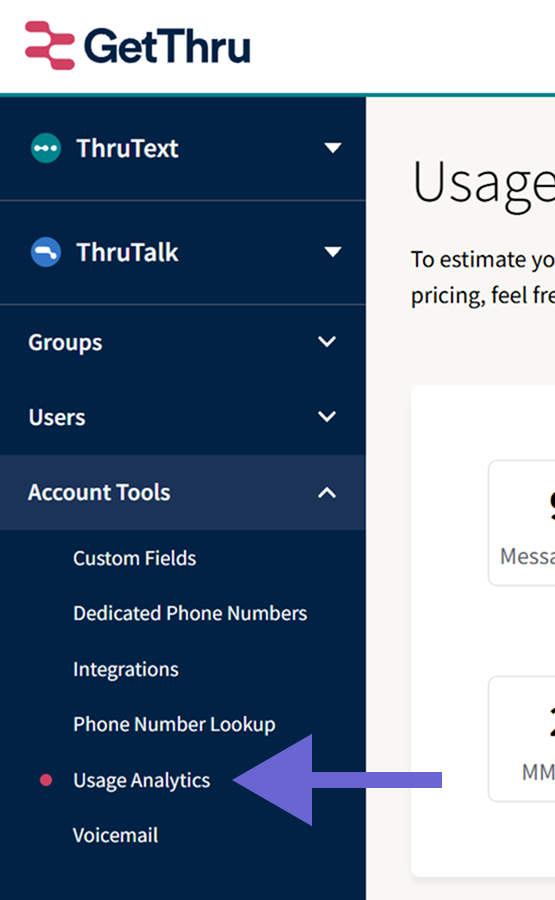
- Usage Analytics: See total billable SMS segments for your entire account or per month.
Exports
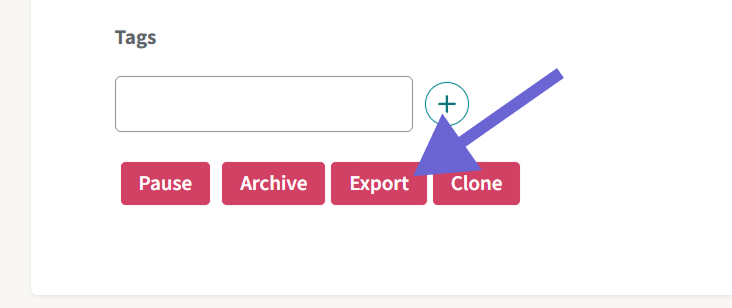
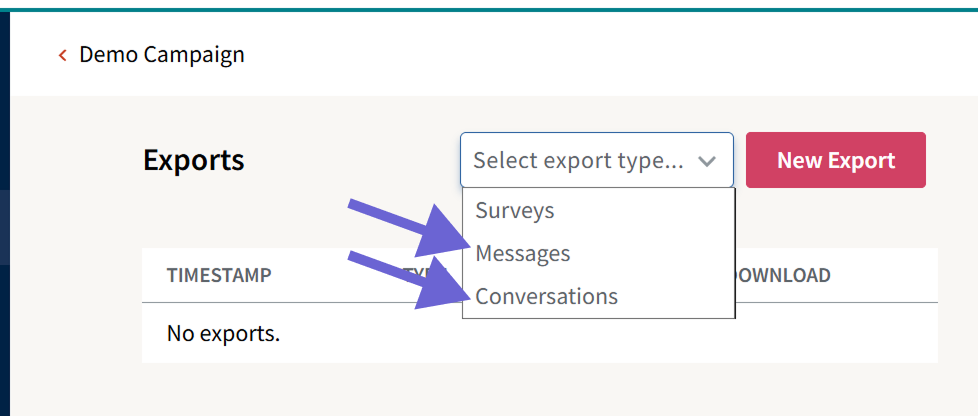
- Campaign Exports: From the Campaign Summary page, click Export and generate a Conversations or Messages export for exact segment counts.
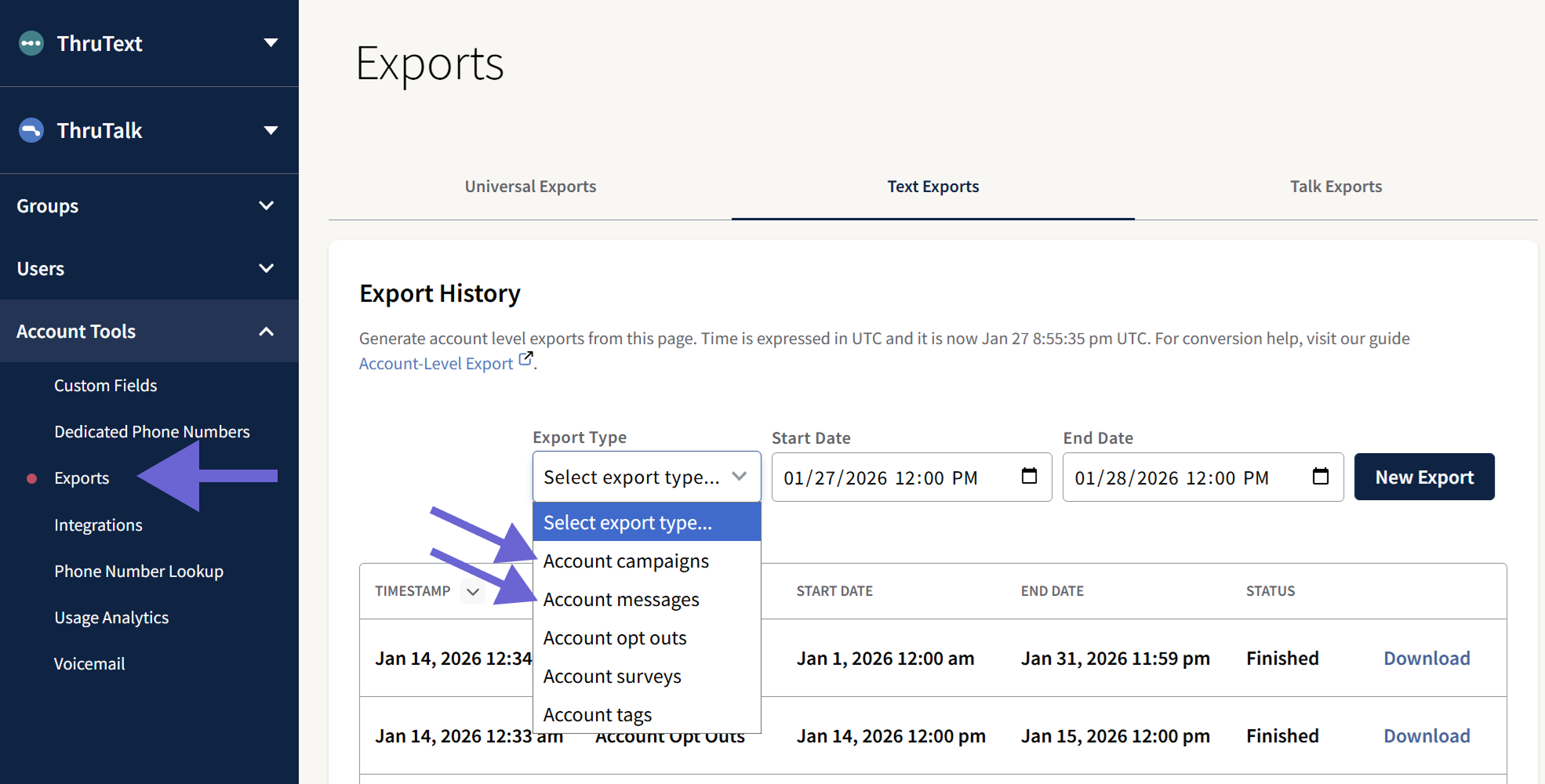
- Account Level Exports: Go to Exports and generate an Account campaigns or Account messages export for detailed segment counts.
Best Practices and Additional Information
- Keep Messages Short: Shorter messages encourage conversation and improve deliverability.
- Use MMS: MMS messages contain up to 1,600 characters and always count as 1 segment, no matter the length or the characters. Sending an MMS instead of an SMS can optimize your throughput and your costs. If you're on a per-segment pricing plan, a multi-segment SMS message can cost more than an MMS message. Read more about other messaging best practices here: Text Messaging Best Practices.
- Copy/Paste: When copying and pasting your message from external sources like Word documents or Google Docs, the original encoding may be transferred as well. This can cause your message to be split into more segments than intended. To avoid this issue, type out your initial message directly in ThruText instead of copying and pasting.
- Message Segment Calculator: Tools like Sakari can help estimate exact segment count, encoding, and final length.
- Line Breaks: Line breaks count as individual characters in your segment.