
ThruText Automations
Automations let you automatically send a reply when a contact responds with a specific word, helping you handle common, predictable responses without manual follow-up. This makes it easier to respond quickly, maintain consistent messaging, and reduce repetitive work for admins and texters, especially in campaigns where the next step is clear.
This guide explains how Automations work, how to set them up, and how to manage them in active campaigns.
TABLE OF CONTENTS
- How Does it Work?
- How To Set Up an Automation
- Managing your Automations in Active Campaigns
- Additional Information and Tips
How Does it Work?
As an admin, you create an automation using two elements: a keyword and a recommended reply. When a contact’s first response matches your keyword based on the selected matching option, ThruText will automatically send the associated recommended reply.
You can choose between two keyword matching options:
- Exact Match: The contact’s response must match the keyword exactly.
- Contains: The automation will trigger if the keyword appears anywhere within the contact’s response.
Automations will only execute if the keyword is included in the first response from the contact. Keywords sent in subsequent responses will not trigger the automation.
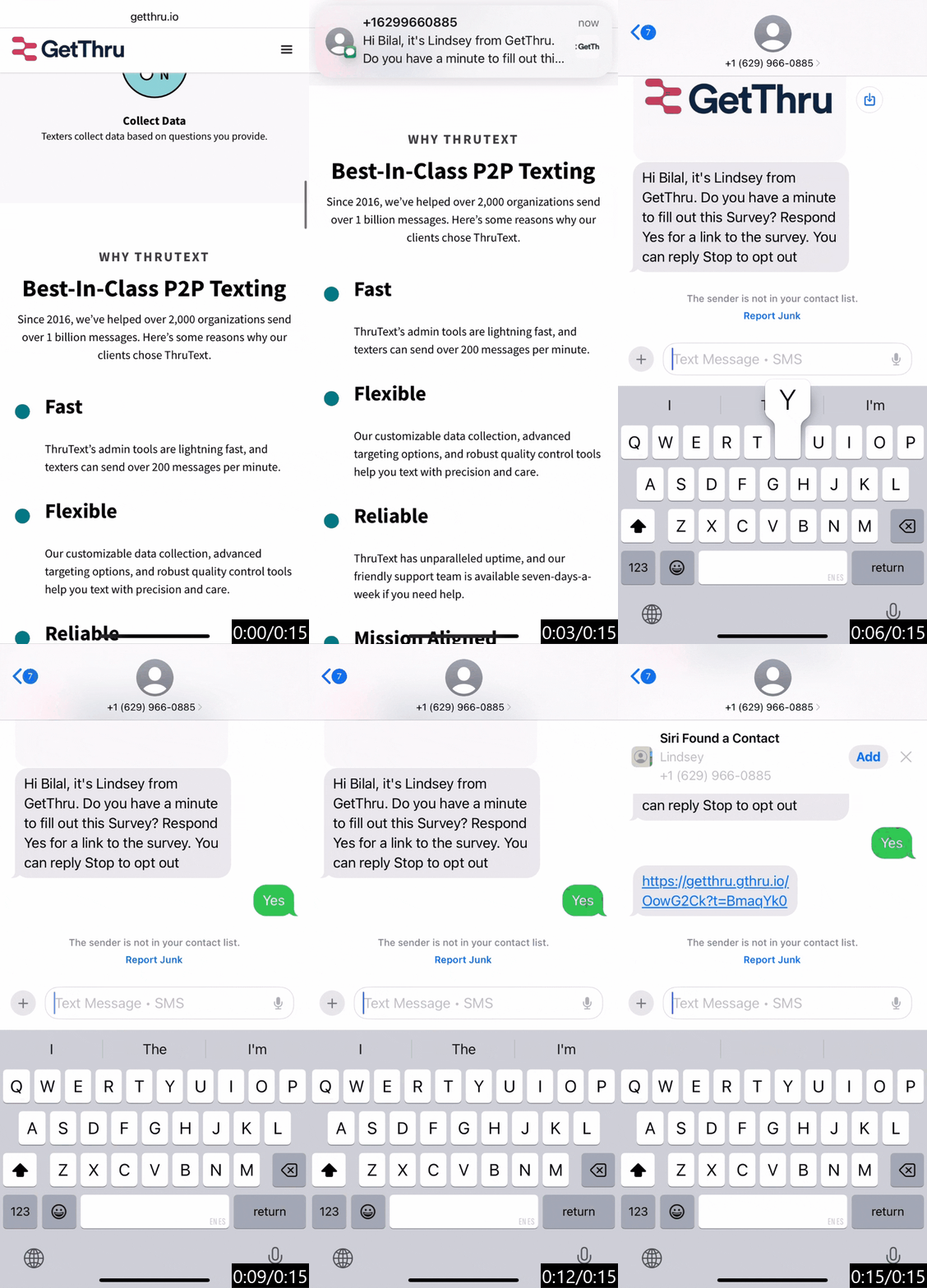
Here's how it looks to a contact.
Avoid Overlapping Matches
If two automations share the same recommended reply, a single message can trigger both. This happens if an automation's Contains keyword appears as a whole word inside a message that also satisfies another automation's keyword; for example, a Contains automation with the keyword "hi" would also fire on an Exact Match automation's phrase "hi there," since "hi" is a whole word within it. Exact automations never overlap with each other, since they only trigger on a full, exact match. To avoid this, when using Contains matching, choose keywords that aren't likely to appear inside another automation's keywords or phrases.
How To Set Up an Automation
Automations are created during campaign creation. If you are new to creating campaigns, we recommend reading this guide first: Launching a ThruText Campaign.
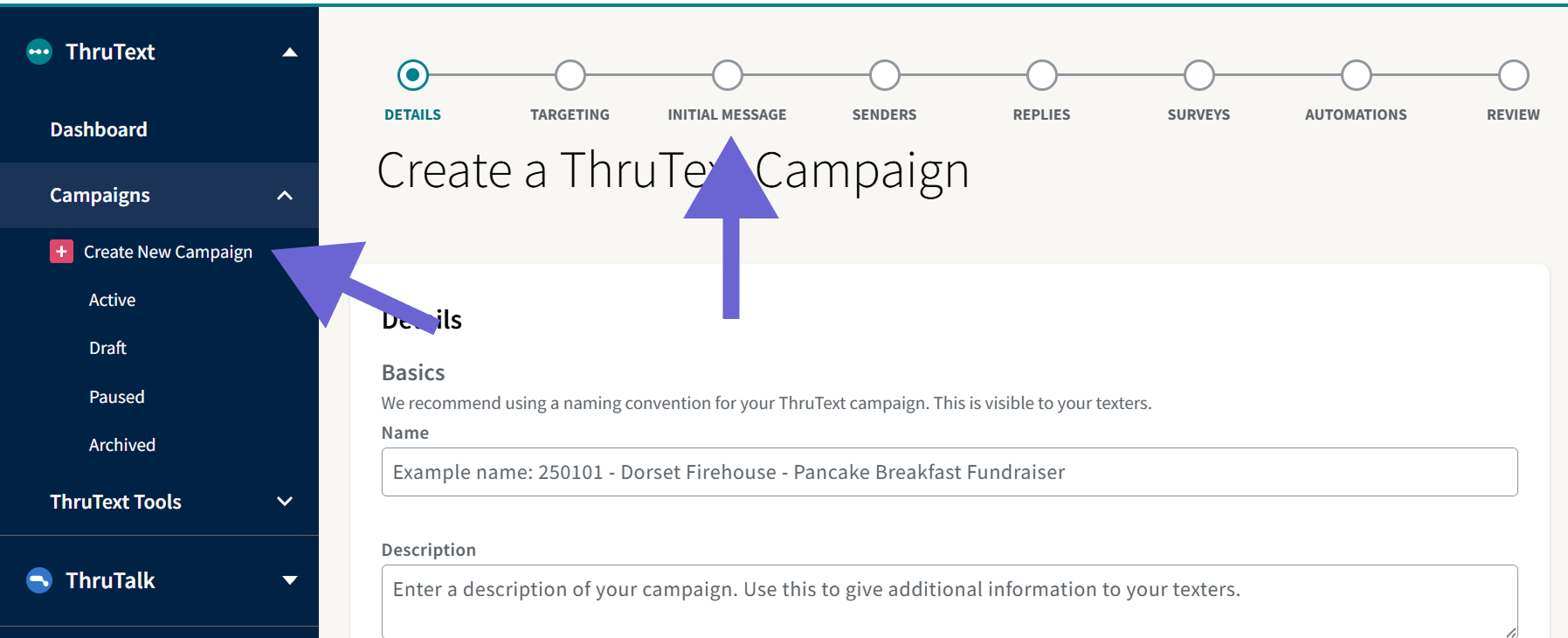
To begin creating a campaign, go to the left sidebar navigation menu and expand ThruText, then expand Campaigns, and click + Create New Campaign. Move through the campaign creation steps until you get to Initial Message.
Initial Message
There are no automation‑specific settings on the Initial Message page. However, your initial message should clearly explain how contacts can trigger automated replies.
Include instructions that tell contacts which keywords to reply with and what will happen when they do. For example, you might add language such as:
- “Reply YES to confirm attendance.”
- “Reply INFO to receive more information.”
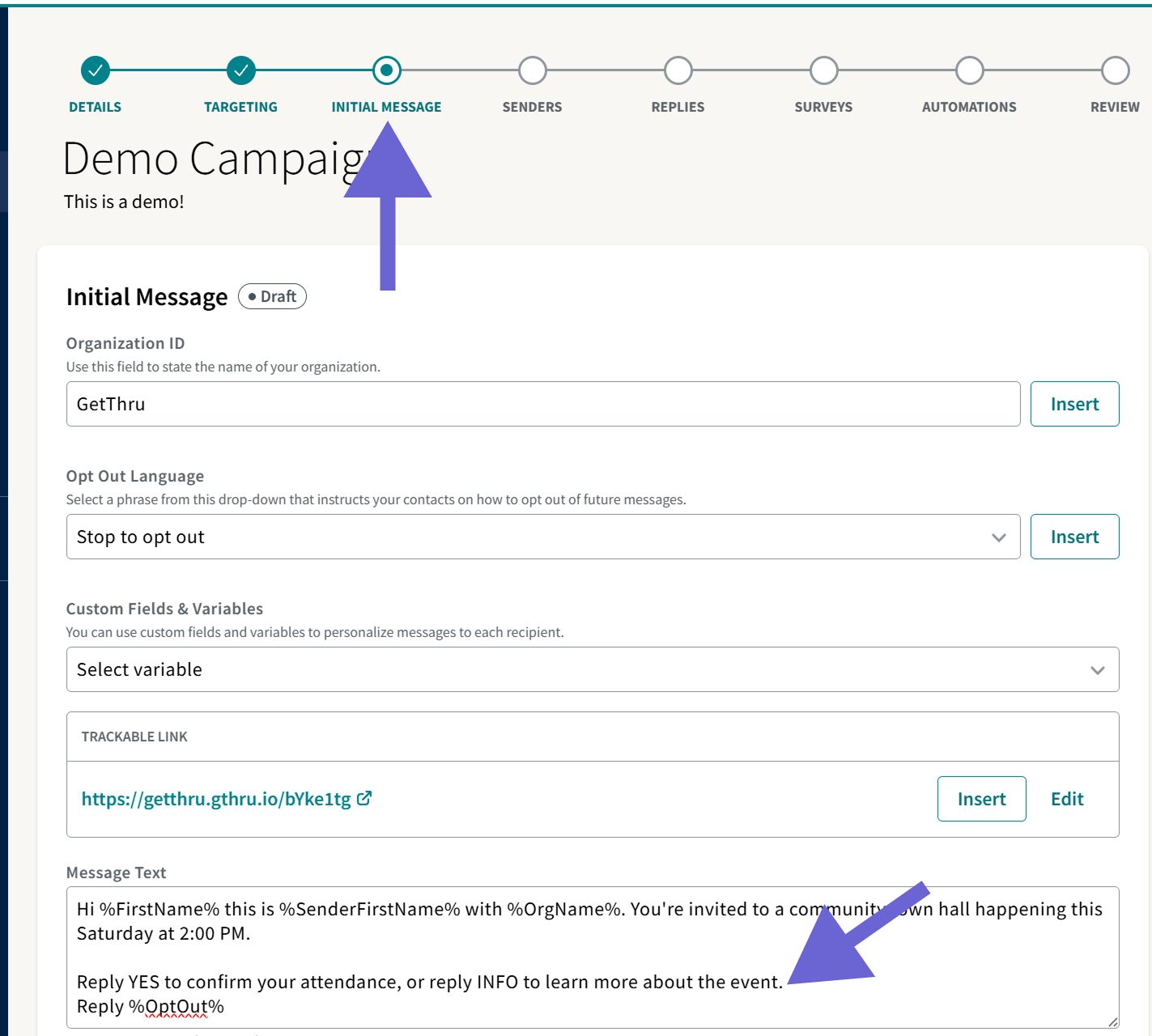
This guidance helps ensure contacts know how to receive an automated response.
Replies
On the Replies page, you create the recommended replies that may be sent automatically. There are no new settings here for automations. However, when creating replies for use with automations, write message text that makes sense when sent automatically and without staff review.
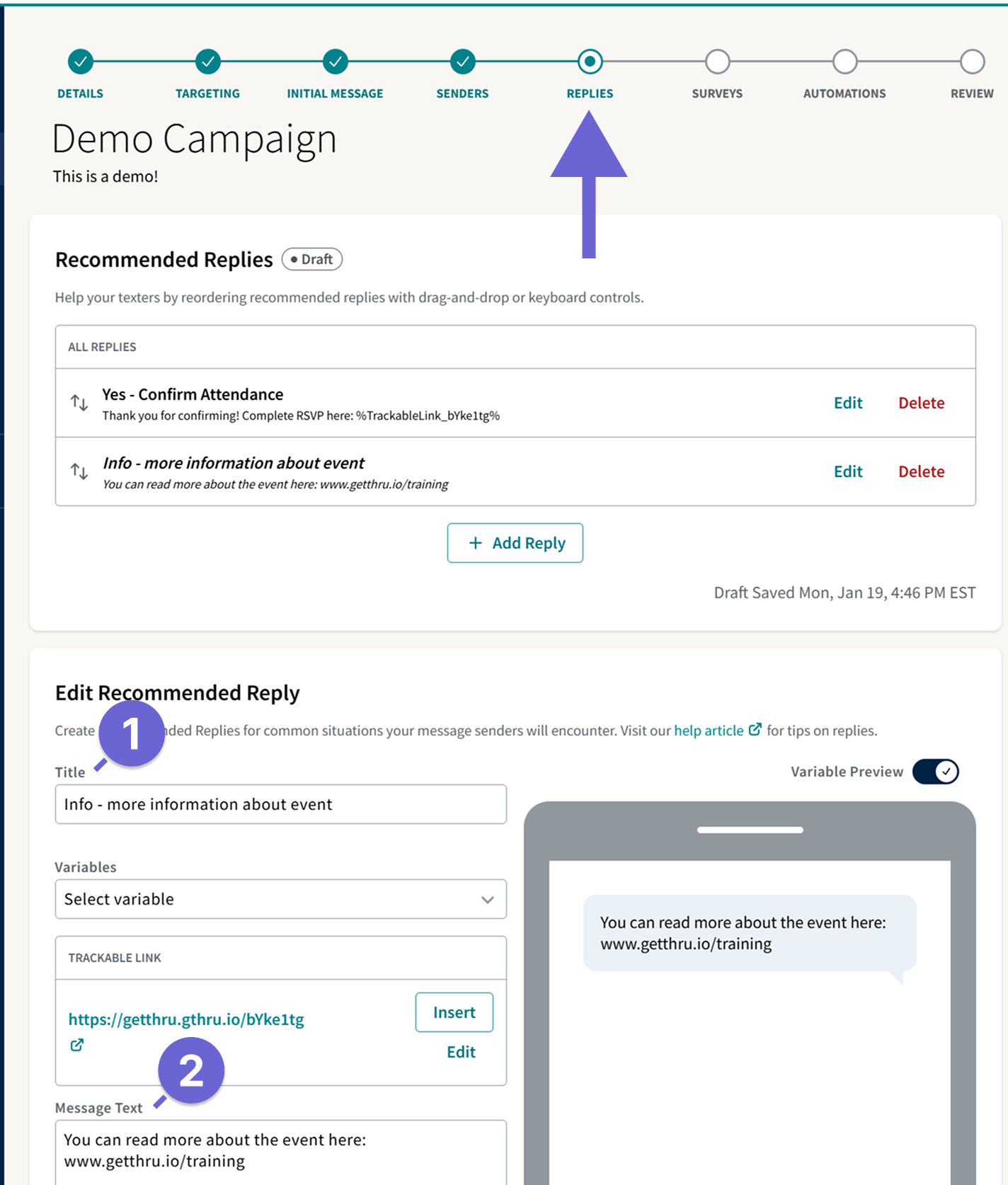
- Title: A descriptive label used to organize replies and make them easier to find later.
- Message Text: This is the text that will be sent to a contact when the automation runs.
Not all recommended replies are automated. You can continue to use recommended replies manually unless you explicitly connect them to an automation. For more information, read our guide here: Recommended Replies.
Automations
The final step in setting up an automation takes place on the Automations page. Click + Add Automation to create a new automation.
When creating an automation, complete the following fields:
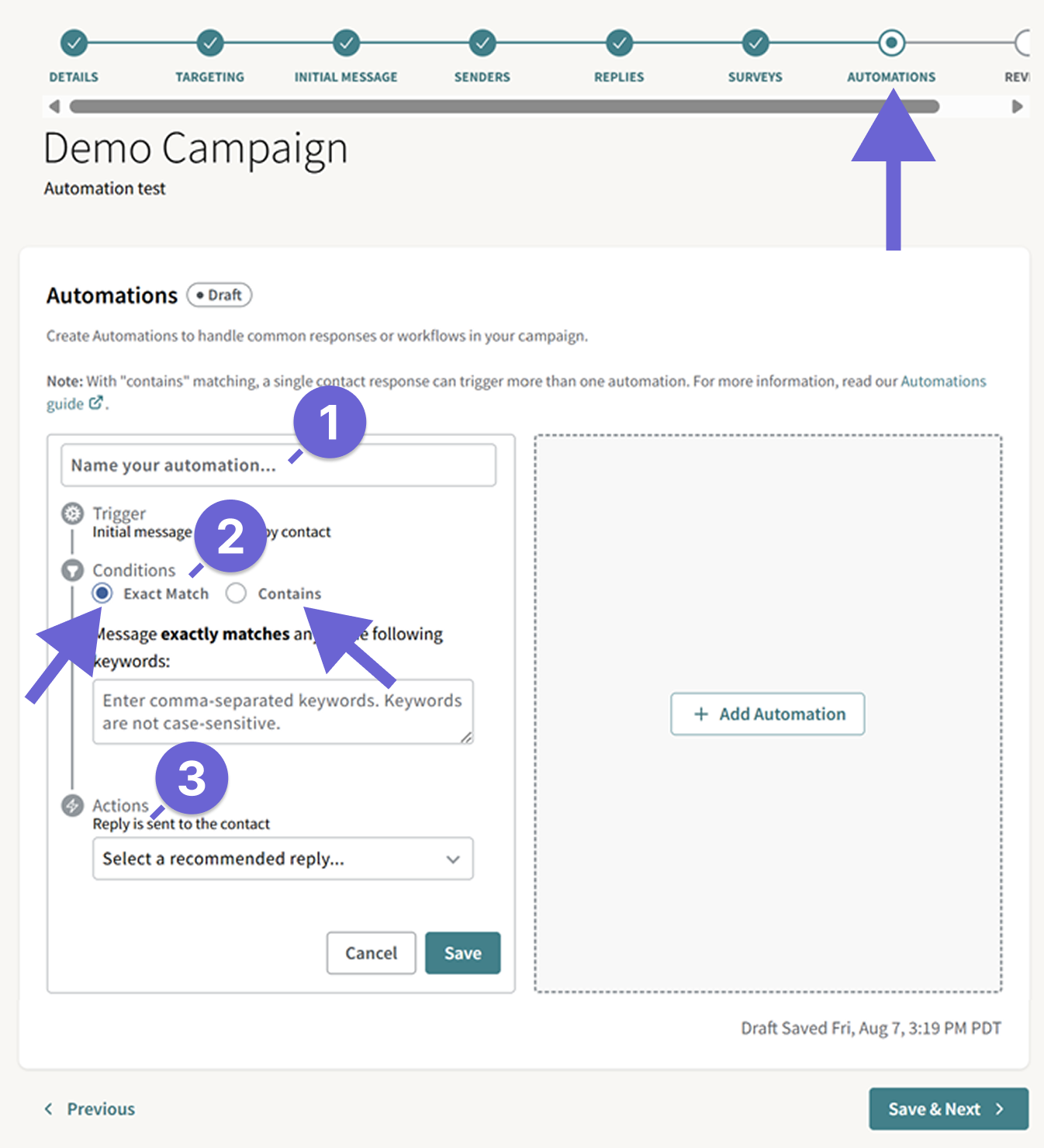
- Name your automation: Enter a clear label to identify the automation.
- Conditions:
- Choose Exact Match to match on an exact keyword as a reply or Contains. to match on a keyword included in a reply.
- Add a comma‑separated list of keywords that trigger the automation. Keywords are not case sensitive.
- Actions: Open the dropdown menu and select the recommended reply that will be sent when the automation runs.
Managing your Automations in Active Campaigns
You can view or manage the automations in your active campaign by scrolling to the bottom of the Campaign Summary page, or by going to the Automations tab.
From this page, you can do several things:
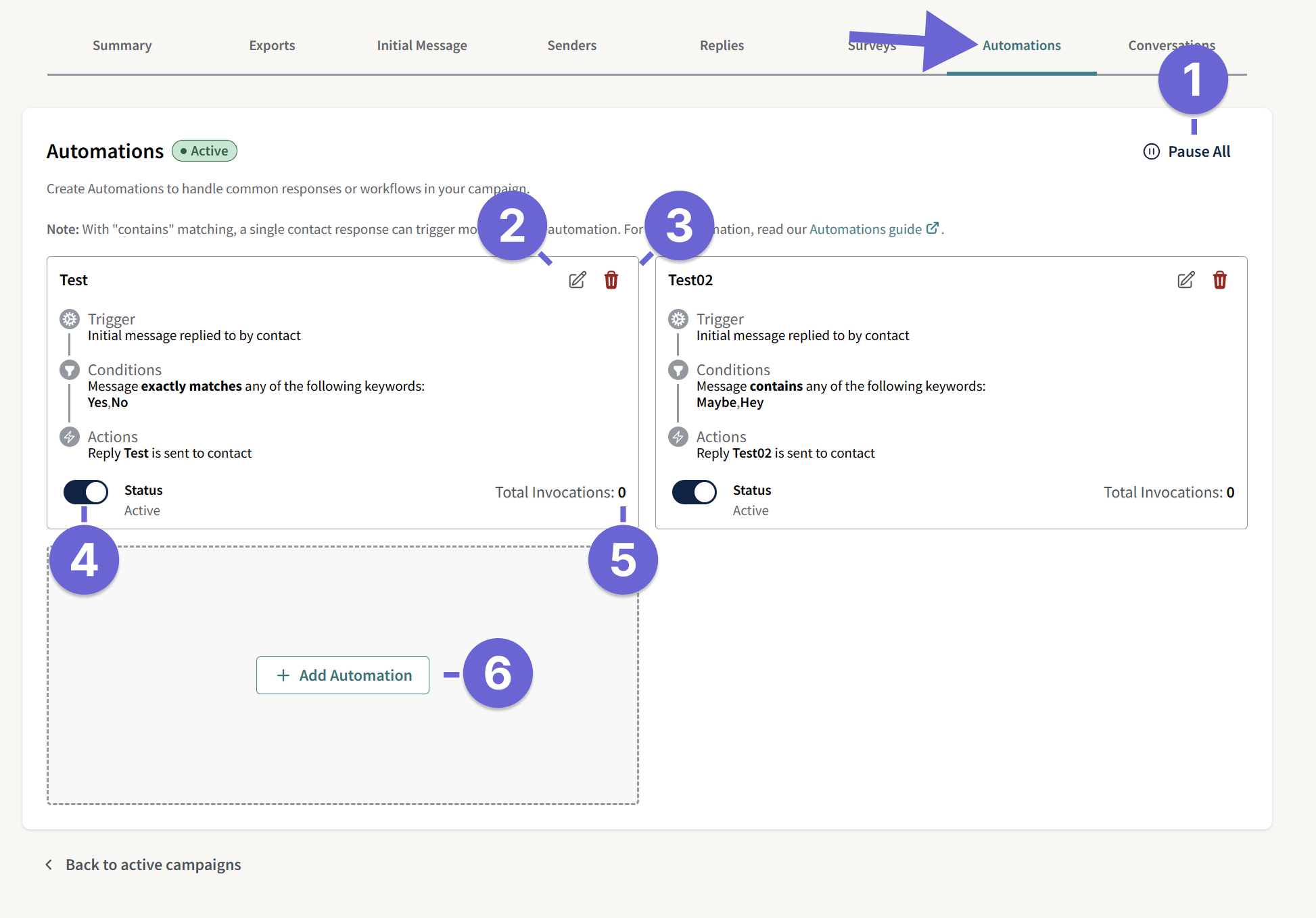
- Pause All: Pause every automation in the campaign at once. When paused, automations do not run.
- Edit: Update the automation’s name, keywords, or associated reply.
- Delete: Permanently remove an automation from the campaign. This action cannot be undone.
- Status: Enable or pause an individual automation.
- Total Invocations: See how many times ThruText has executed the automation.
- Add Automation: Create additional automations for the campaign.
Additional Information and Tips
- Overlapping Matches: if two automations share the same recommended reply, a single message can sometimes trigger both — this happens whenever one automation's "Contains" keyword appears as a whole word inside a message that also satisfies another automation's keyword (for example, a "Contains" automation with the keyword "hi" would also fire on an "Exact" automation's phrase "hi there," since "hi" is a whole word within it). "Exact" automations never overlap with each other, since they only trigger on a full, exact match.
To avoid this: when using "Contains" matching, choose keywords that aren't likely to appear inside another automation's keywords or phrases, especially for automations sharing the same recommended reply.
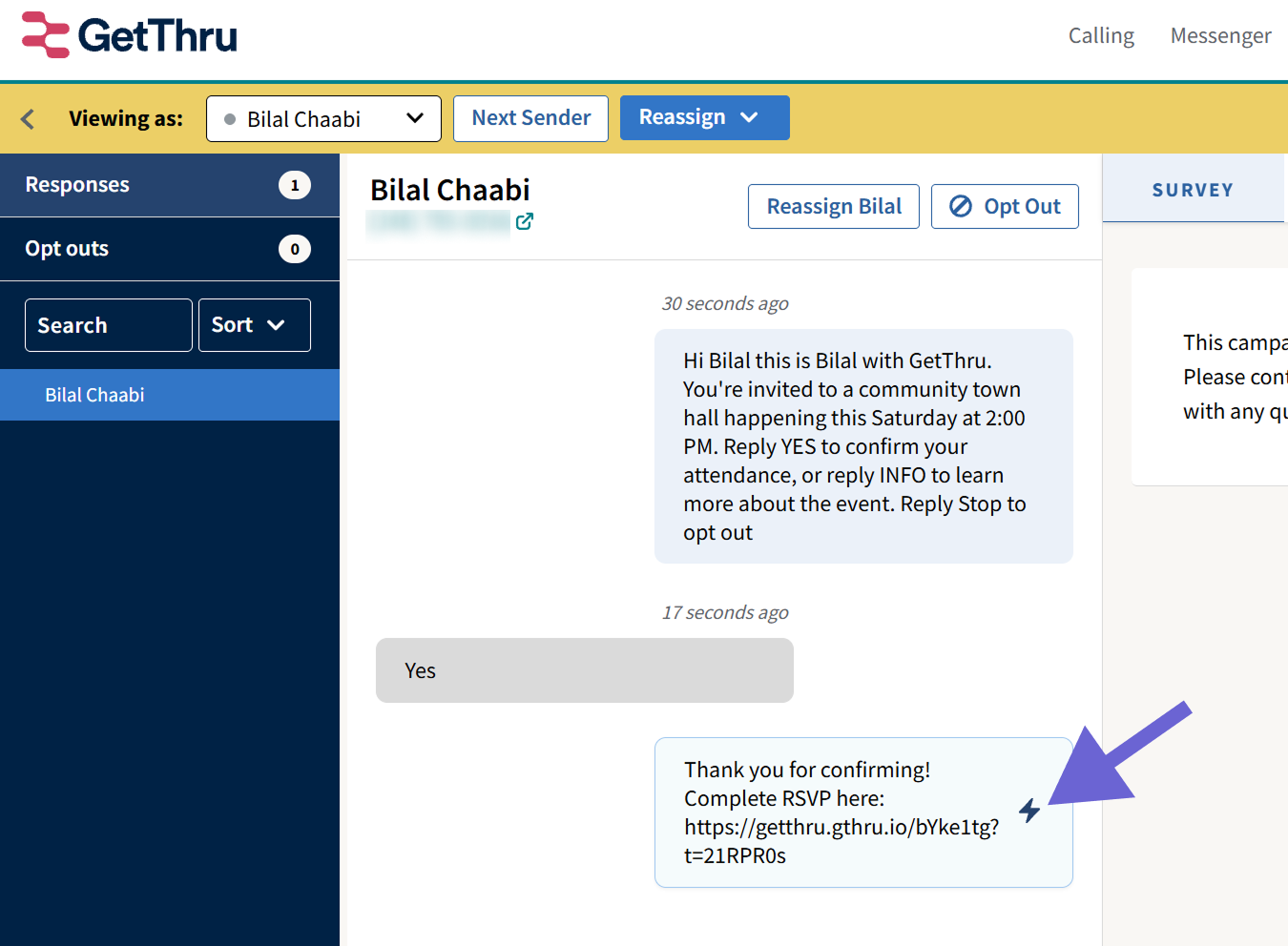
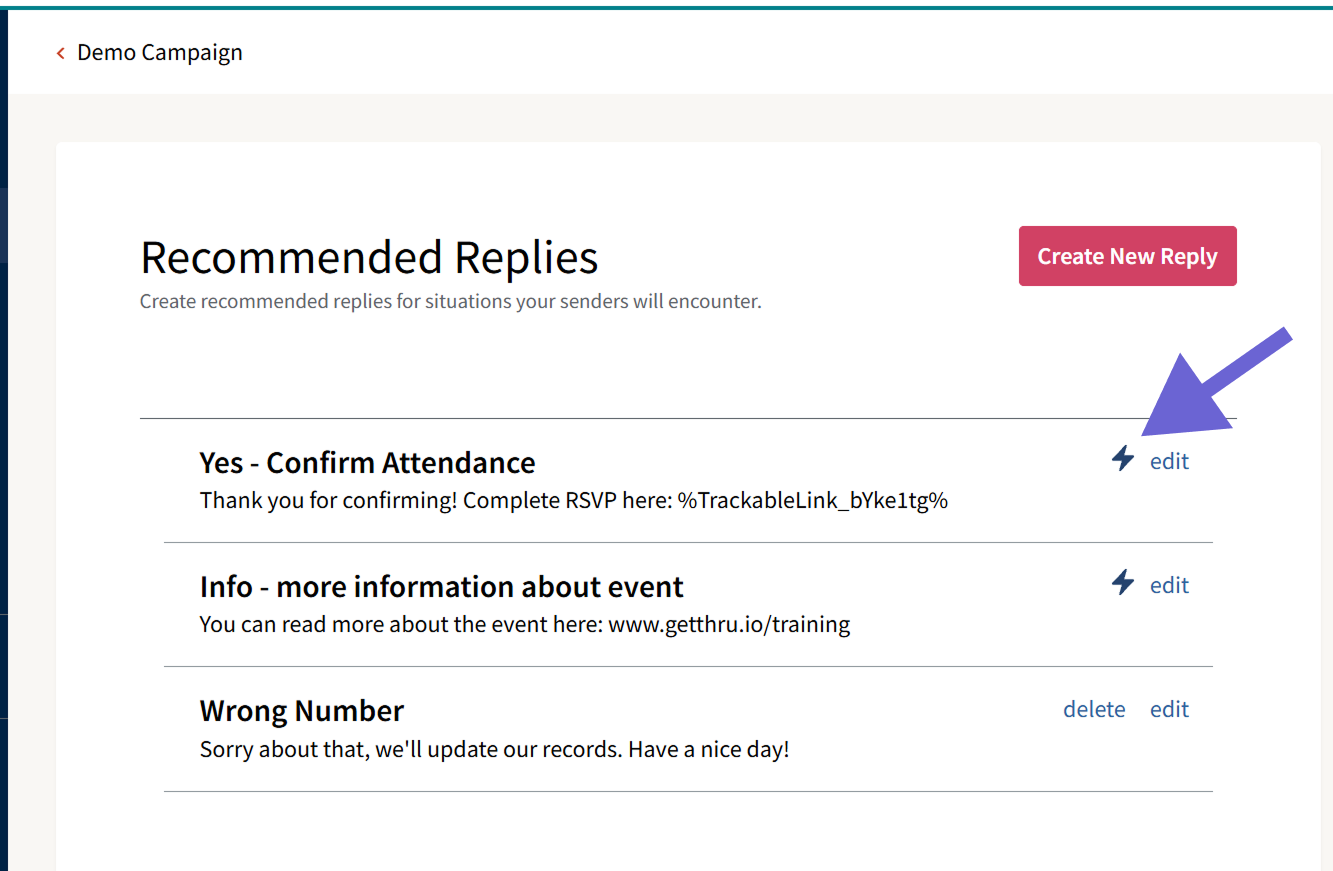
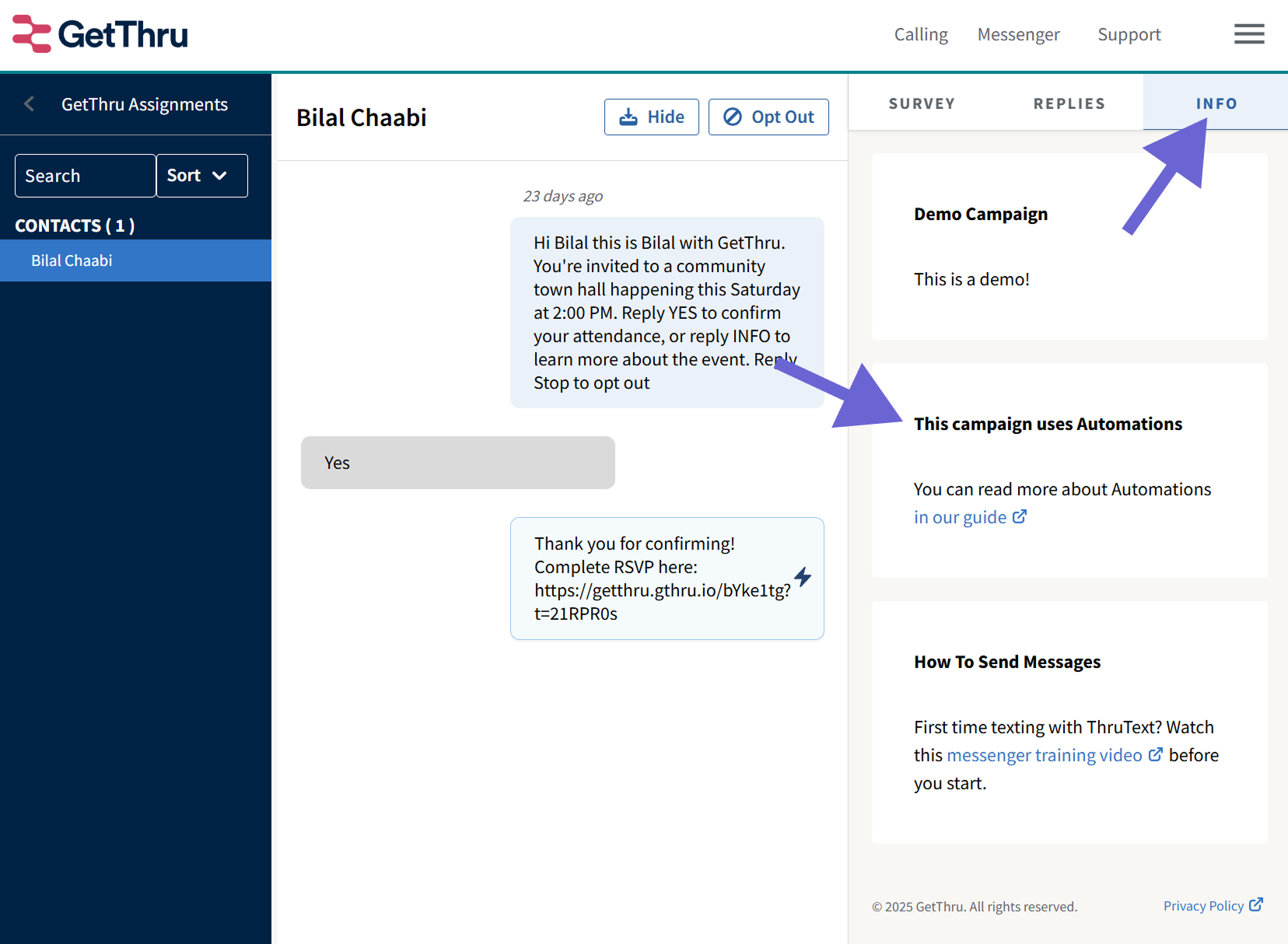
- Recommended replies connected to automations are marked with a lightning icon. You can see this on:
- The Messenger for replies sent with an automation.
- The admin dashboard on the recommended replies page for active campaigns
- The Messenger for replies sent with an automation.
- The info tab in the messenger indicates whether your campaign uses automations
- Recommended replies cannot be deleted while they are associated with an automation. Once the automation is deleted or updated to use a different reply, the recommended reply can be removed.
- Keywords are not case sensitive. For example, an automation triggered by “YES” will also run if a contact replies with “yes.”
- Multiple automations cannot share the same keyword, but they can use the same recommended reply.