
Self Service VAN
GetThru's self service integrations page lets you manage your VAN syncs - whether you need to set up a new integration, update an existing key, or review its status.
This guide walks you through how to add a VAN API key to GetThru. Before reading this guide, we recommend obtaining your API key, which you can read about here: VAN Integration Setup - Step 1: Getting a VAN API Key.
TABLE OF CONTENTS
Accessing GetThru Integrations
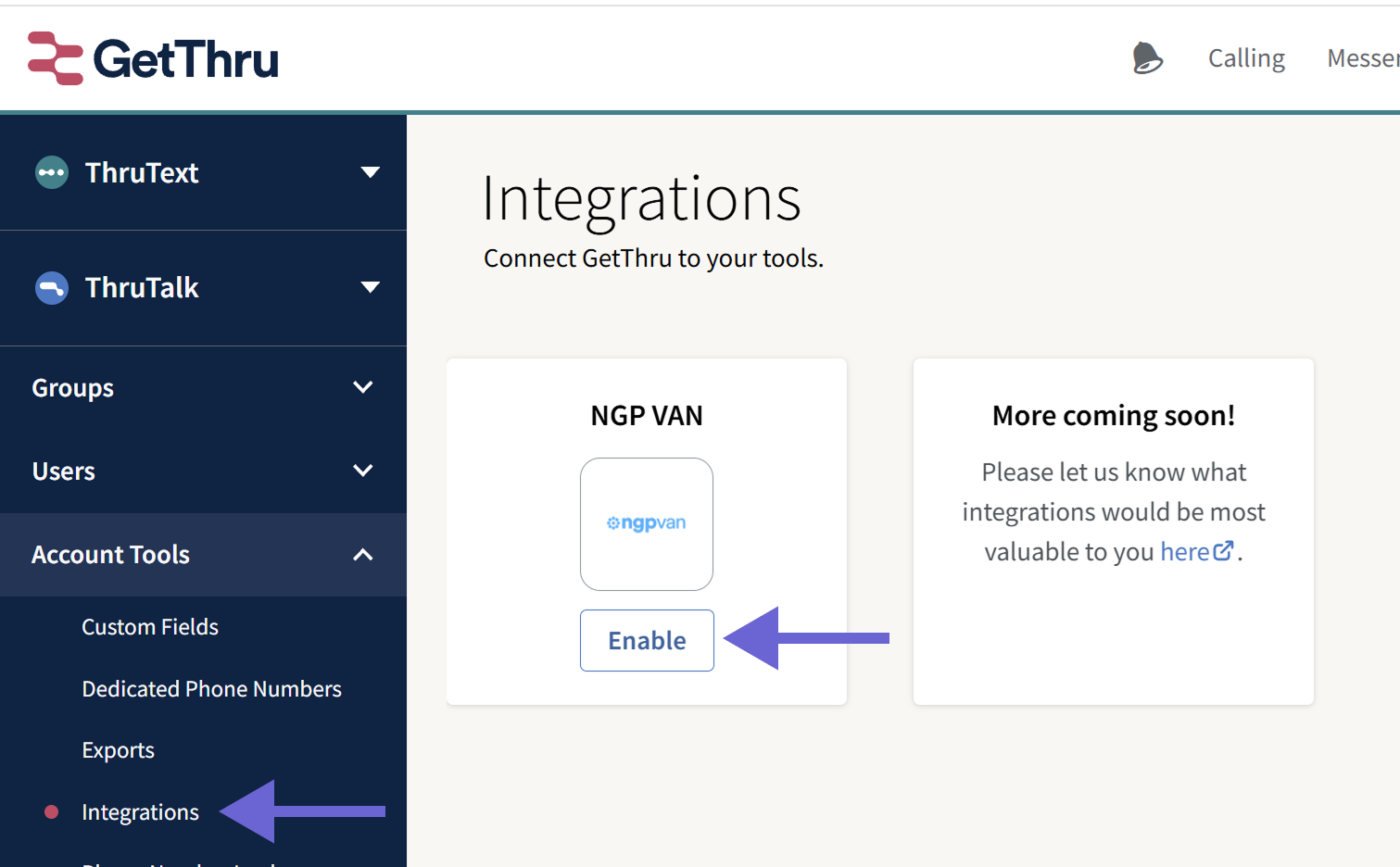
From the admin dashboard, expand Account Tools, and then click Integrations. Click Enable to connect your first API key.
Next, you'll enter your API key and configure the settings:
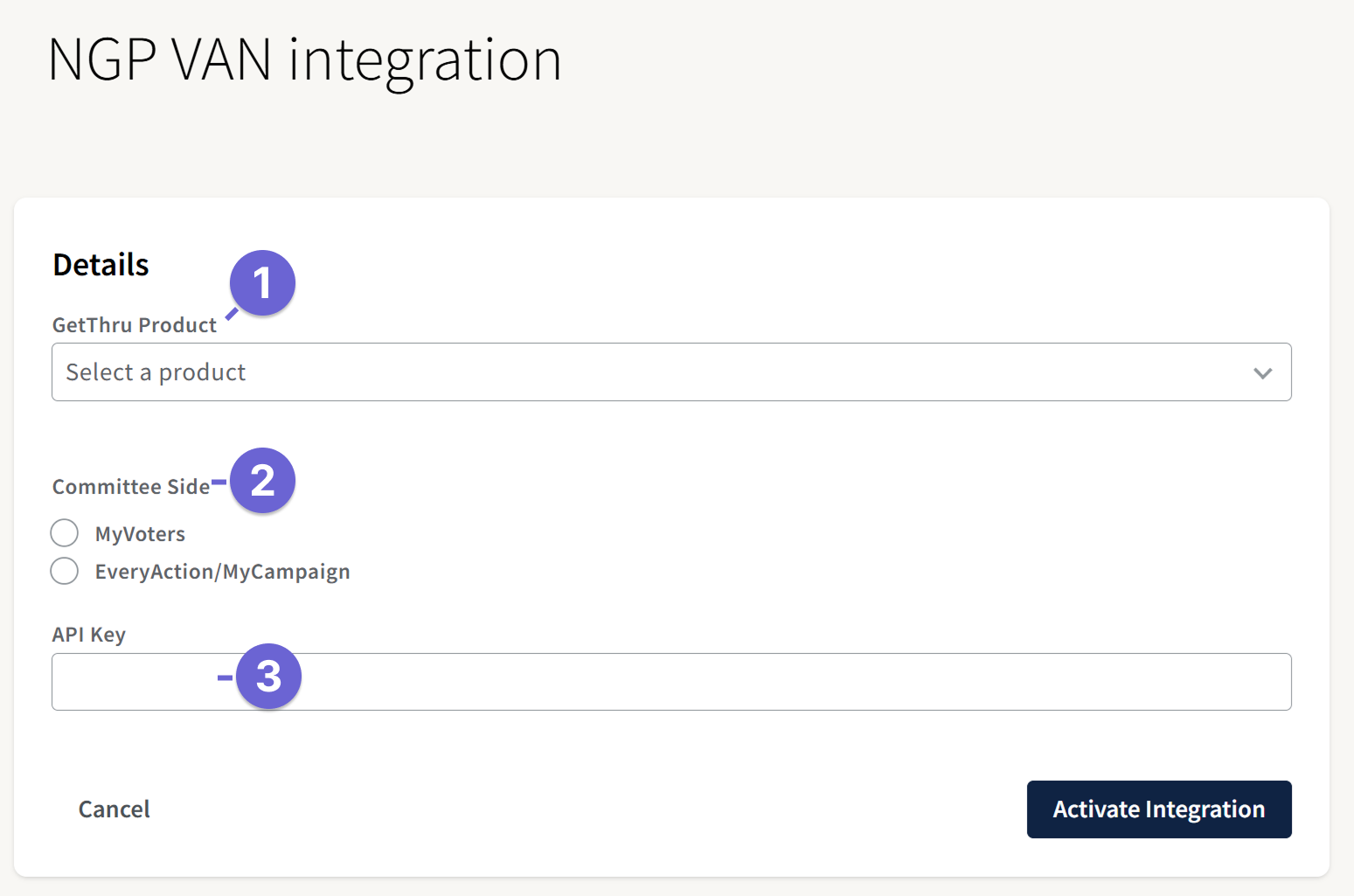
- GetThru Product: Select ThruText or ThruTalk.
- ThruTalk is not enabled for every account, and will not be available in the dropdown if so.
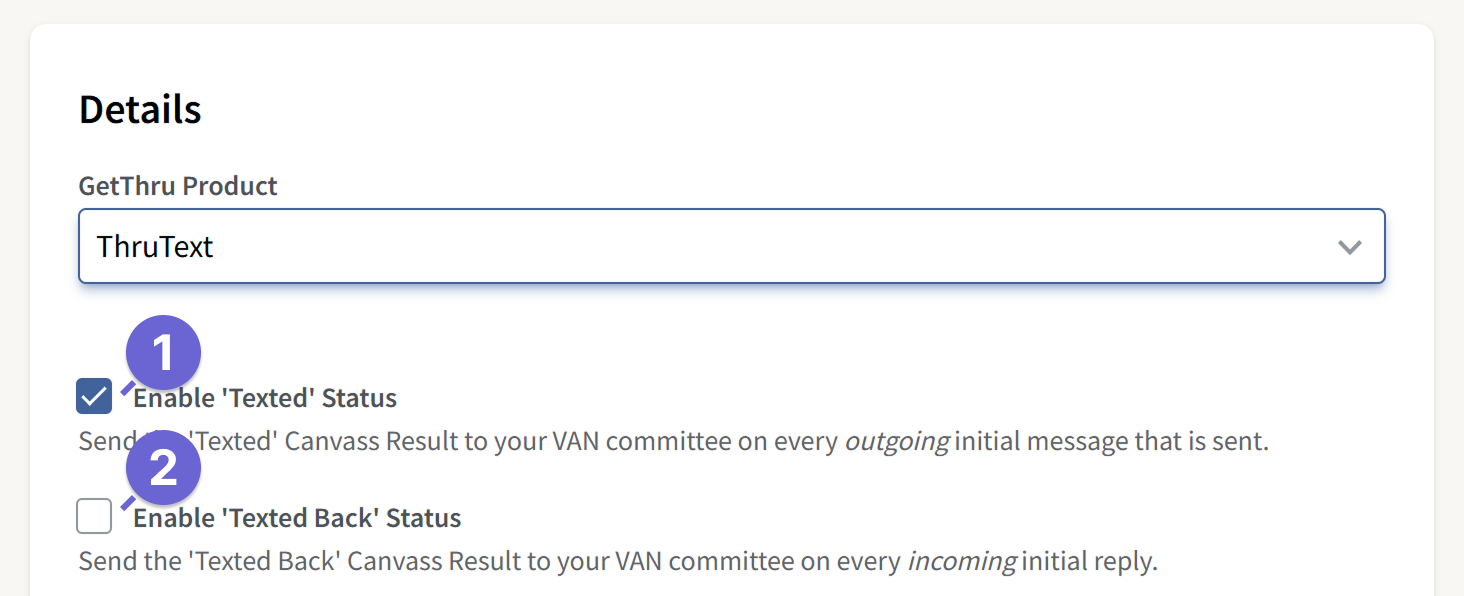
- If you select ThruText, you'll see two checkbox options appear:
- Enable 'Texted' Status.
- By checking this, you enable GetThru to send back the "Texted" canvass response to a contact's "Contact History" in VAN for every outgoing initial message. Not every VAN account has this setting available.
- Enable 'Texted Back' Status
- By checking this, you enable GetThru to send back the "Texted Back" canvass response to a contact's "Contact History" in VAN for every incoming initial reply. Not every VAN account has this setting available.
- By checking this, you enable GetThru to send back the "Texted Back" canvass response to a contact's "Contact History" in VAN for every incoming initial reply. Not every VAN account has this setting available.
- Enable 'Texted' Status.
- Committee Side: Select which database the API key should access. If your key has access to both databases, you'll need to create another integration, and pick a different side for each integration.
- API Key: Enter the API key that you generated in VAN.
Click Activate Integration to proceed. Next, you'll be directed to the VAN Integration Details page.
VAN Integrations Details
The following page will appear when you create a new integration, or view an existing integration:
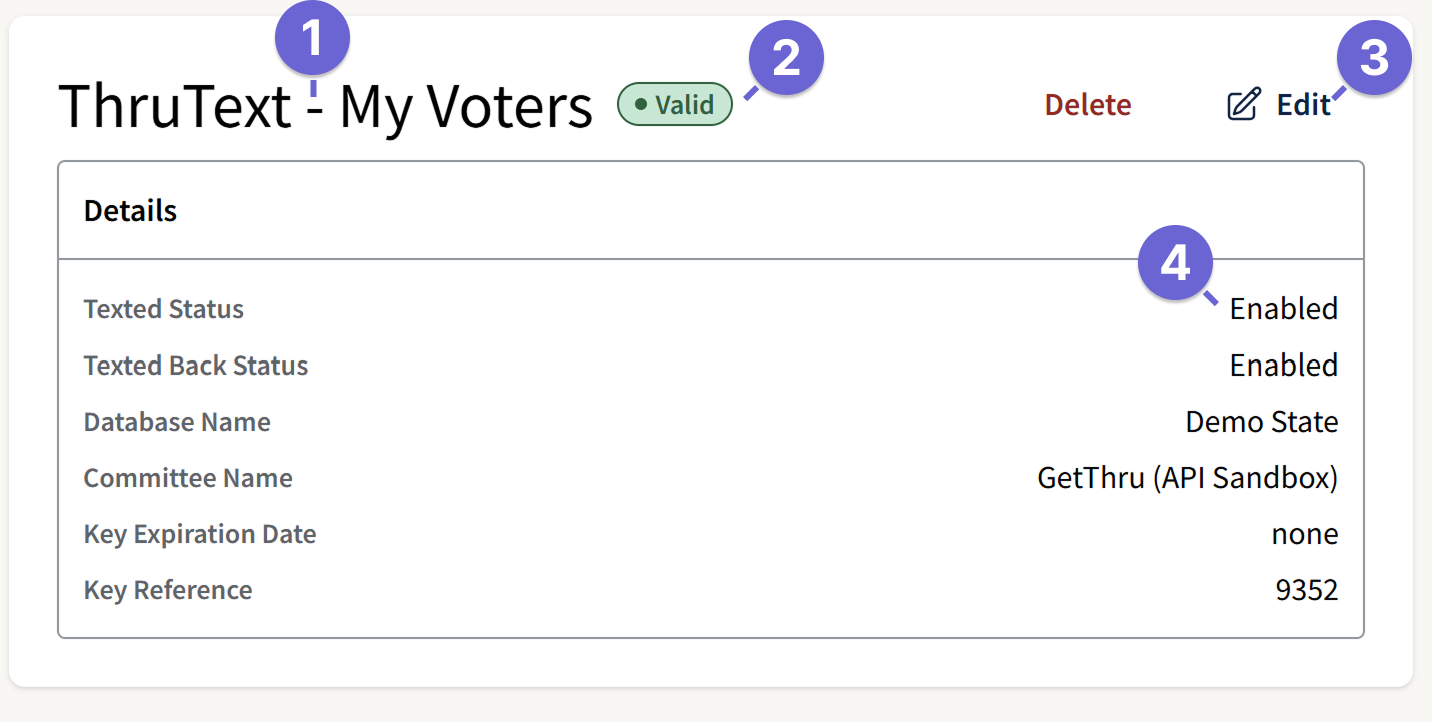
- Name: The name indicates the product and the database for the integration.
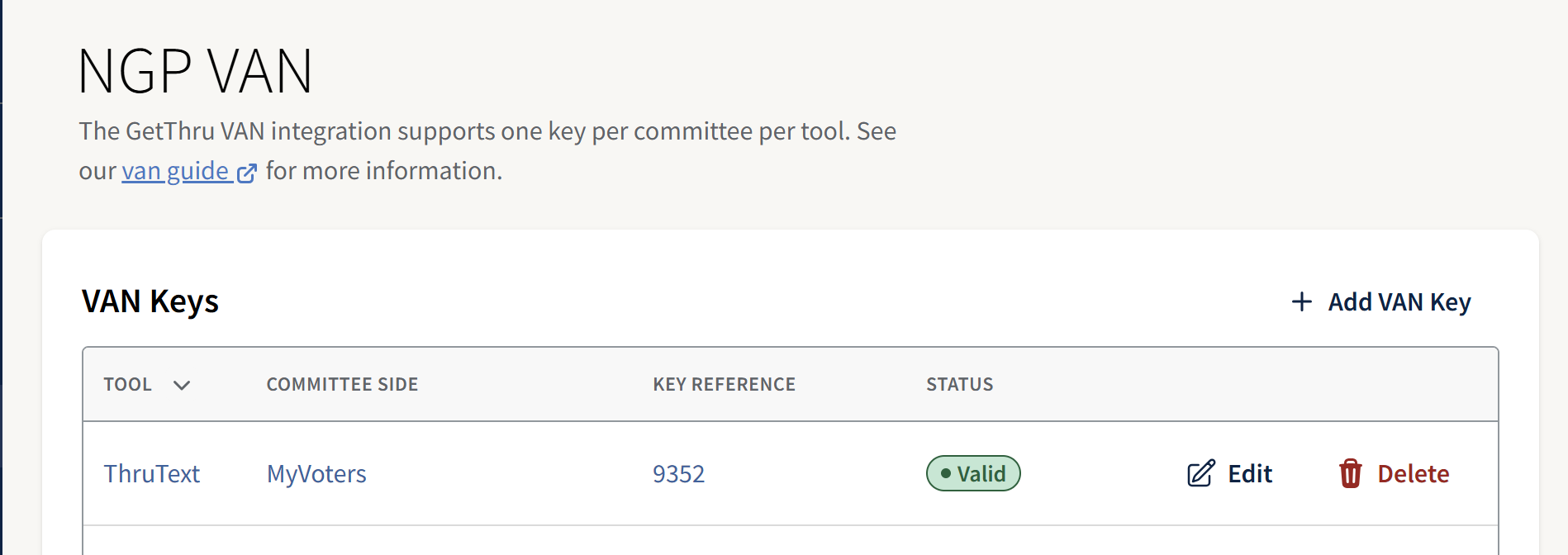
- Status: This indicates whether the integration is active and valid. If the API key expires or is regenerated, the status will change to Invalid.
- Action Buttons:
- Delete: This is irreversible and breaks the existing integration. Deleting an active integration is not recommended unless necessary.
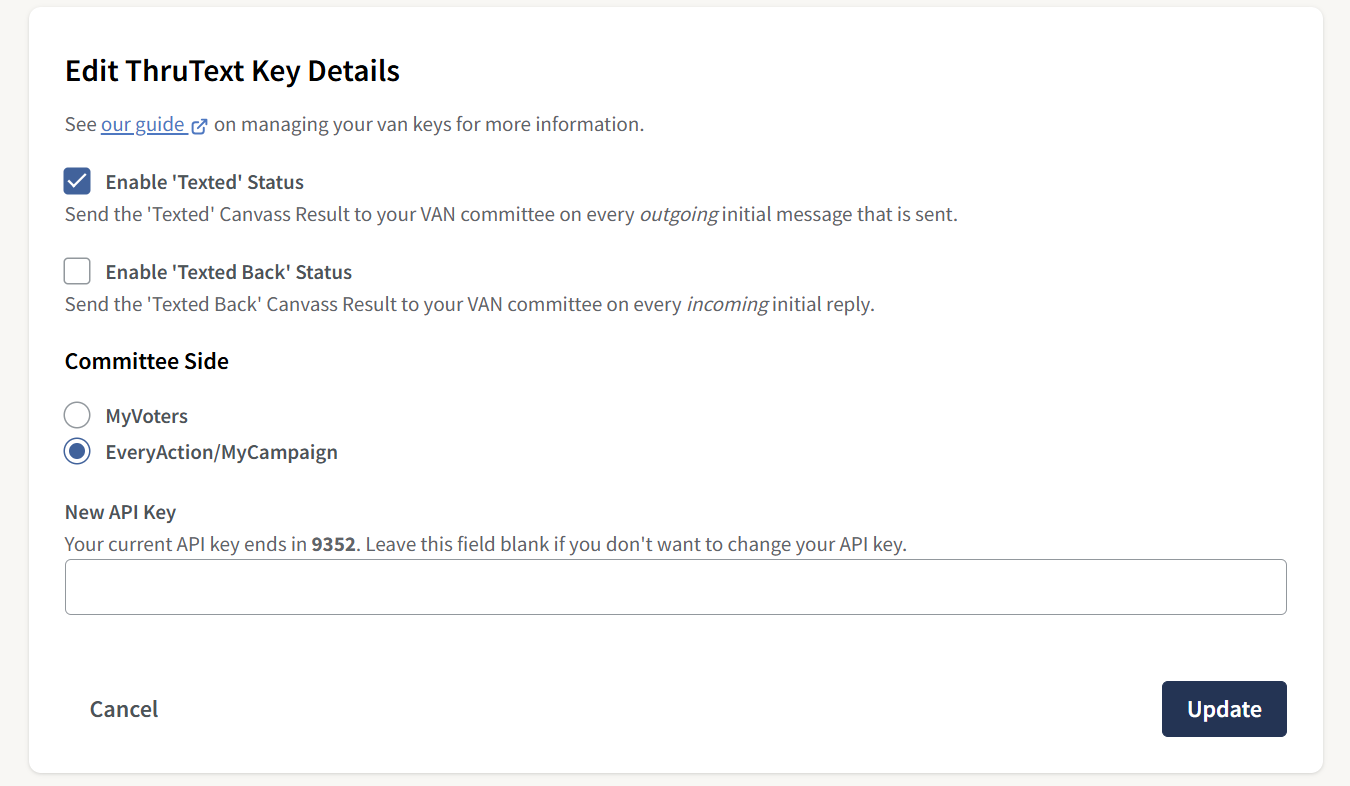
- Edit: Change the API key or change one of the settings for the integration. The current API key will not display for security purposes but you can input a new one to update it.
- Integration Details:
- Texted Status: Only shown on ThruText keys. The "Texted" status is sent to a message recipient's contact history when an initial message is sent. Review our guide, ThruText VAN Syncing Contact History - Section: How the Texted Sync Works, for more information.
- Texted Back Status: Only shown on ThruText keys. The "Texted" status is sent to a message recipient's contact history when an initial reply is sent. Review our guide, ThruText VAN Syncing Contact History - Section: How the Texted Back Sync Works, for more information.
- Database Name: The database or organization that generated the API key.
- Committee Name: The committee that key is assigned to.
- Key Expiration Date: Users can set an expiration date for their key in VAN, or leave it blank to prevent the key from expiring.
- Key Reference: The last four characters of the VAN key.
Managing Existing Integrations
You can manage existing integrations from the VAN Integrations page. To access this page, go to the left sidebar navigation menu, expand Account Tools, click Integrations, and then click Manage to see existing integrations.
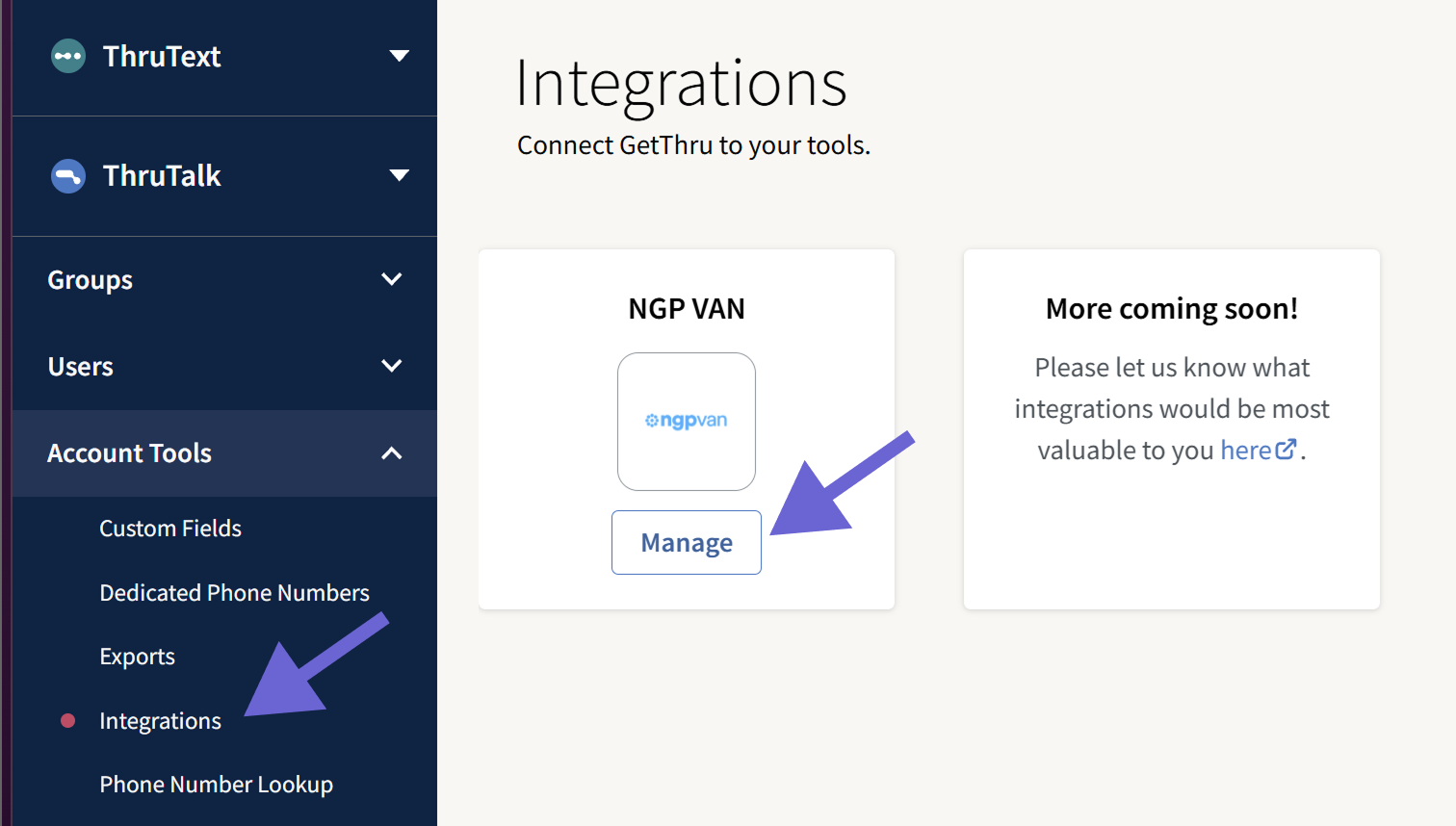
From here, you can add new integrations, view existing integrations, or change the settings for your existing integrations.
Next Up
Once you've set up your integration, you can start importing lists into GetThru. Read this guide next for step-by-step details on that process: Creating a Group from a VAN Imported List.