
Archiving Campaigns in GetThru
Archiving a campaign is the final step in wrapping up your work in ThruText or ThruTalk. Archiving helps keep your account organized and ensures that completed campaigns are no longer in an active state. This guide covers when and how to archive a campaign, what happens during auto-archiving, and how to avoid issues related to phone number limits.
TABLE OF CONTENTS
- When to Archive a Campaign
- How to Archive a Campaign
- Auto-Archiving Campaigns
- What Happens After Archiving
When to Archive a Campaign
Archiving campaigns that are no longer in use is an important practice for keeping your account tidy. Additionally, it ensures that valuable phone numbers held in active campaigns are released and can be 'cleaned' and returned to circulation by our phone number providers.
You should archive a campaign when:
- All conversations or calls are complete.
- The campaign’s end date has passed.
- The event or election it supported has ended.
- You’ve created a new campaign using the same contact list.
- You want to avoid reaching the 49-number limit for texting (read Phone Number Limits below).
Once a campaign is archived:
- Users can no longer message or call from it.
- Archived campaigns move out of the active campaign list.
- Admins can still export campaign data, clone it, or use it for past campaign targeting.
How to Archive a Campaign
There are two ways to archive a campaign:
- Start at the Campaign Index Page.
- Go to the Active Campaigns list for ThruText or ThruTalk:
- ThruText:
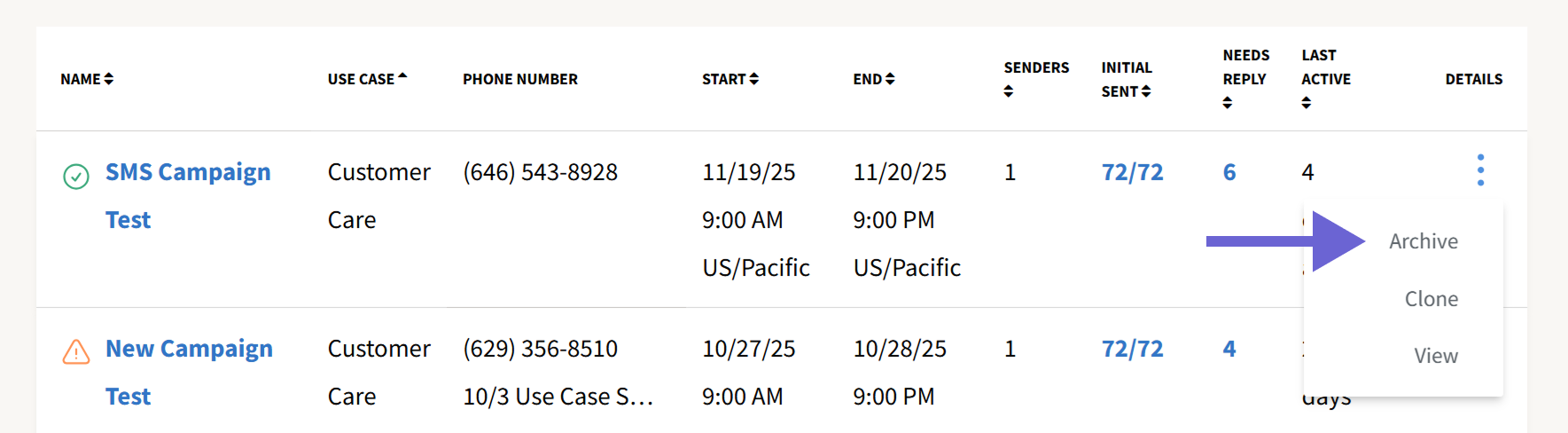
- ThruTalk:
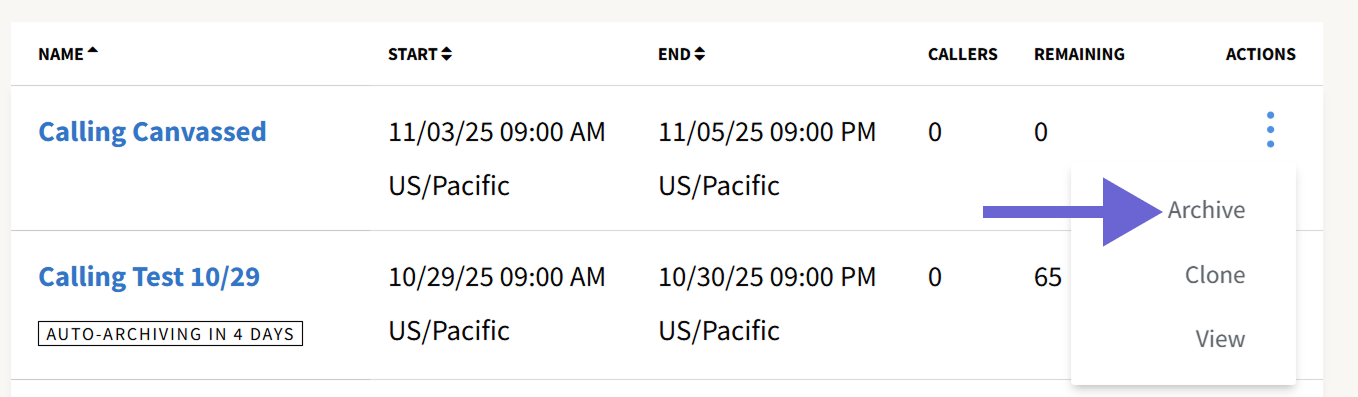
- ThruText:
- Click the three vertical dots next to the campaign you want to archive.
- Select Archive from the flyout menu.
- Confirm the action in the pop-up dialog box.
- From the Campaign Summary Page:
- ThruText:
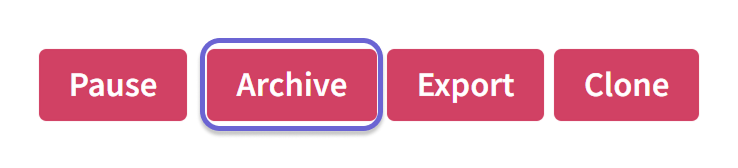
- ThruTalk:

- ThruText:
- Open the campaign.
- Click the Archive button shown above.
- Confirm your selection in the pop-up dialog.
Once archived, the campaign will appear on the Archived Campaigns page in the sidebar.
- ThruText:
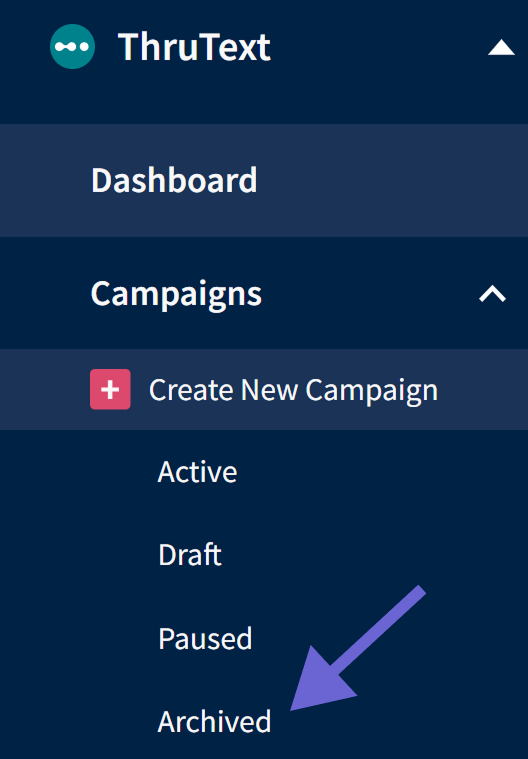
ThruTalk: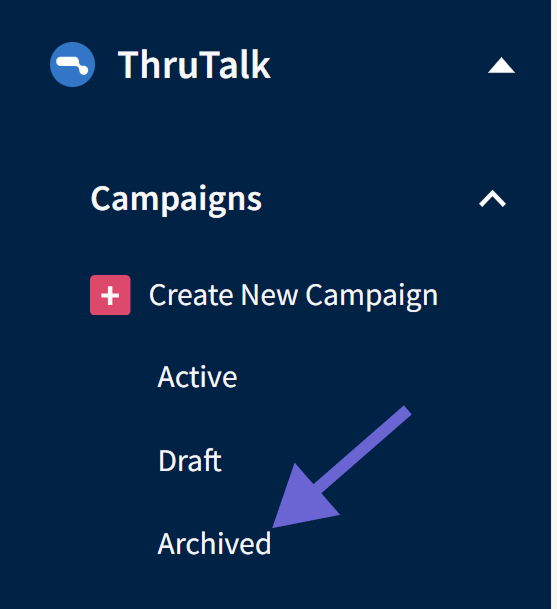
Auto-Archiving Campaigns
Auto-archiving helps keep your account clean by removing inactive campaigns. This applies to all accounts (US, CA, and UK), and includes:
- ThruText: Campaigns with no messages sent or received in 30 days. To reset the auto archiving timer, send a message or hide a conversation and the 30 days will reset.
- ThruTalk: Campaigns with no dials made in 30 days. To reset the auto archiving timer, make a call and the 30 days will reset.
What to Expect
- You’ll receive an email 7 days before a campaign is archived.
- Admins can stop auto-archiving by logging in and sending a message or making a call.
- If no activity occurs, the campaign will archive overnight.
- A confirmation email is sent after the campaign is archived.
Phone Number Limits
Auto-archiving helps keep phone number usage compliant within texting campaigns. Carriers have placed a limit on the number of phone numbers that can be used under a single 10DLC registration. Currently, the limit is 49 active phone numbers. For more information, review our guide What is 10DLC?
Since each ThruText campaign typically uses its own phone number, too many active campaigns can trigger a warning. When you approach this limit:
- You’ll receive an email listing the campaigns that will be archived after a set date.
- GetThru staff may archive campaigns on your behalf after that date.
To avoid reaching the limit, regularly archive campaigns that are no longer in use.
Auto Archiving Exemption
If auto-archiving does not align with your organization’s workflow, please reach out to support@getthru.io. We’ll review your request and determine if an exemption is possible.
What Happens After Archiving
Messages and Calls
- Archived campaigns can’t send or receive messages or calls.
- Single-use phone numbers are returned to our provider.
- Dedicated numbers remain available in your account and can be reused but not reassociated with a campaign.
Data and Exports
Texting and calling data remains available for export at both the campaign and account level. For more details, check out ThruText Export Types and ThruTalk Export Types.