
When Opt Outs are Handled Downstream
Honoring opt-out requests is essential for compliance, trust, and deliverability. When you run a texting campaign, it's essential to understand how opt outs are processed to ensure your campaigns remain compliant and effective. Opting contacts out when they ask to stop is a critical part of text message deliverability and legal compliance.
This guide explains how opt outs work based on which provider is powering your texting campaign.
For more information about opt outs, you can read the following guides:
TABLE OF CONTENTS
- Automated Opt Outs
- Provider 1 - US Campaigns
- Provider 2 - UK and CA Campaigns
- How to Manually Opt Out or Opt In Contacts
Automated Opt Outs
When enabled, ThruText will automatically opt out any contact who responds with an opt out term in their first response. You can toggle auto opt outs for your ThruText account, but it can't be turned off at the provider level.
Both GetThru and our messaging provider automatically process these requests to ensure no one continues receiving messages after asking to stop. The experience for texters and for contacts will be a little different depending on which provider processes your campaign.
The way opt outs are processed depends on two factors:
- Whether your campaign is using Provider 1 (US/Canada) or Provider 2 (UK)
- Whether automated opt outs is enabled in your ThruText account
Provider 1 - US Campaigns
Campaigns targeting contacts in the United States will be assigned to Provider 1.
Automated Opt Outs Enabled
The opt out experience for this provider follows the typical auto opt out experience. Our system recognizes the following opt out terms:
- STOP
- STOPALL
- UNSUBSCRIBE
- CANCEL
- END
- QUIT
When a user responds with any of these single-word responses as their first response to an initial message, ThruText will do the following:
- Opt out the contact from your account, preventing any outgoing messages to this number from new and existing campaigns
- Send them a customizable opt out confirmation message (e.g. "You are now opted-out...")
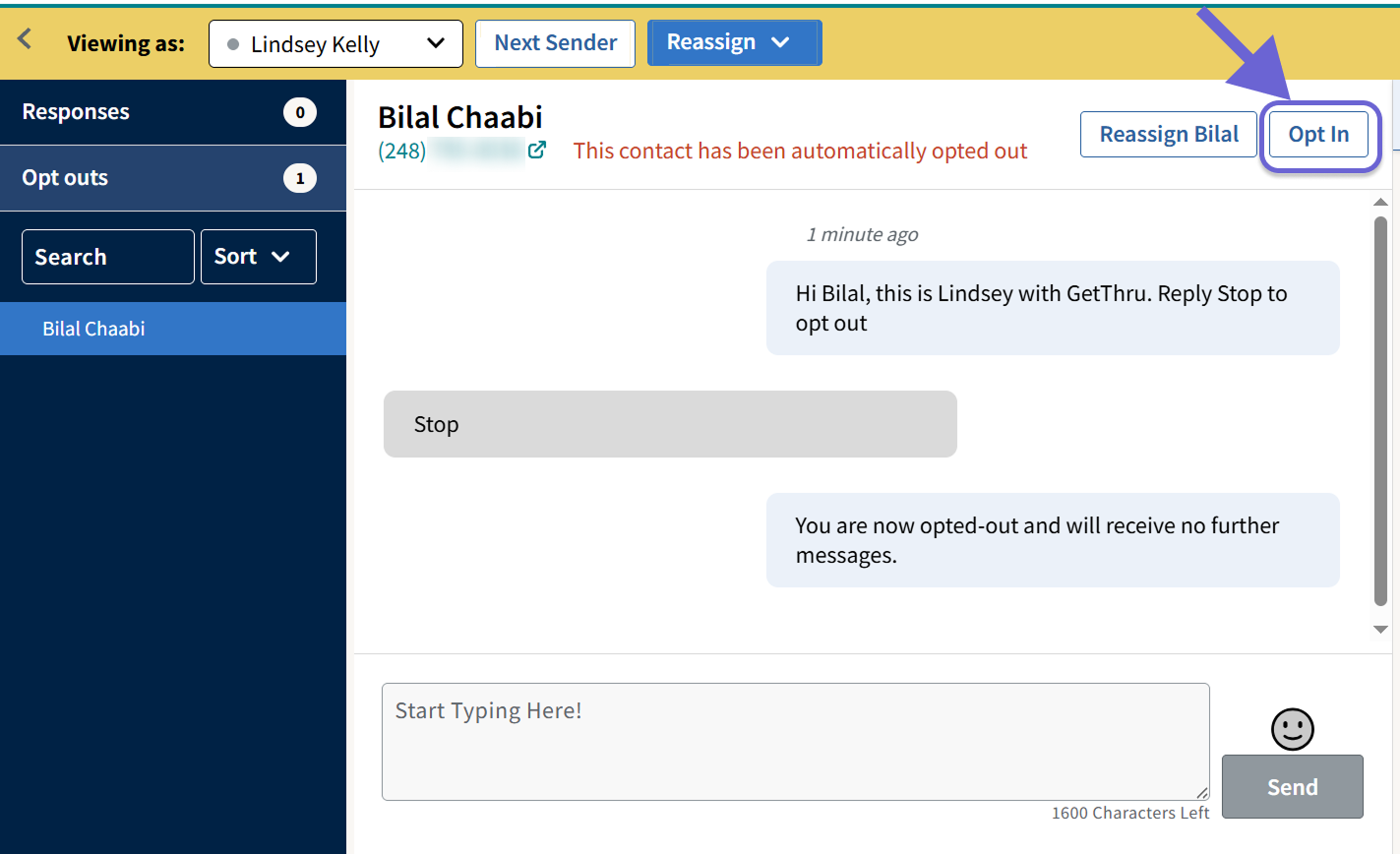
- Auto opt outs can't be viewed in the user messenger, but they can be viewed in the admin messenger
Automated Opt Outs Disabled
When auto opt outs is disabled, ThruText admins and users will be responsible for opting out contacts who request to opt out. Campaigns targeting US won't encounter a provider-level opt out.
Provider 2 - UK and CA Campaigns
Campaigns targeting contacts in the United Kingdom or Canada will be assigned to Provider 2.
Automated Opt Outs Enabled
When you launch a texting campaign targeted at UK or CA contacts, the opt out experience will differ slightly for contacts who respond with certain terms. If a contact responds with any of the following keywords, the contact will be opted out by our provider:
- STOP
- STOPALL
- UNSUBSCRIBE
- CANCEL
- END
- REVOKE
- OPTOUT
- QUIT
When a user responds with a single-word message containing any of these, the following will happen:
- Provider:
- Creates an opt out on their end - preventing that contact from receiving further messages from the provider's phone number
- Sends the contact their own default opt-out message:
- "You have successfully been unsubscribed. You will not receive any more messages from this number. Reply START to resubscribe."
- ThruText will
- Opt out the contact from your account, preventing any outgoing messages to this number from new and existing campaigns
- ThruText will not send a confirmation message since they already received one from the provider
Automated Opt Outs Disabled
When automated opt outs is disabled, provider level opt outs will still occur, as these can't be toggled by ThruText. When a user responds with a single-word message containing any of the provider keywords, the following will happen:
- Provider:
- This behavior does not change and is identical to when auto opt outs is enabled.
- ThruText
- ThruText does not opt out the contact immediately. However, if you attempt to reach out to the contact from the same provider phone number where the opt out occurred, the provider will block the message from being sent and ThruText will create an opt out.
- Provider-level opt outs apply to the phone number that sent the message. If you message the same contact from a different number, the provider may still deliver it.
- If auto opt outs is disabled, it's important for you as the user to opt the contact out from your account, even though they've already been opted out at the provider level.
This table provides a quick overview of opt out behaviors with different providers.
| Auto Opt Outs | Provider | Opted Out By | Message Delivery Blocked? | Opt Out Message Sent By | User Action Needed |
|---|---|---|---|---|---|
| Enabled | 1 | ThruText | Yes | ThruText | No |
| Disabled | 1 | None | No | None | Manually opt out the contact |
| Enabled | 2 | Provider + ThruText | Yes | Provider | No |
| Disabled | 2 | Provider only | Partially | Provider | Manually opt out the contact |
How to Manually Opt Out or Opt In Contacts
You can opt a contact in or out through one of the following:
- By clicking Opt In/Out from the admin messenger:
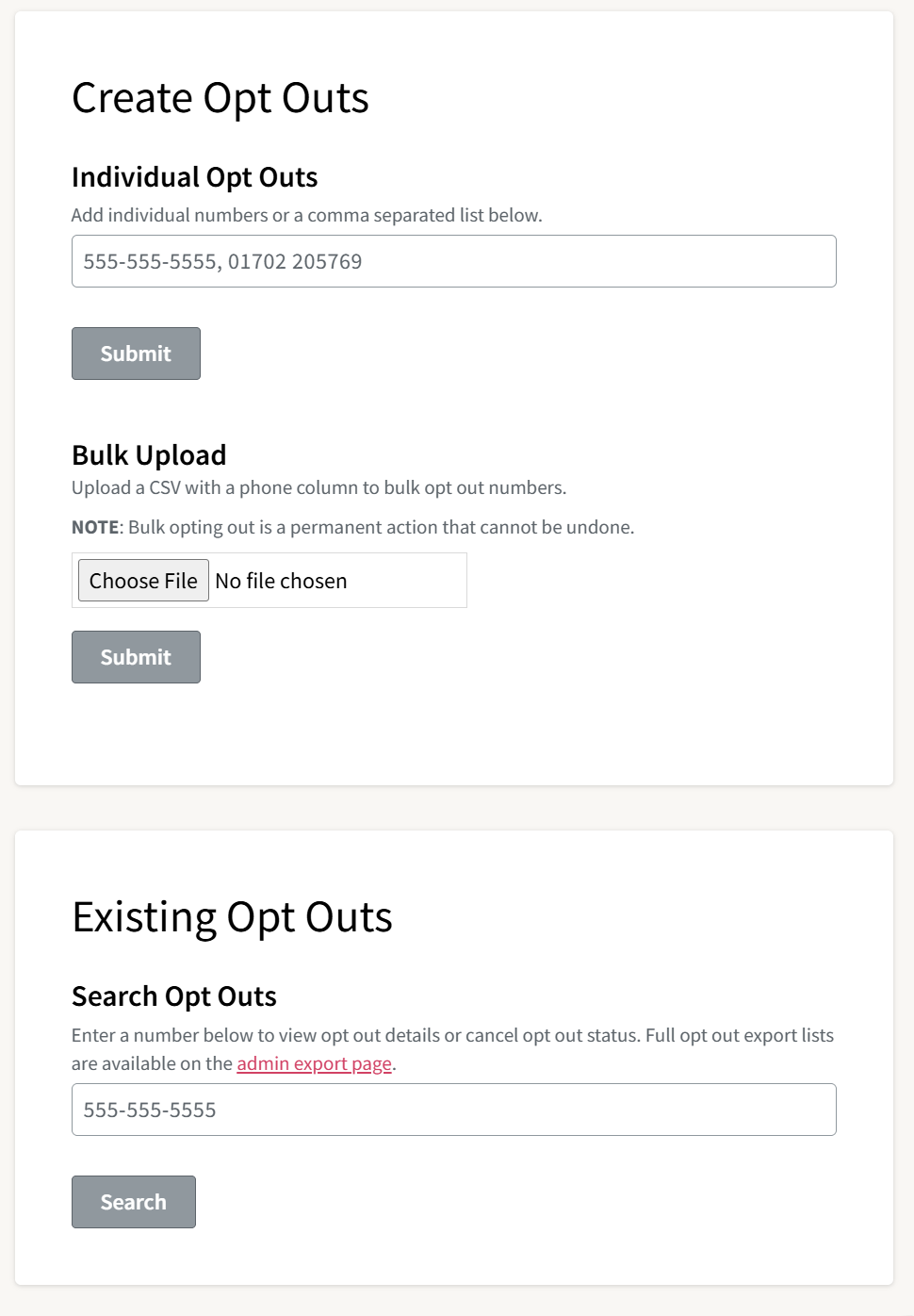
- From the Opt Out Manager:
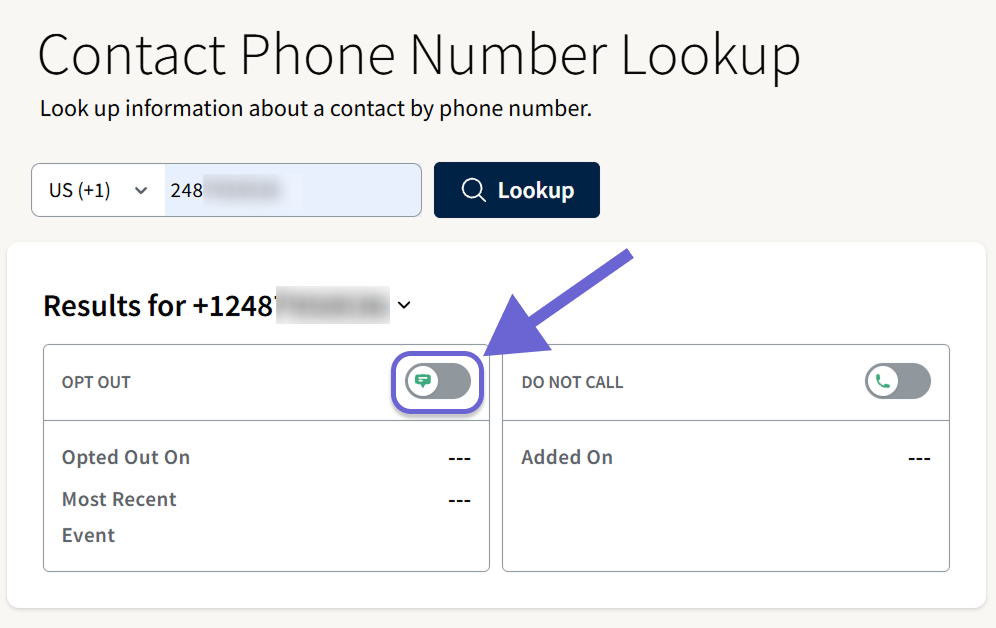
- From the Contact Phone Number Lookup tool:
Review these guides for more information on each location: