
Tips & Tricks for Multi-language Texting and Calling
Multilingual outreach helps you reach more people by communicating in the language they prefer. In GetThru, you can send messages in multiple languages in ThruText, add non-English text to ThruTalk calling scripts, and use browser translation tools to translate GetThru screens for volunteers.
In this guide, you will learn how to:
- Send messages in other languages in ThruText
- Add non-English text to ThruTalk scripts
- Translate GetThru screens using the Google Translate browser extension
- Capture and use language preference
- Follow best practices for multilingual outreach
TABLE OF CONTENTS
- Translate the GetThru Interface
- Send Messages in Other Languages in ThruText
- Add Non-English Text to ThruTalk Scripts
- Capture and Use Language Preference
- Best Practices for Multilingual Outreach
- Manage Message Length and Costs in ThruText
Translate the GetThru Interface
If you or your volunteers prefer to read GetThru screens in another language, you can use browser translation tools to translate the on-screen text.
A common tool used for translation is Google Translate’s website tool. However, because GetThru requires a login, attempting to translate a GetThru page using the website tool will result in an error. Instead, we recommend using the Google Translate browser extension, which will work even when you are logged in.
Use the Google Translate Browser Extension
To translate a GetThru page, you can use the Google Translate browser extension. This extension works while you are logged in to GetThru.
- In Google Chrome, install the Google Translate extension from the Chrome Web Store.
- Open GetThru and sign in.
- When you are on any page in the app, click the Google Translate extension icon in the Chrome toolbar.
- Click Translate This Page.
- Select your preferred language. The GetThru interface will be translated into that language.
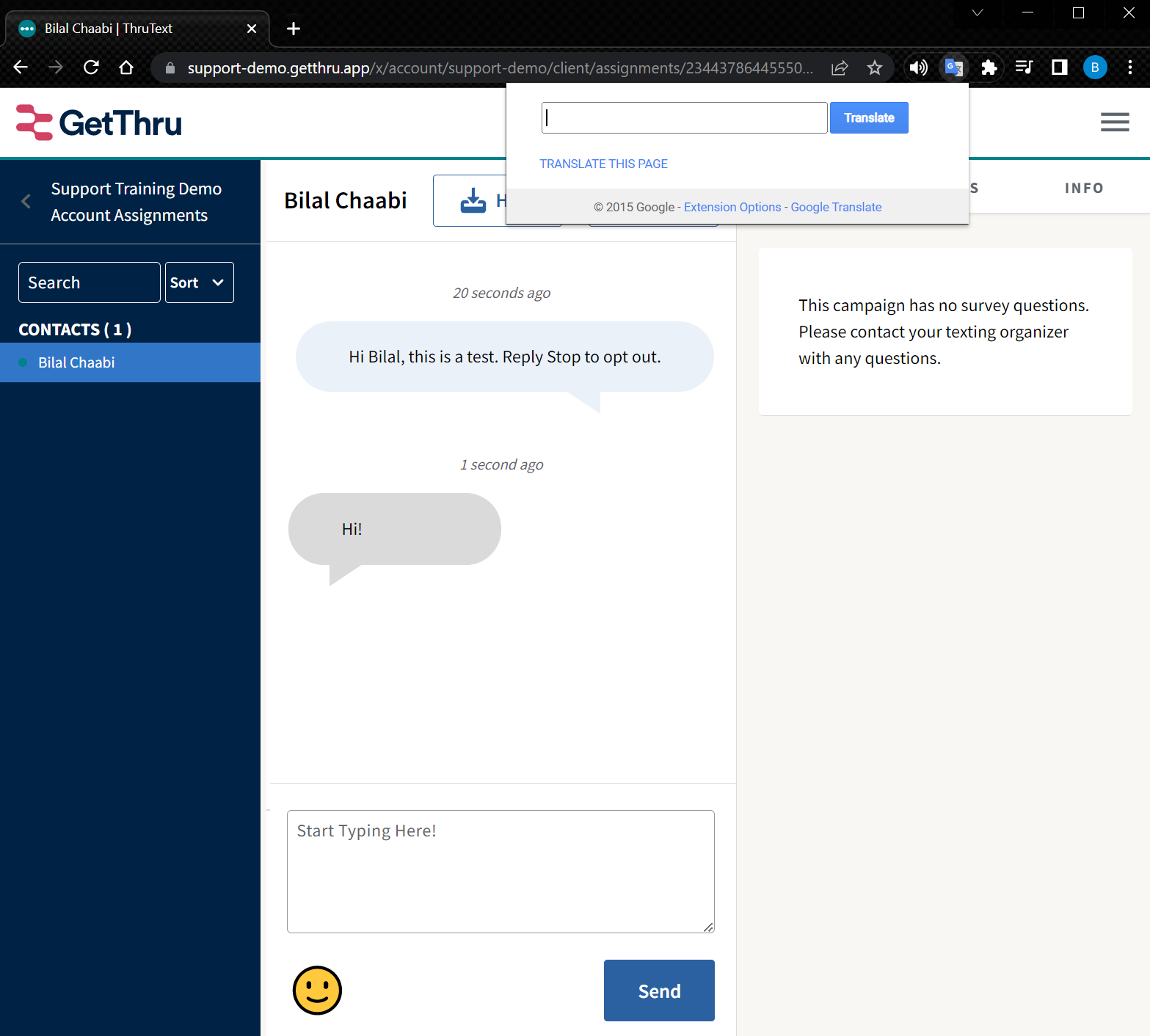 This is an example of what the page would look like: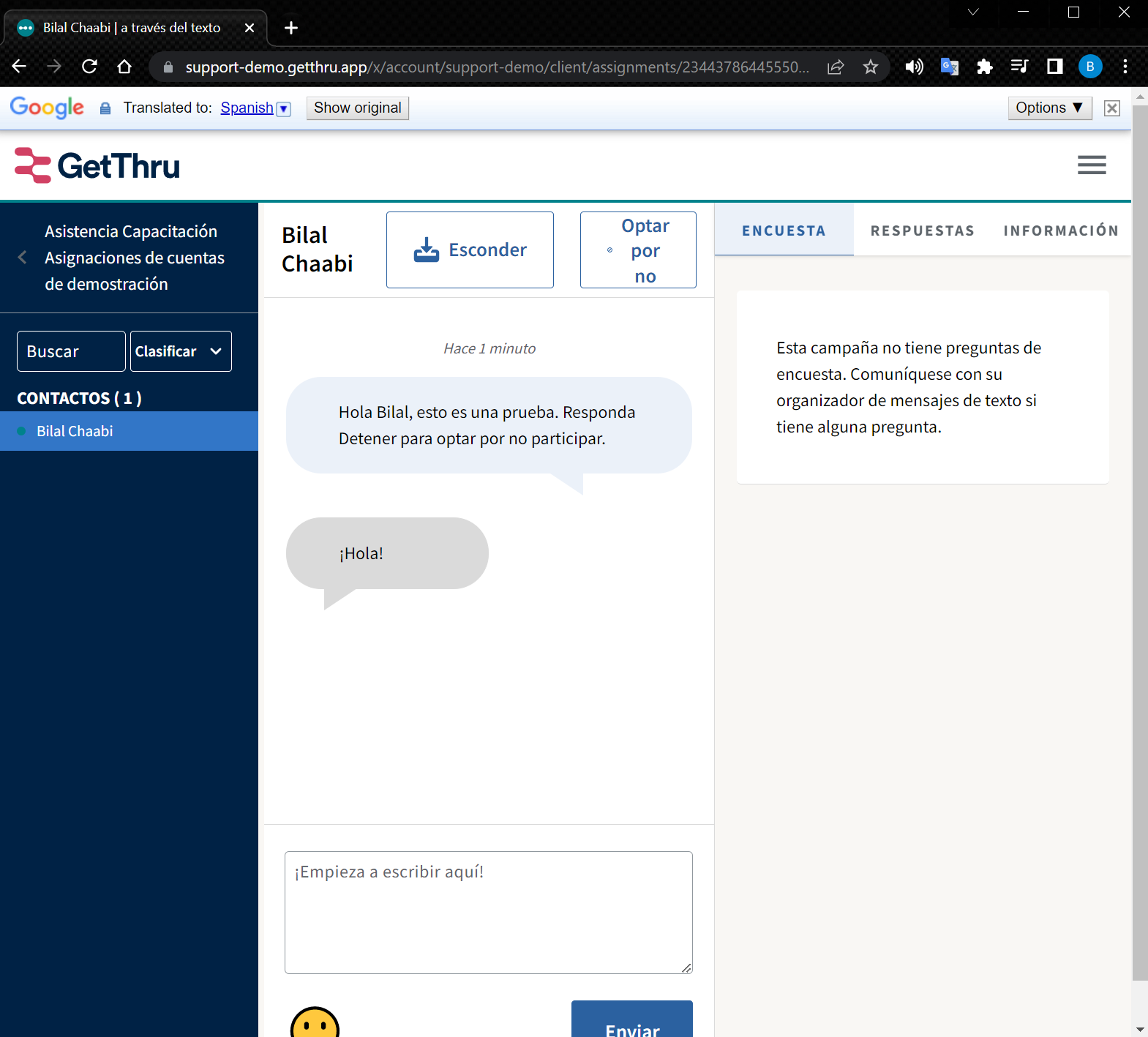
Send Messages in Other Languages in ThruText
You can send messages in other languages by typing with a keyboard set to that language or by copying and pasting translated text into message fields.
ThruText supports messages that use:
- Non-English languages (for example, Spanish, French, or Korean)
- Non-Latin character sets (for example, Arabic or Chinese)
- Special characters such as accents or punctuation used in other languages
To send a message in another language:
- Set your device or browser keyboard to the language you want to use, or prepare your message in another tool (such as a translation tool or word processor).
- In ThruText, open the initial message or reply message text box.
- Type your message with the selected keyboard, or copy and paste the translated message into the message field.
- Review the text carefully to confirm that it appears correctly before sending.
Automated translation tools can be helpful, but they are not always accurate. When possible, have a fluent speaker review your message before sending.
Add Non-English Text to ThruTalk Scripts
You can create multilingual calling scripts by adding translated text directly into ThruTalk script questions and responses.
To add non-English text to a script:
- Prepare the translated script text in a document or translation tool.
- Open your ThruTalk script.
- Copy and paste the translated text into your script questions, response options, and caller notes.
- Review the script in ThruTalk to confirm the text displays correctly.
If your keyboard can type in different alphabets, you can also type directly into the script fields.
Capture and Use Language Preference
Capturing language preference helps your team avoid guessing which language a contact prefers. It also makes it easier to route contacts into the right workflow in future outreach.
Here are common ways to capture language preference:
- In a text message: Add a short phrase that invites the contact to request another language.
- Example (Spanish message): “If you prefer English, let us know.”
- Example (English message): “¿Prefieres español?”
- In a calling script: Add a question early in the script asking which language the contact would like to use. If your calling workflow uses scripts that continue in different languages, you can use branching scripts after a language preference question.
- In a data collection workflow: Store language preference in a survey question, tag, or custom field so you can target future campaigns.
Best Practices for Multilingual Outreach
Use these best practices when texting or calling in multiple languages:
- Confirm language preference when possible.
- Be prepared to resend messages in the preferred language. If a contact indicates they prefer another language, resend the original message in that language using a recommended reply when possible.
- Use consistent terminology across scripts. If you use different translations for the same term, callers and contacts may get confused.
- Test scripts with bilingual reviewers. A fluent speaker can help you confirm tone, clarity, and cultural context.
Manage Message Length and Costs in ThruText
Some languages include special characters that can change how your text message is encoded. This can increase the number of SMS segments in a message, which can increase costs and affect deliverability.
To manage message length and costs:
- Avoid sending the full message twice in different languages: Some organizations send the entire message in both languages, but this can make messages long and harder to read. Long messages can also affect deliverability and increase costs, especially when special characters are involved. See our guide Text Messaging Best Practices, for more details on this guidance.
- Keep an eye on script length: It can be harder to keep scripts within a reasonable one to two SMS segments when using special character sets. Special characters can change how your message is encoded, which can increase the number of segments needed. See our guide, Text Message Segments and Encoding, for details on special characters.
- Consider using MMS for longer or multilingual messages. MMS messages allow up to 1,600 characters and are counted as one segment, regardless of encoding.