
Getting Ready to Text
Your campaign has been created and your assignment is ready. Now it's time to send initial messages. Read this step-by-step guide to learn how to send messages.
TABLE OF CONTENTS
What You Need to Send Texts in ThruText
ThruText is a browser based application, so your internet connection and browser matter.
- Internet Connection - Accessed via desktop, mobile device, or laptop. If you can stream a video without buffering, your connection should work well with ThruText. To avoid slowness or interruption, close unnecessary browser tabs or apps that use heavy bandwidth like video calls or music streaming.
- Web Browser:
- Recommended: Google Chrome or Mozilla Firefox.
- Also works: Safari and Microsoft Edge
- Not Supported: Internet Explorer or Opera
Troubleshooting Tips
If you are encountering any difficulties using the tool, please try the following troubleshooting steps:
- Try using a private/incognito browser window.
- Switch to a different browser (Chrome > Firefox or vice versa)
- Restart your modem, router, computer, or device.
- Try improving your network connection by moving closer to the WiFi router or closing other devices connected to the network.
How to Access Your Assignments
When you're ready to send texts, you can log in at www.getthru.app. To see your assignment, you will need
- An invitation to your organization's account
- You will need to be added as a sender to the assignment, also known as a campaign
When you first log in to GetThru, you will see Your Organizations and Organization Invitations.
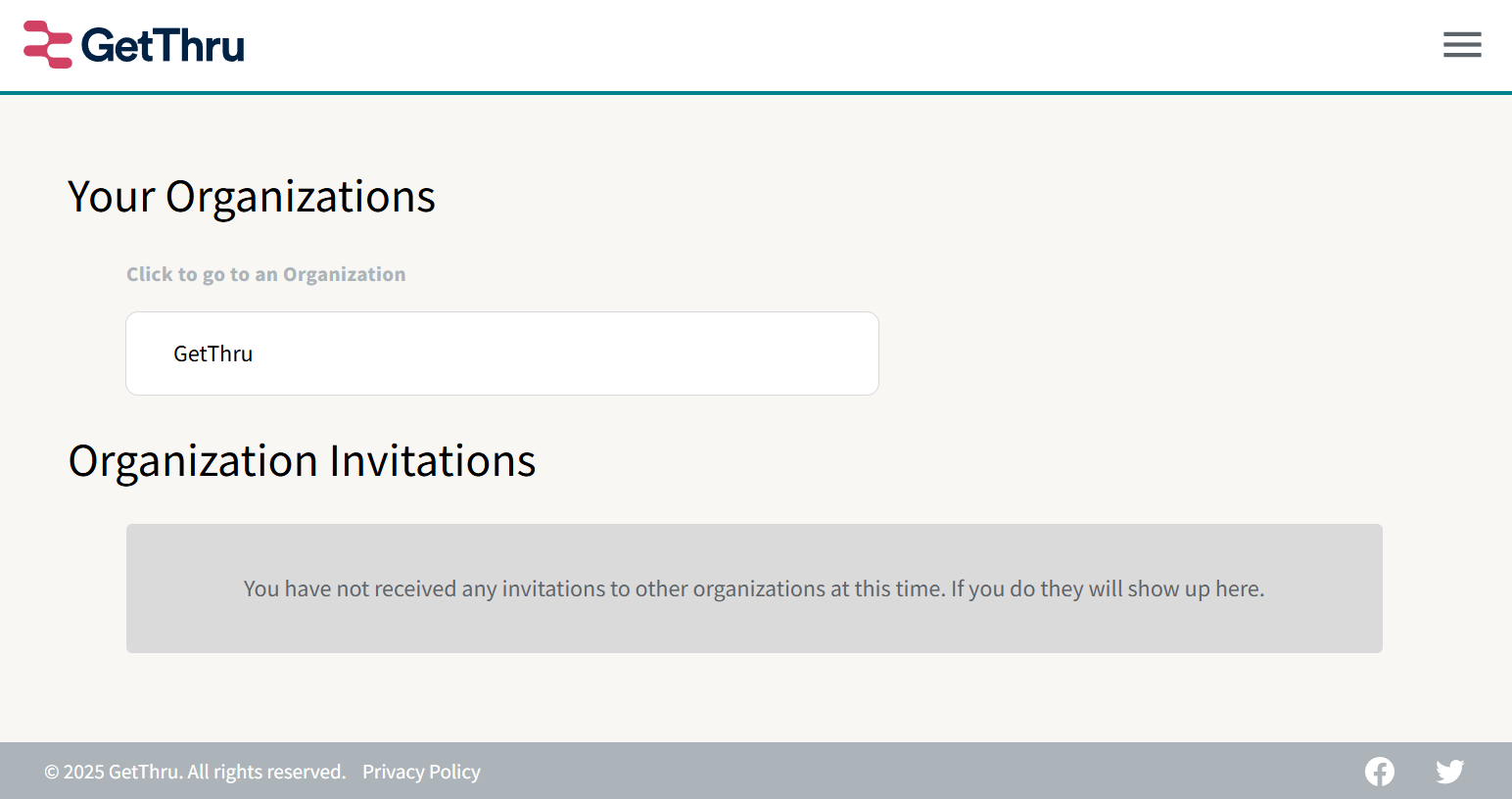 In the image above, GetThru is the organization, also known as an account. If you don't see an organization or an invitation, reach out to your ThruText administrator and ask them to send you an invitation. For more information on this process, please refer to How to Invite Users.
When you click on an organization, you will go to different pages based on your permission level.
- As an admin, you will be directed to the admin dashboard - more on that here: GetThru Admin Navigation.
- As a user, you will navigate to the Assignments page, as pictured below.
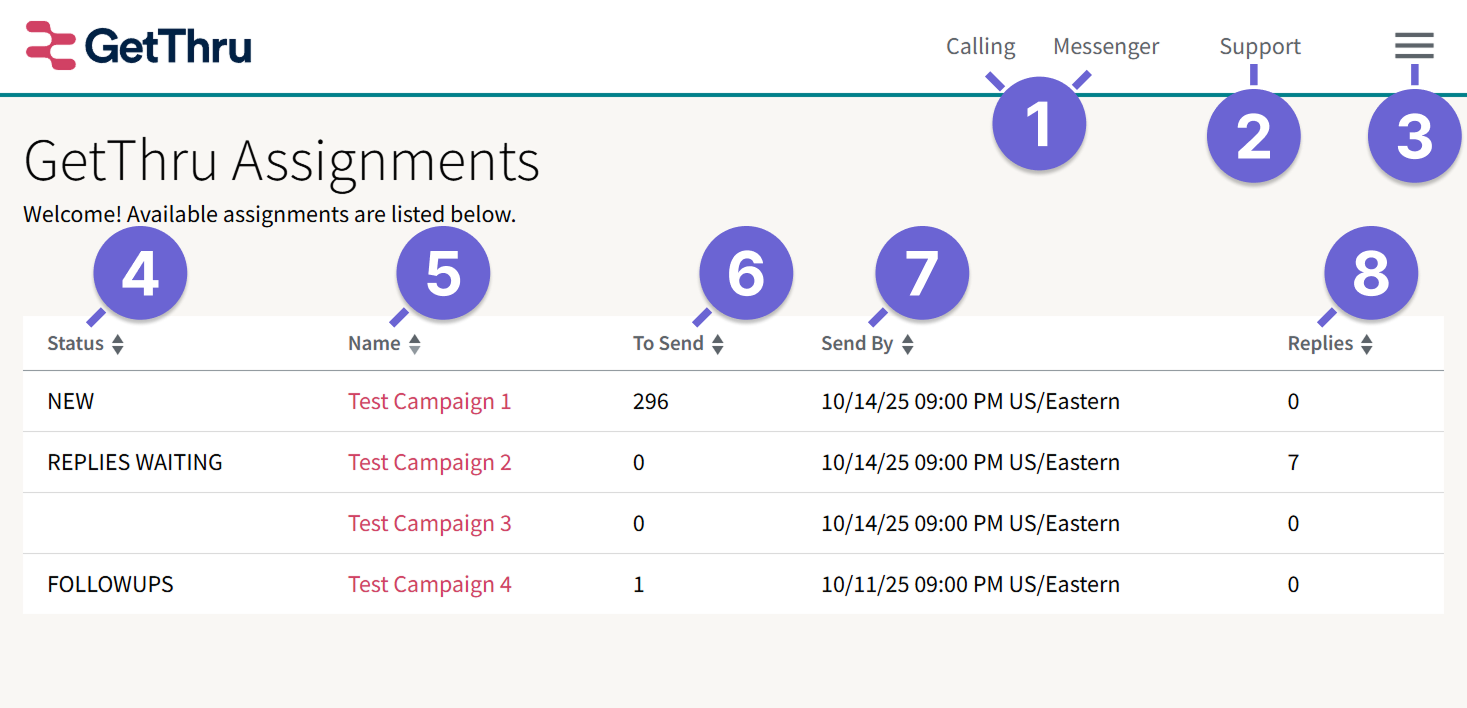
- Calling & Messenger: Click Calling or Messenger to navigate to your calling or texting assignments. These buttons also appear on the admin dashboard, so you can click on Messenger to arrive at the page above, which shows the texting assignments.
- Support: Click to access shortcuts to the Help Center or to Submit a Ticket.
- User Menu: Opens a menu where you can edit your profile, switch accounts, or log out.
- Status: The current status of the texting assignment
- New: An assignment that has initial messages to send
- Replies Waiting: Indicates that you've received replies that have not been actioned yet
- None: No status indicates that there are no conversations that need to be addressed
- Followups: This indicates you have followups to send - messages that your administrator adds to an assignment after the initial messages have been sent.
- Name: The name of the assignment, also known as a "campaign" to admins. Click to open the assignment in the messenger.
- To Send: Indicates how many initial messages or followups are left to send.
- Send By: The date that initial messages can be sent until. After this date, initial message can't be sent.
- Replies: Indicates how many replies are yet to be actioned. You can respond or Hide to address these. More on that later
Can't Find your Assignment?
If you don't see the assignment you're looking for, check or ask your ThruText administrator to check the following:
- If the end date of the assignment (campaign) has passed.
- The assignment (campaign) has been paused or archived.
- You haven't been added as a sender to the assignment (campaign).
- You are looking at calling assignments instead of texting assignments.
- You are signed into the correct profile. Open the User Menu (3 in the image above) to confirm the e-mail of the profile you're signed into.
Next Step
Once you've accessed your assignment, you'll see the Messenger. Read more about how to use the Messenger here: Messenger - The Texting Interface.