
Managing your ThruTalk scripts
ThruTalk Scripts help guide conversations between callers and contacts by providing structured questions and response options. Managing these scripts is essential for keeping your campaigns organized and ensuring callers share accurate information.
This guide shows you how to access, edit, and organize your ThruTalk scripts so you’re always ready to launch effective calling campaigns.
The Scripts Index Page
To get started, go to the sidebar navigation menu, expand ThruTalk, and then click Scripts. On the Scripts page, you can create new scripts or manage the ones you’ve already built.
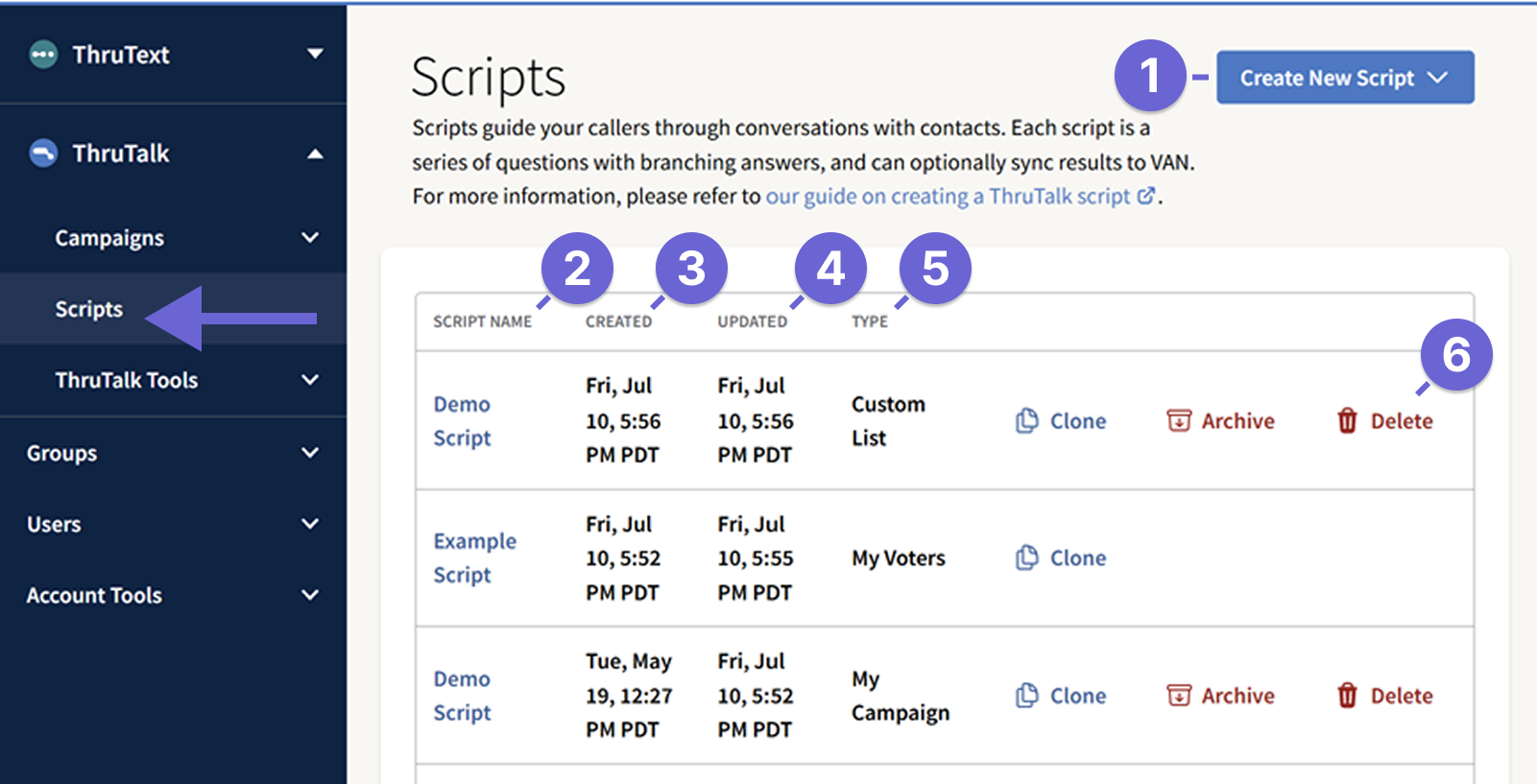
On the main Scripts page, you can:
- Create New Script: Click to start a new script. For step-by-step instructions on creating a script, see our guide: Creating a ThruTalk Script.
- Script Name: Click to open and view script details.
- Created: Shows when the script was first created.
- Updated: Shows the last time the script was edited.
- Type: Indicates the script type - MyCampaign, MyVoters, or Custom List. MyCampaign and MyVoters list are required to sync to VAN. Review our guide How to Set Up VAN Syncing Campaigns in ThruTalk - Section: Create a VAN Syncing Script for more details.
- Buttons
- Clone: Create a copy of the script. The clone will be titled “Copy of [original script name].”
- Archive: Hides the script from the Scripts Index page and from campaign selection to keep the list organized. Scripts that have been added to a campaign can be archived as long as the attached campaign is archived.
- Delete: You can delete scripts that haven’t been added to a campaign. Scripts already used in campaigns can’t be deleted, but you can still view them.